Module 06 · Final Project and Course Wrap-up最终项目与课程总结
Hands-on Lab: Build a Mini Website on WordPress for Travel动手实验:使用 WordPress 构建迷你旅行网站
Estimated time needed: 50 minutes
所需估计时间:50 分钟
Objectives: 目标
- WordPress Account Setup: Learn to create and manage a WordPress.com account and gain proficiency in the platform's dashboard and user settings.
WordPress 账户设置:学习如何创建和管理 WordPress.com 账户,并熟练掌握平台仪表板和用户设置。 - Travel Website Creation: Develop a functional travel website within WordPress.com, focusing on content creation, organization, and customization to suit the travel industry. The website will feature a menu with five distinct items: Home, About, Contact, Travel Destinations, and Recommendations.
旅行网站创建:在 WordPress.com 内开发一个功能性的旅行网站,重点在于内容创作、组织和定制以适应旅游行业。该网站将包含五个独特的菜单项:首页、关于、联系、旅游目的地和推荐。- The Home page will serve as the welcoming landing page, offering an introduction to the site and highlighting three popular travel destinations.
首页将作为欢迎着陆页面,介绍网站并提供三个热门旅游目的地的亮点。 - The About page will provide a detailed description of the website's purpose and mission.
关于页面将提供对网站目的和使命的详细描述。 - The Contact page will furnish contact information and incorporate an email contact form for user inquiries.
联系页面将提供联系方式并包含一个用于用户咨询的电子邮件联系表单。 - Within the Travel Destinations section, we will categorize destinations into two types: Beach and City, each containing 2-3 items complete with images, descriptions, and guidance on how to reach these places.
在“旅游目的地”部分,我们将目的地分为两类:海滩和城市,每类包含 2-3 个项目,配有图片、描述以及如何到达这些地方的指南。 - Lastly, under Recommendations, we will further classify destinations into Adventurous and Family Trip categories, again with 2-3 items in each category, accompanied by images, detailed descriptions, and instructions on how to get there.
最后,在“推荐”部分,我们将进一步将目的地分类为“冒险之旅”和“家庭旅行”类别,每个类别包含 2-3 个项目,配有图片、详细描述以及如何到达的说明。
- The Home page will serve as the welcoming landing page, offering an introduction to the site and highlighting three popular travel destinations.
- Utilize Stunning Themes: Explore WordPress.com's diverse theme library and apply beautiful patterns and designs to enhance the website's visual appeal.
利用惊艳主题:探索 WordPress.com 丰富的主题库,应用美丽的图案和设计来增强网站的视觉吸引力。 - Multi-Page Construction: Construct and structure multiple pages effectively, mastering the art of page creation, navigation menus, and interlinking for a seamless user experience.
多页构建:有效构建和结构化多个页面,掌握页面创建、导航菜单和互链的艺术,以实现无缝的用户体验。 - Engaging Content Creation: Learn to create compelling and informative content for the website, catering to the interests and needs of potential travelers.
引人入胜的内容创作:学习为网站创建引人入胜且富有信息量的内容,满足潜在旅行者的兴趣和需求。
Introduction to WordPress.com WordPress.com 简介
- WordPress.com is a user-friendly, web-based platform that empowers individuals and businesses to effortlessly create and manage stunning websites. With a vast selection of customizable themes and intuitive tools, it offers the perfect solution for bloggers, entrepreneurs, and anyone seeking an online presence.
WordPress.com 是一个用户友好的基于网络的平台,使个人和企业能够轻松创建和管理令人惊叹的网站。它拥有丰富的可定制主题和直观的工具,为博主、企业家以及寻求在线存在感的人提供了完美的解决方案。 - Whether you are a novice or an experienced webmaster, WordPress.com provides a seamless experience for building and publishing content-rich sites, all hosted on their secure and reliable servers.
无论您是新手还是经验丰富的网站管理员,WordPress.com 都提供无缝体验,用于构建和发布内容丰富的网站,所有内容都托管在其安全可靠的服务器上。 - Say goodbye to coding hassles and hello to a world of creative possibilities with WordPress.com, where your website dreams become reality. Start your online journey today!
告别编码烦恼,迎接 WordPress.com 带来的创意世界,让您的网站梦想成真。今日开启您的在线之旅!
Setup account on WordPress.com 设置 WordPress.com 账户
Creating a WordPress site on WordPress.com is a straightforward process. Follow these steps to create an account and set up your WordPress site:
在 WordPress.com 上创建 WordPress 网站是一个简单的过程。按照以下步骤创建账户并设置您的 WordPress 网站:
- Open Your Web Browser: Open your preferred web browser (e.g., Chrome, Firefox, Safari) and go to the WordPress.com website: wordpress.com.
打开您的网页浏览器:打开您喜欢的网页浏览器(例如,Chrome、Firefox、Safari)并访问 WordPress.com 网站:wordpress.com。 - Click on "Get Started": On the WordPress.com homepage, you'll see a "Get Started" button. Click on it to begin the sign-up process.
点击“开始使用”:在 WordPress.com 首页上,您将看到一个“开始使用”按钮。点击它以开始注册过程。 - Create Your Account: You'll be prompted to create an account. You can either sign up using your email address or use an existing Google or Apple account for a faster registration process. Fill in the necessary information and choose a strong password.
创建您的账户:您将被提示创建账户。您可以使用电子邮件地址注册,或者使用现有的 Google 或 Apple 账户以加快注册过程。填写必要信息并选择一个强大的密码。
Note: After creating account if you are already directed to the Choose your Domain process as described in step 3 of exercise 1, then please proceed with the instructions starting from step 3.
注意:在创建账户后,如果您已按照第 1 项练习的第 3 步所述进入选择您的域名流程,请从第 3 步开始按照说明操作。
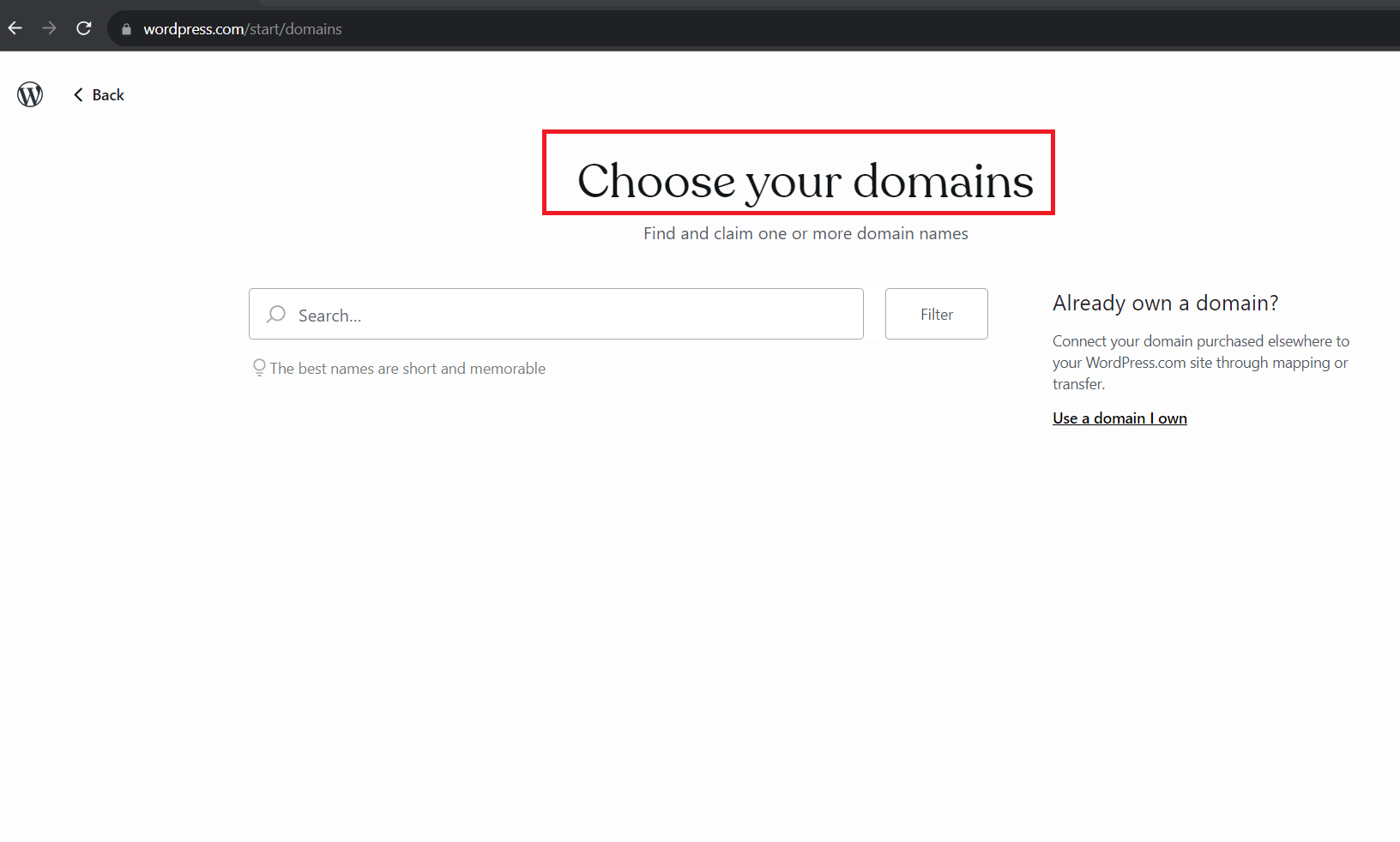
Note: WordPress is free to use and to create website for your page.
注意:WordPress 免费使用,可用于创建您的网页。
Exercise 1: Setup WordPress Environment to Create a Site 练习 1:设置 WordPress 环境,创建站点
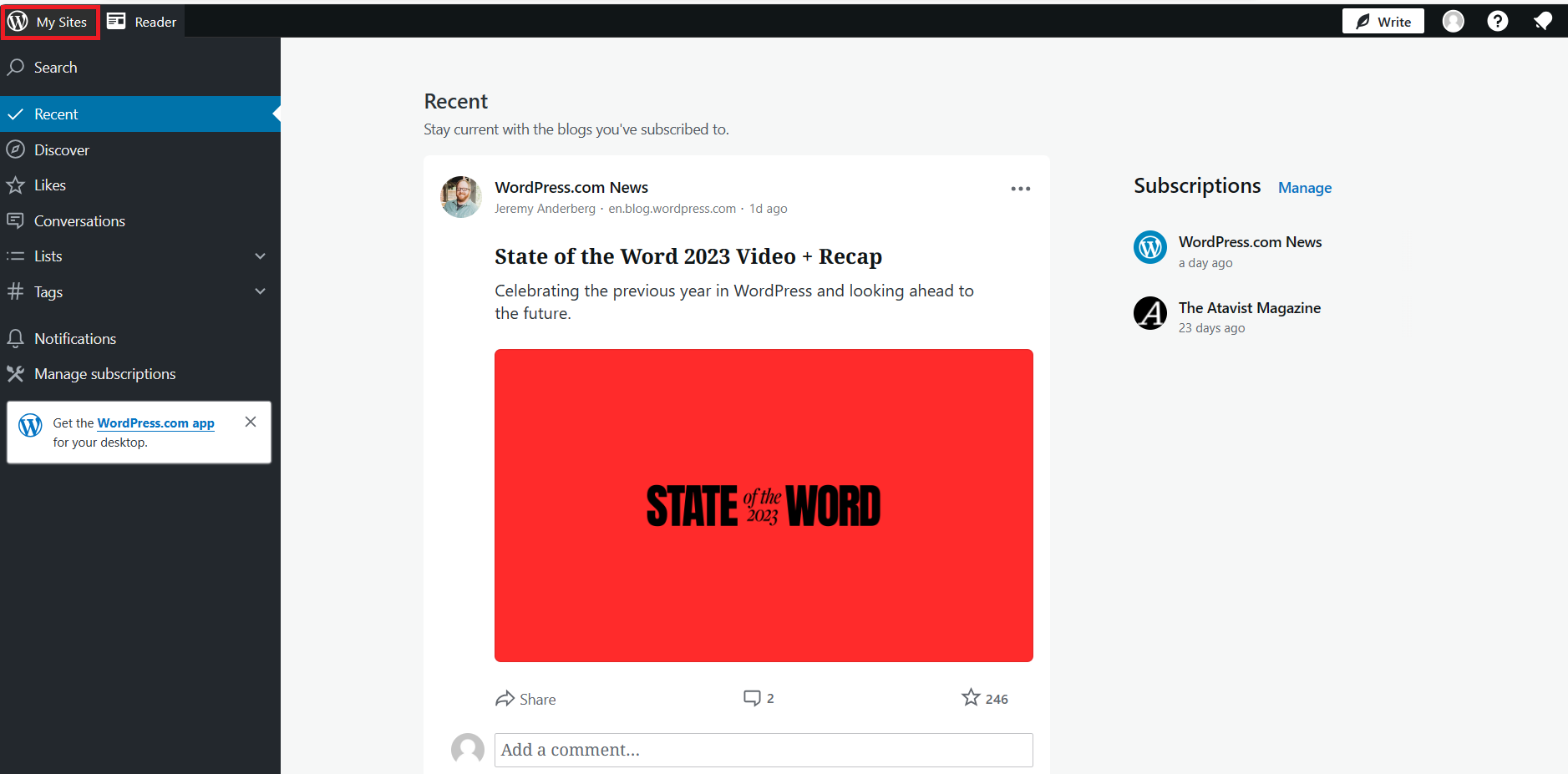
- After login for the first time on Wordpress.com you will be redirected to its dashboard environment. To create your personal site, click on the My Sites as shown in the given screenshot.
首次登录 Wordpress.com 后,您将被重定向到其仪表板环境。要创建您的个人网站,请点击如图所示的“我的站点”。
Note: If you are already directed to the website creation process as described in step 2, please proceed with the instructions starting from step 2.
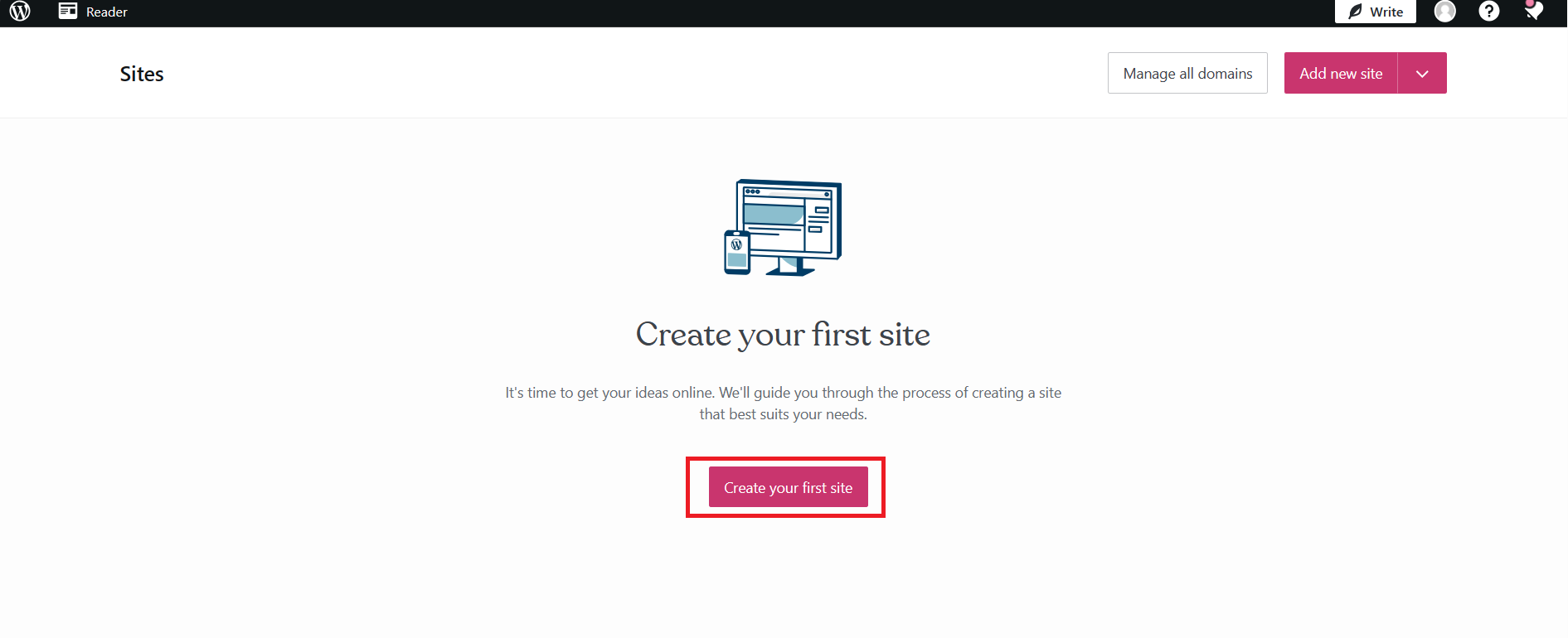
注意:如果您已经按照第 2 步的描述进入网站创建过程,请从第 2 步开始按照说明操作。 - Then you will be redirected to the site creation process. There, you need to click on Create your first Site.
然后您将被重定向到创建网站的过程。在那里,您需要点击创建您的第一个网站。
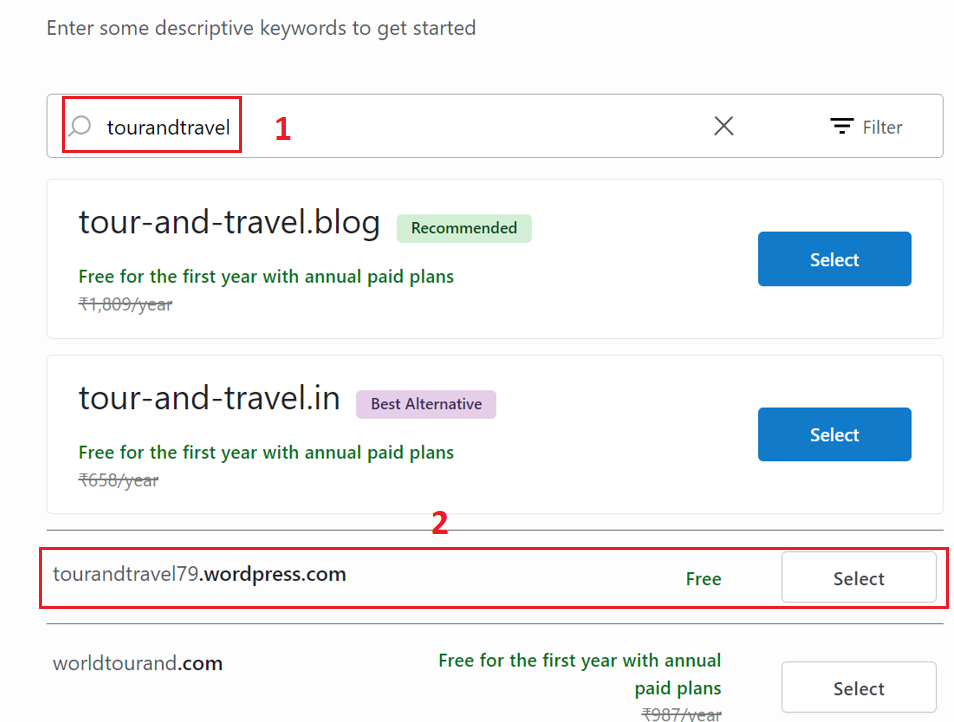
- You will be navigated to choose a domain for your site. First, enter the name for your website such as Tours & Travel, tourandtravel, or travelandtour and hit enter, as shown as number 1 in the screenshot. Then, it will ask you to choose a domain for your website. You can choose a free one, which is given in recommendations, shown as number 2 in the screenshot.Once you choose free one,click on continue shown as number 3 in screenshot.
您将被导航以选择您网站的域名。首先,输入您网站的名称,例如旅游与旅行、tourandtravel 或 travelandtour,然后按回车键,如图中编号 1 所示。然后,系统将要求您选择一个网站域名。您可以选择推荐的免费域名,如图中编号 2 所示。一旦选择免费域名,请点击图中的编号 3 所示的“继续”。
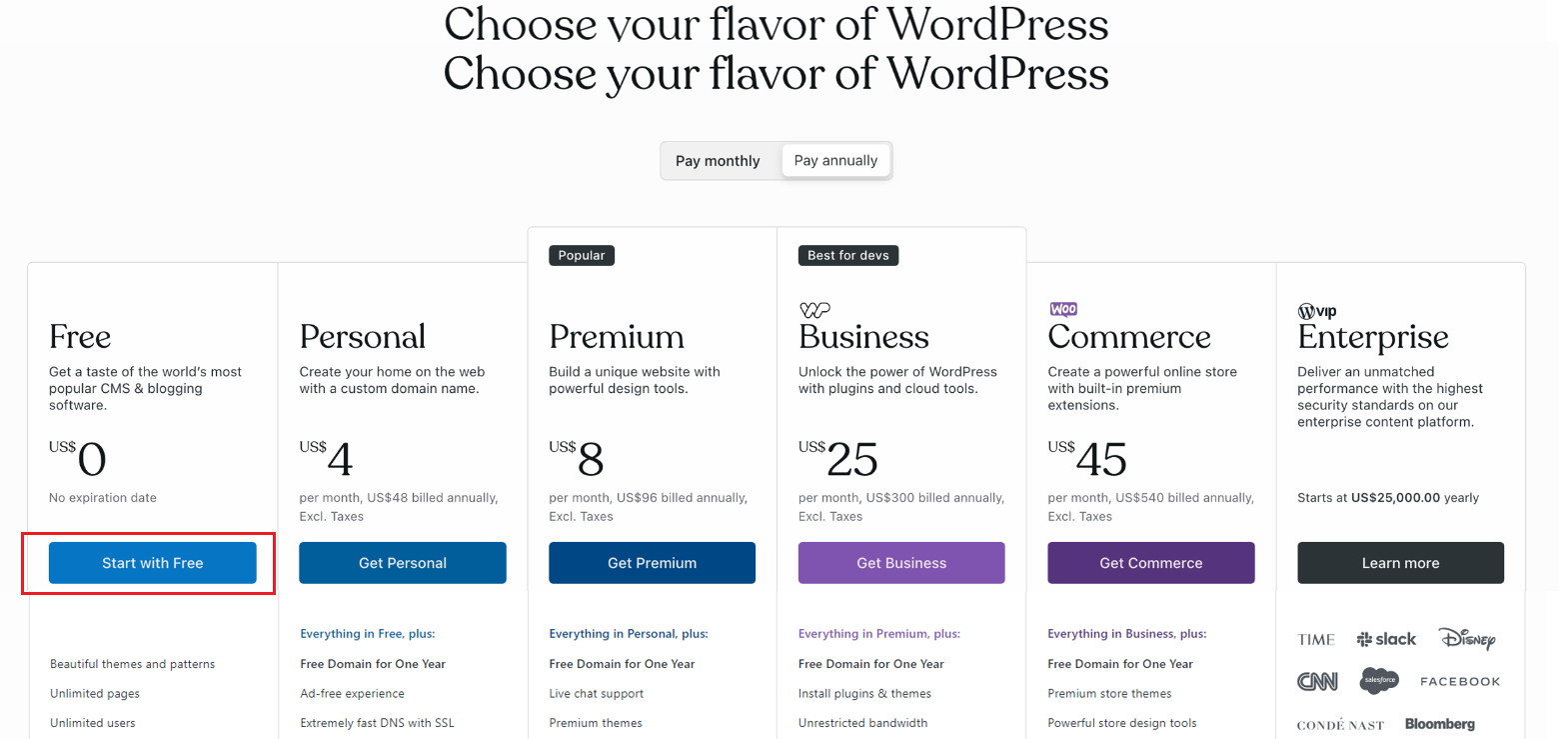
- Then choose Start with Free when you are reditrected to the page Choose your flavour of WordPress.
然后,当您被重定向到选择您喜欢的 WordPress 版本页面时,请选择“免费开始”。
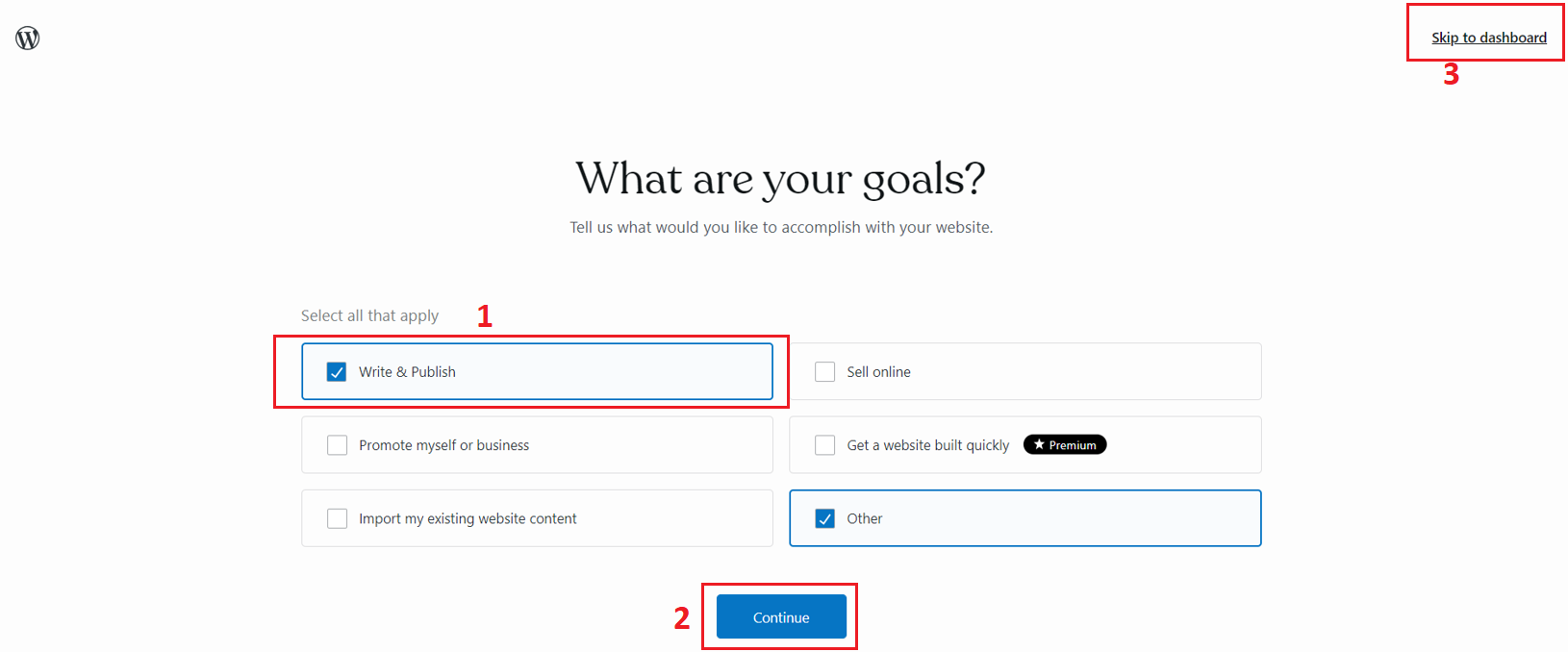
- After this you will be redirected to three pages:
在此之后,您将被重定向到三个页面: - First page is where you will be asked to set your goals. You can either choose options given to you and then click on continue as shown with numbers 1 and 2 in given screenshot, or you can choose number 3 to Skip to dashboard.
第一页是您将设置目标的地方。您可以选择提供的选项,然后点击继续,如图中所示编号 1 和 2,或者选择编号 3 跳转到仪表板。
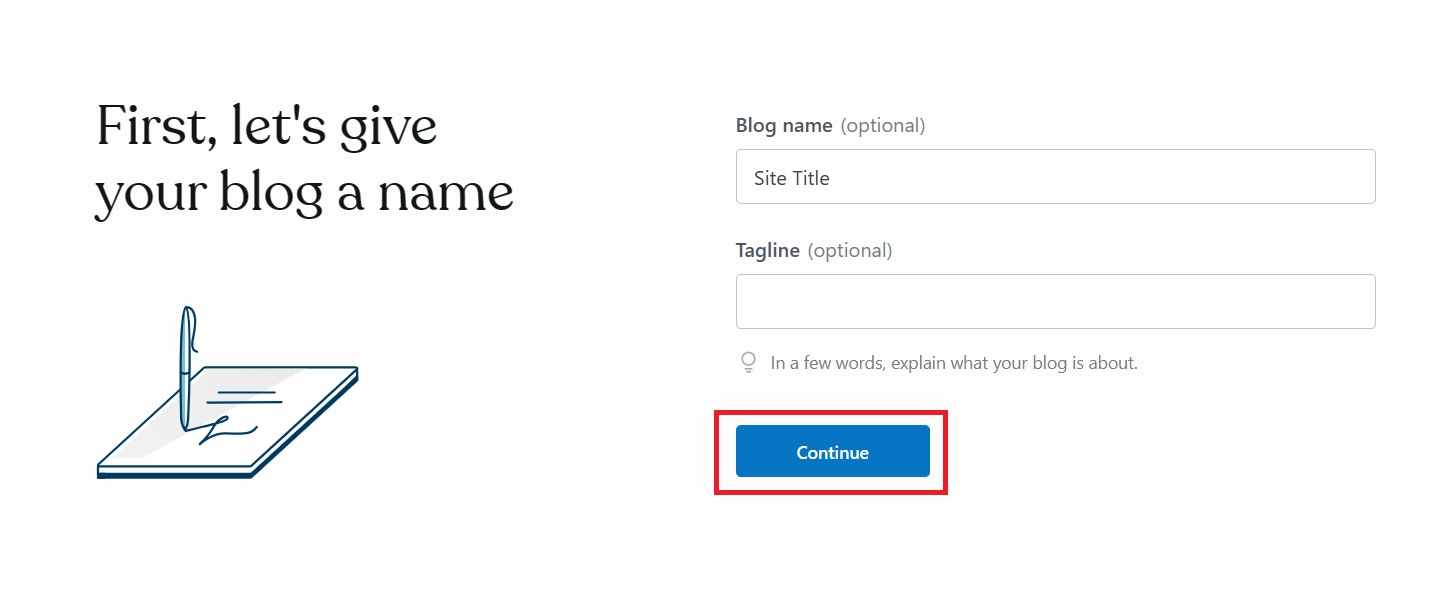
- In the second page, you will be asked to enter a site name or blog name which you can leave it empty as we are going to create site from scratch. Click Continue to move forward
在第二页,您将被要求输入一个站点名称或博客名称,您可以留空,因为我们将从零开始创建站点。点击继续前进
- In the third page, Click skip to dashboard for now.
在第三页,点击跳过至仪表盘。
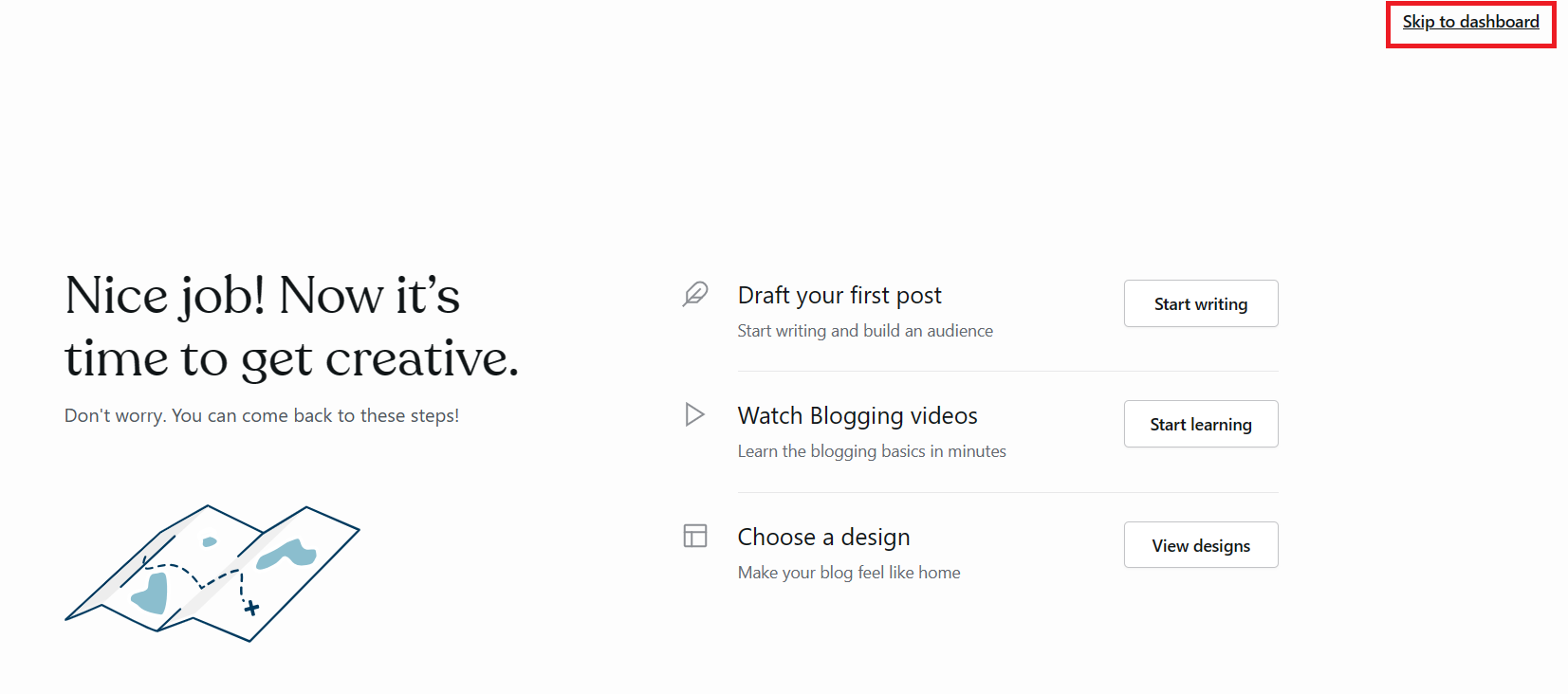
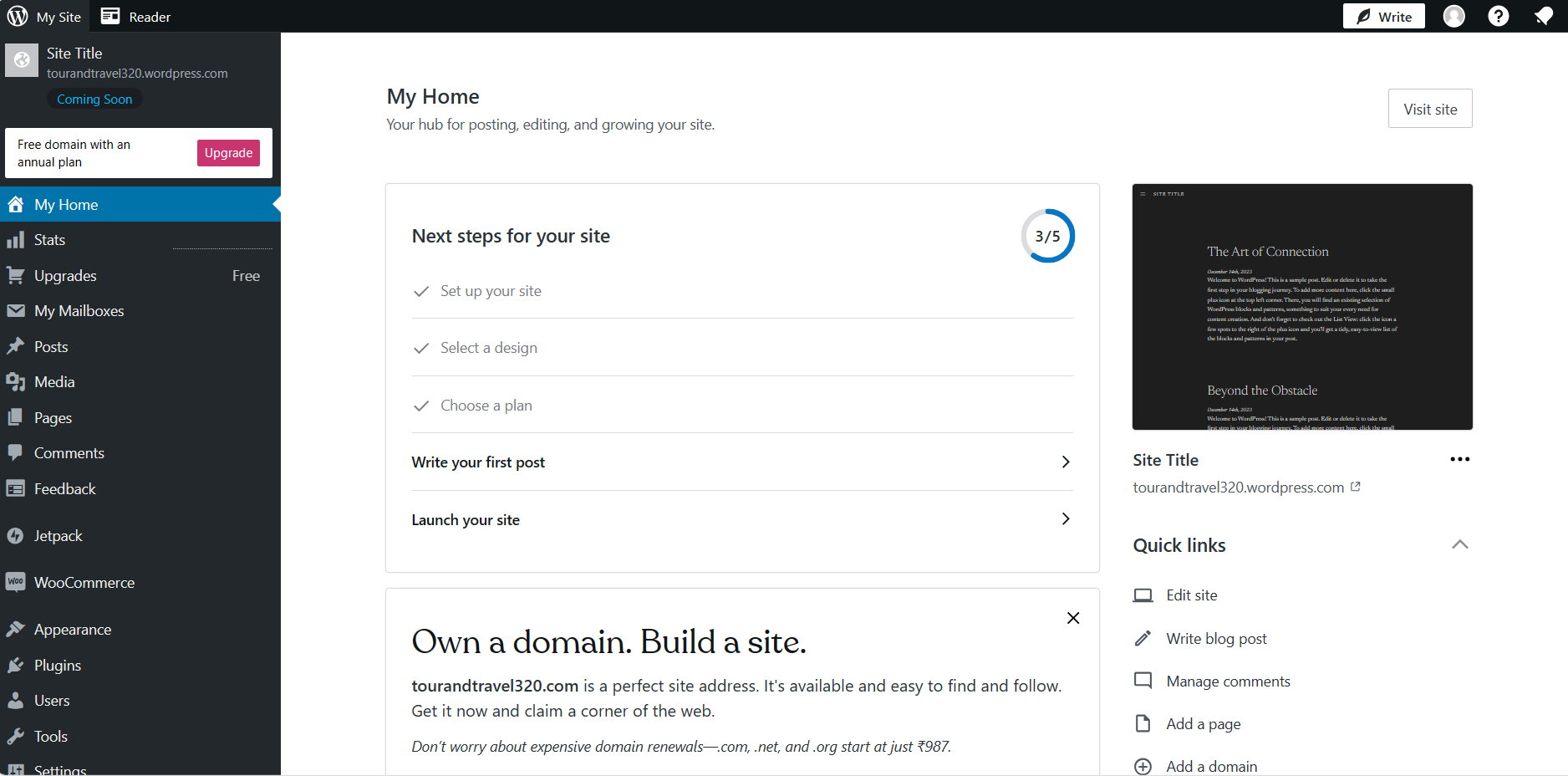
- Once you click on Skip to dashboard, you will see your dashboard on WordPress.com.
一旦您点击“跳转到仪表盘”,您将在 WordPress.com 上看到您的仪表盘。
Exercise 2: Customize the Site in WordPress 练习 2:在 WordPress 中自定义网站
In this exercise, you will edit the site that you have created in exercise 1 and you will also create the differenet pages for your travel website.
在这个练习中,您将编辑在练习 1 中创建的网站,并且您还将为您的旅行网站创建不同的页面。
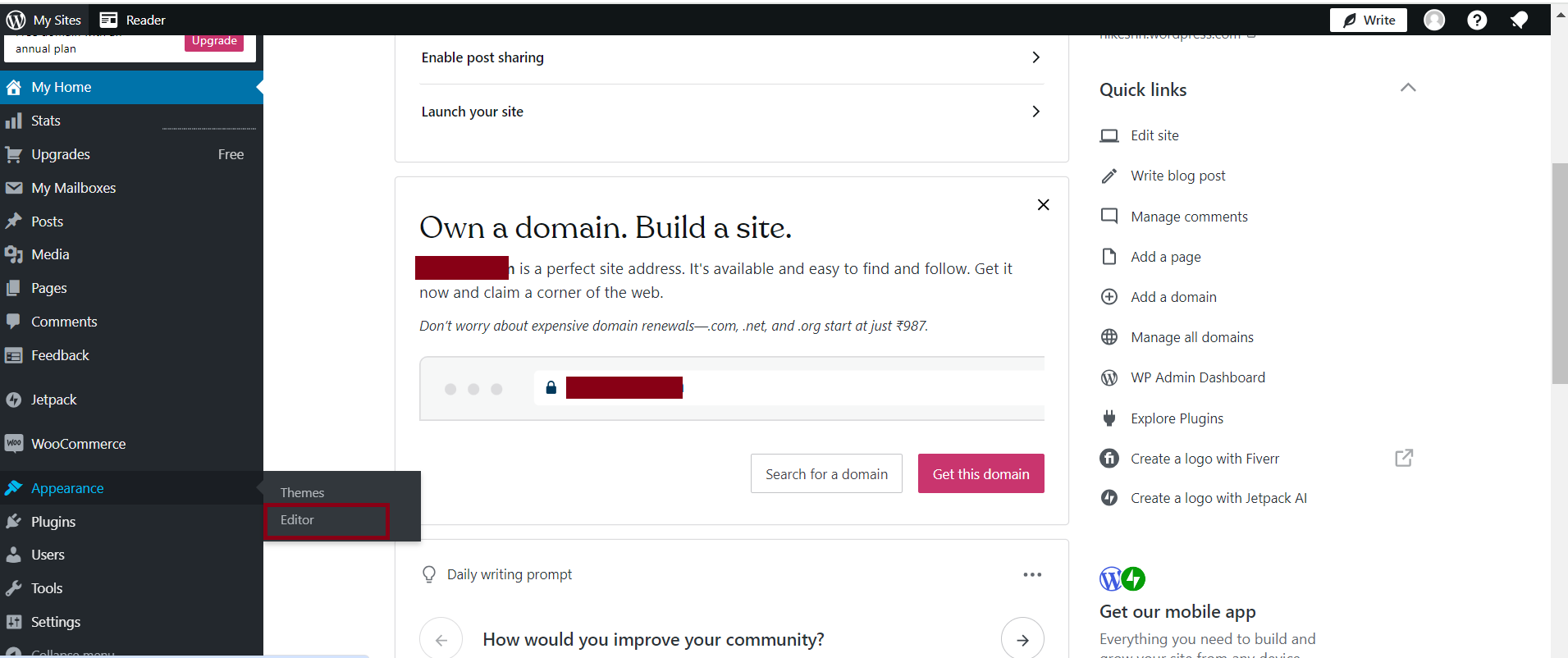
- On your dashboard, choose the Editor option from left-side menu bar under Appearance, where you can edit the pages or create new pages to include in your travel site.
在您的仪表板上,从外观选项卡左侧菜单栏中选择编辑器选项,您可以在那里编辑页面或创建新页面以包含在您的旅行网站上。
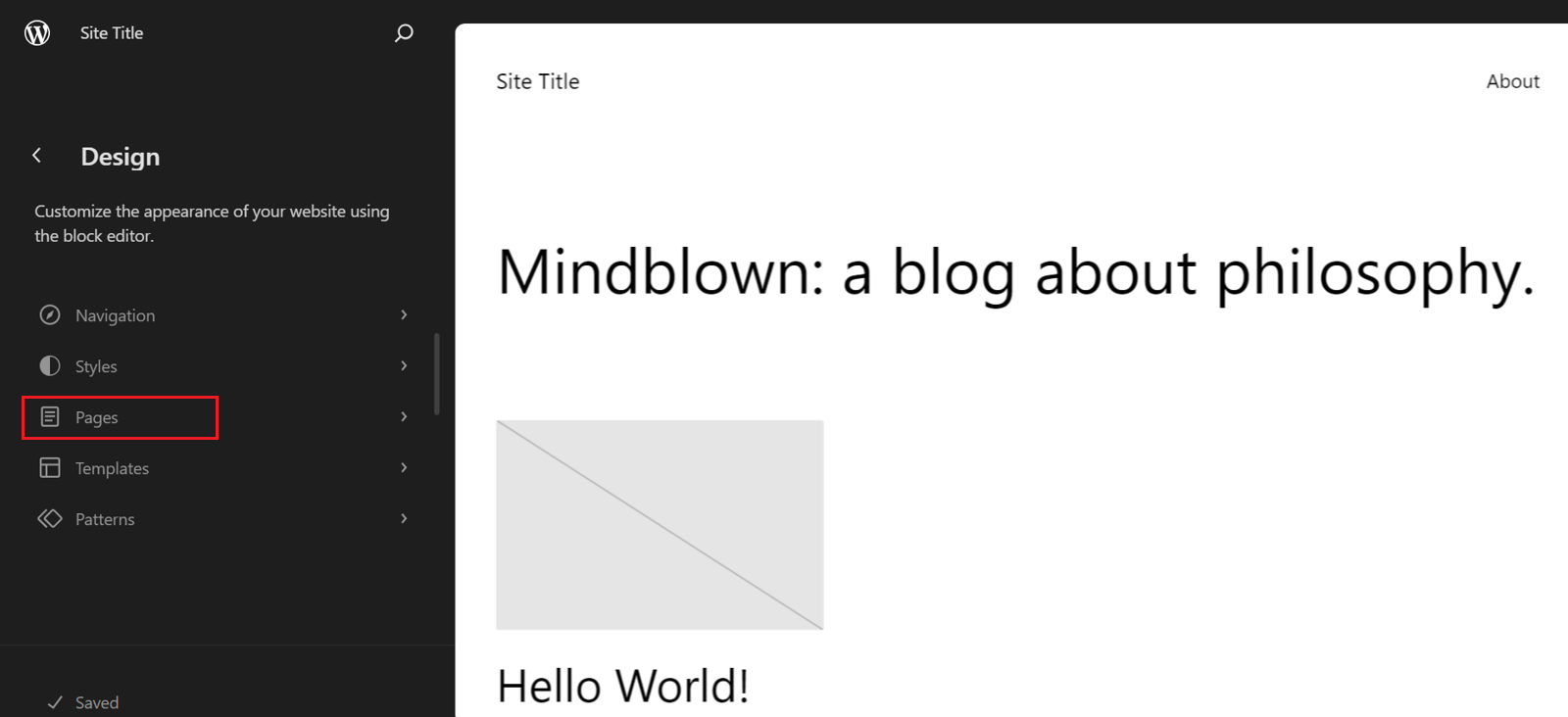
- You will be redirected to a page where you will see the left sidebar menu. In that menu bar, you need to click on Pages.
您将被重定向到一个页面,在该页面上您将看到左侧边栏菜单。在该菜单栏中,您需要点击“页面”。
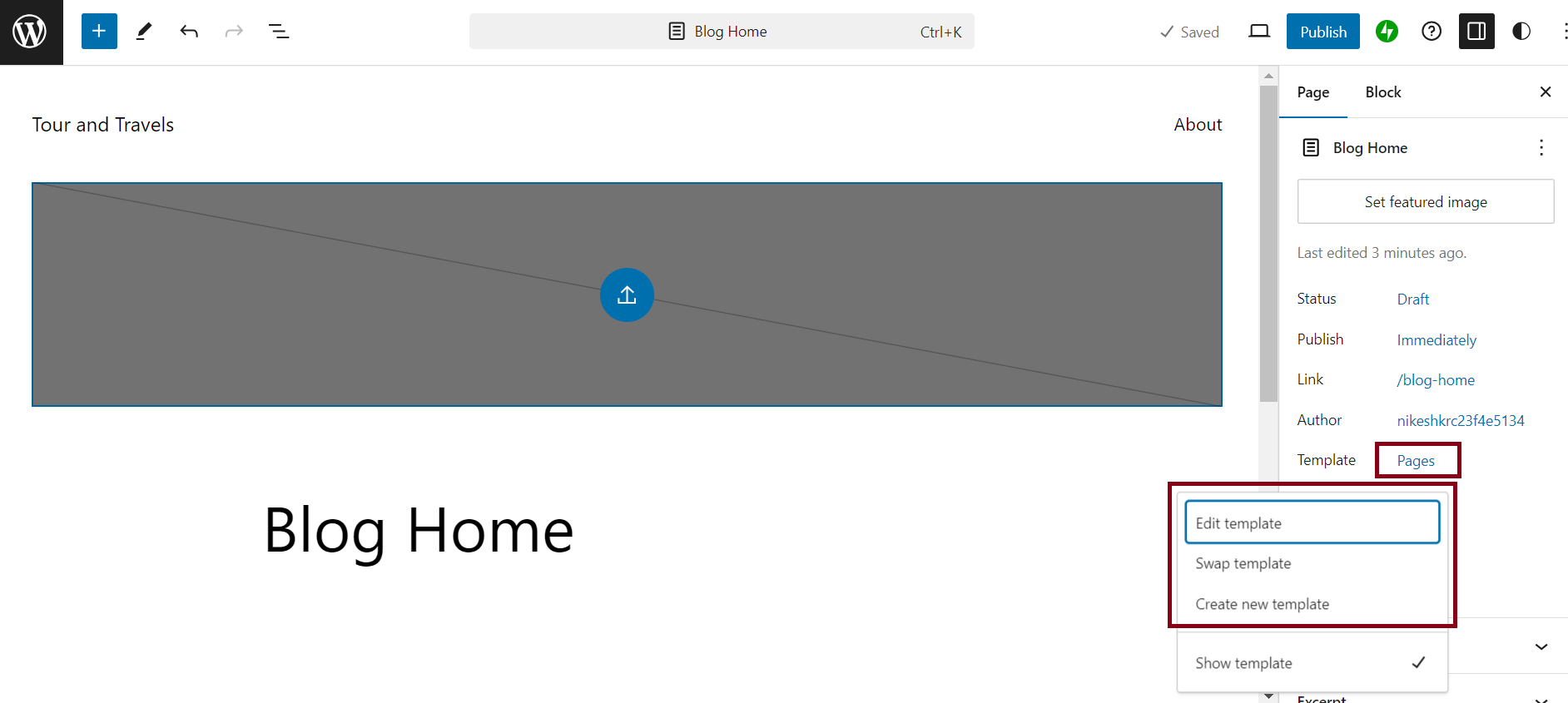
- In the Pages section, you will see a default page named About. Now, you need to create a new page by clicking on the Add New Page button and name it as
Blog Home. After creating the page, it will open directly in the editor mode as shown in the screenshot below.
在“页面”部分,您将看到一个默认页面名为“关于”。现在,您需要通过点击“添加新页面”按钮创建一个新页面,并将其命名为Blog Home。创建页面后,它将直接以如下截图所示的编辑模式打开。
If you want to change the template for this page, click on Pages. To edit an existing template, click on Edit Template, or to create a new template, click on Create New Template.
如果您想更改此页面的模板,请点击“页面”。要编辑现有模板,请点击“编辑模板”,或要创建新模板,请点击“创建新模板”。
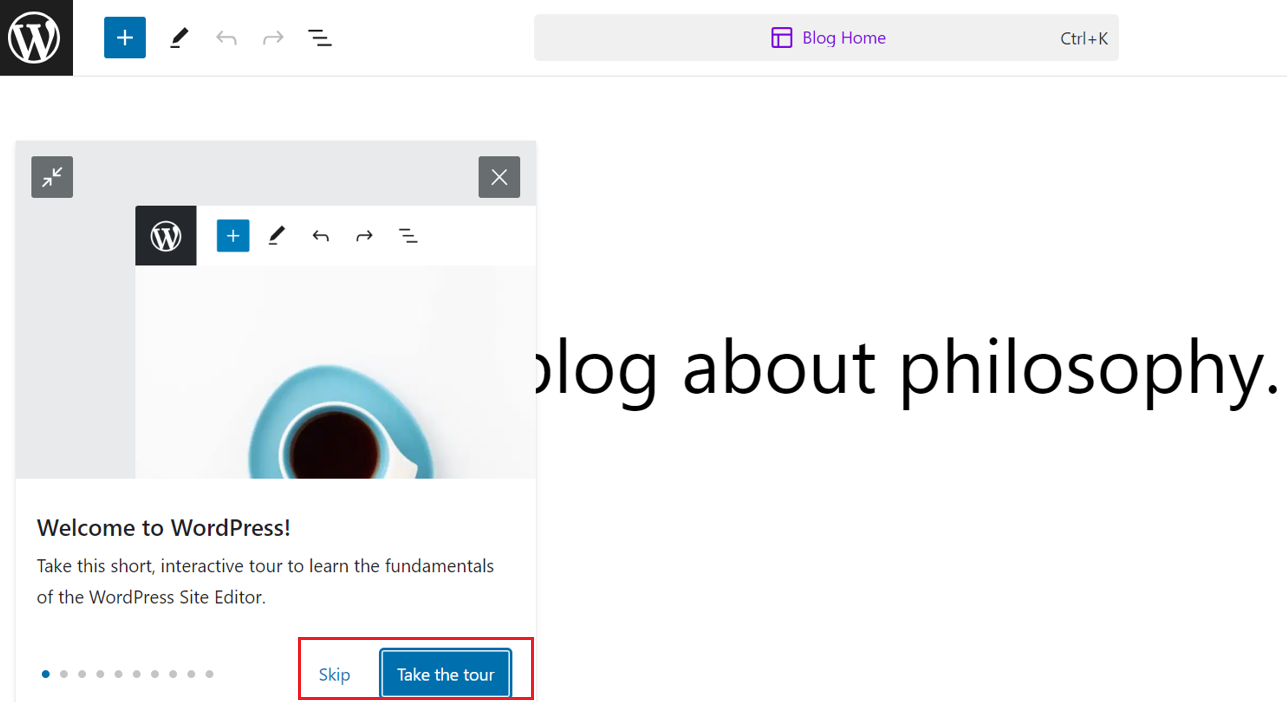
- Then, it will show you how to edit the pages by asking you to click on Take the tour. You can also choose to click on Skip.
然后,它将指导您如何通过点击“开始浏览”来编辑页面。您也可以选择点击“跳过”。
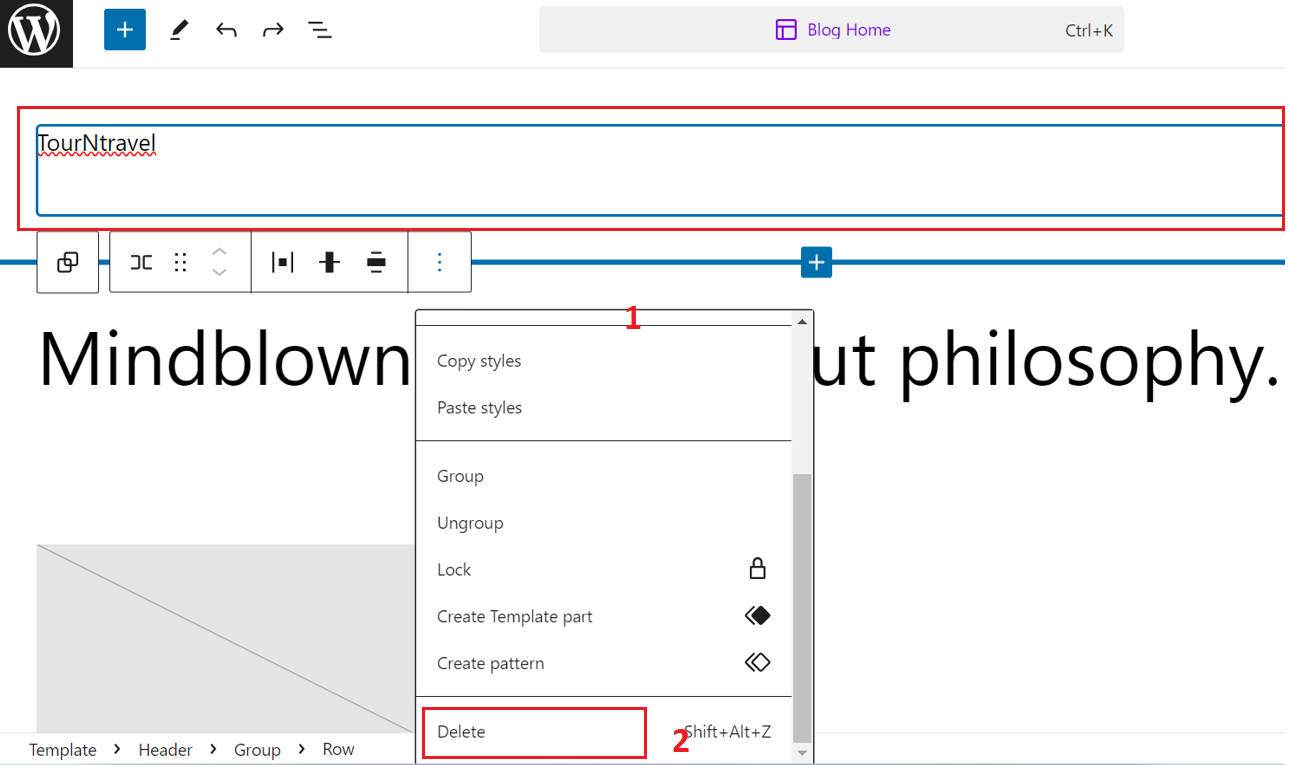
- In the current page, there are many blocks that you should delete so that you can add your own blocks of choice or content. To delete a block, select it and then click on three dots and you will be able to see pop-up bar as shown in number 1. You can then click on delete option shown as number 2.
在当前页面中,有许多块您应该删除,以便您可以添加自己选择的块或内容。要删除一个块,选择它,然后点击三个点,您将能够看到如图 1 所示的弹出栏。然后您可以点击如图 2 所示的删除选项。
Exercise 3: Create Landing Page of Travel Website 练习 3:创建旅游网站着陆页
You need to create one Home page or Landing Page which will include the introduction of your website and 3 of the popular travel sites. For this, you need to follow the given steps.
您需要创建一个主页或着陆页,其中包含您网站的介绍以及 3 个流行的旅游网站。为此,您需要遵循以下步骤。
- Click on toggle block inserter on top left corner within the page you want to edit. It will open several options to include in your page.
点击您要编辑的页面左上角的切换块插入器。它将打开几个选项,以便包含在您的页面中。

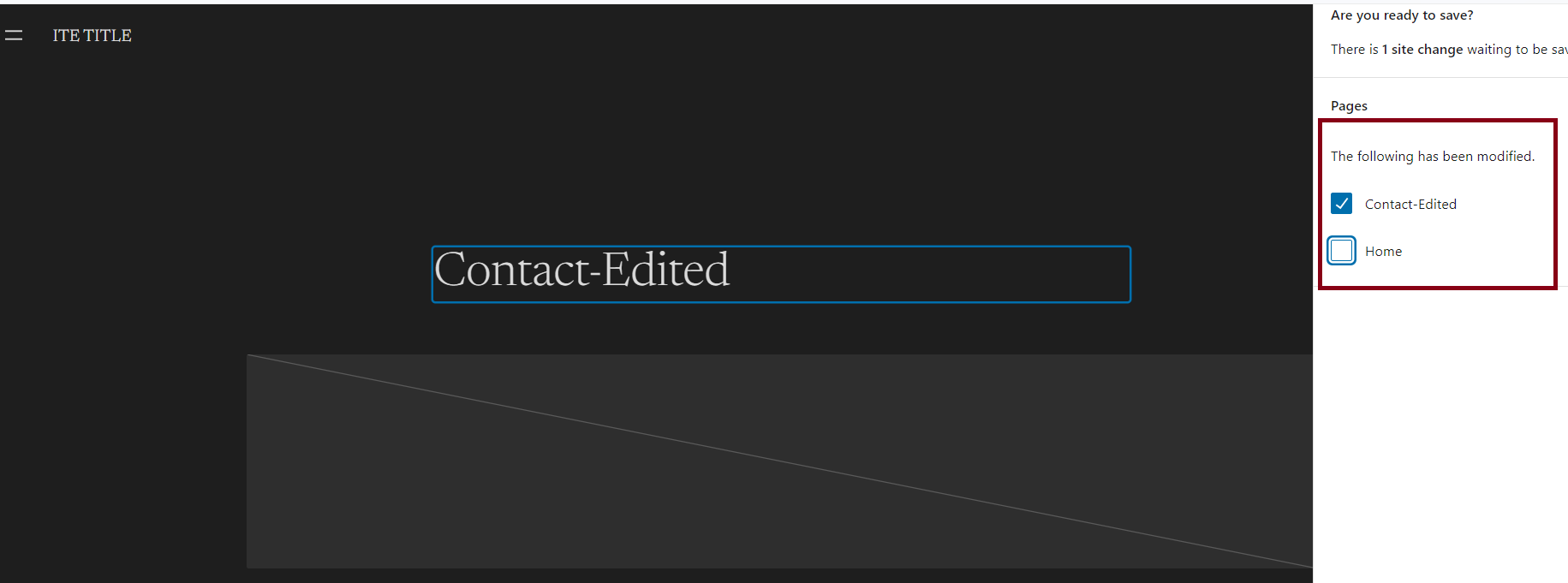
Note: When you're editing any page, please make sure to deselect the other pages. This will prevent the changes from being applied to the other pages as well. Please refer the screenshot below.
注意:当您编辑任何页面时,请确保取消选择其他页面。这将防止更改也应用于其他页面。请参考下面的截图。
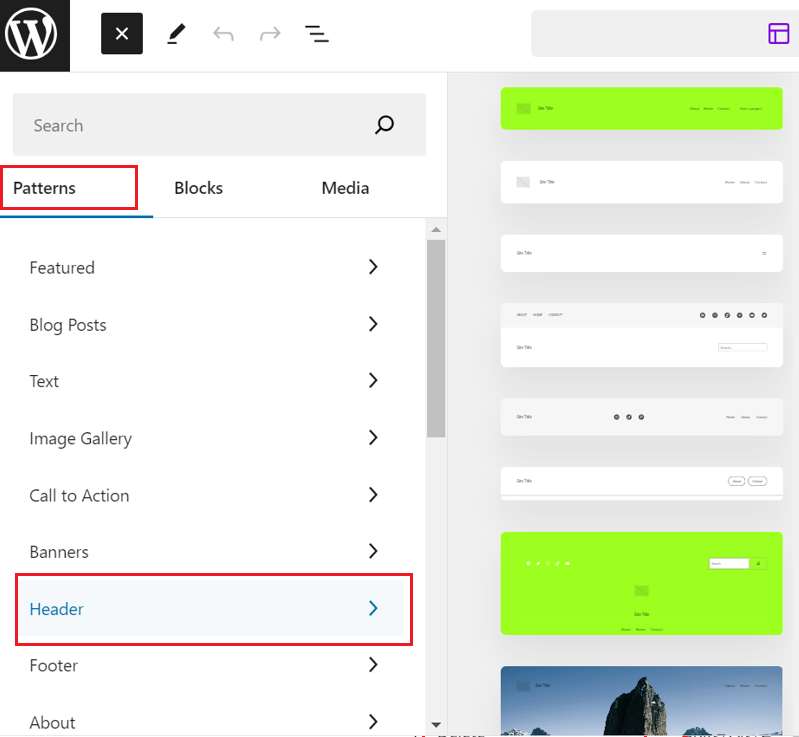
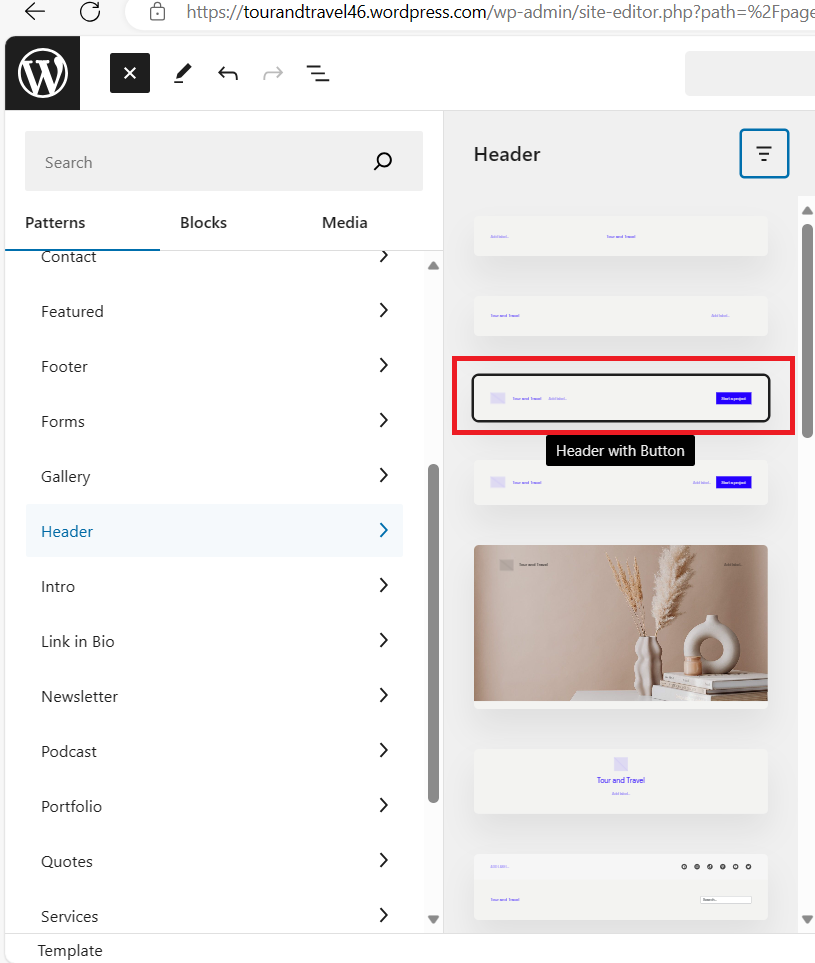
- For instance, the initial step involves adding a header section. To do this, select the header option from the pattern menu tab. Subsequently, you can choose from the available options it presents.
例如,第一步涉及添加标题部分。为此,从模式菜单标签中选择标题选项。随后,您可以从中选择它提供的可用选项。
- We have chosen the below header i.e header with button to include in the page.
我们已选择以下标题,即带有按钮的标题,将其包含在页面中。
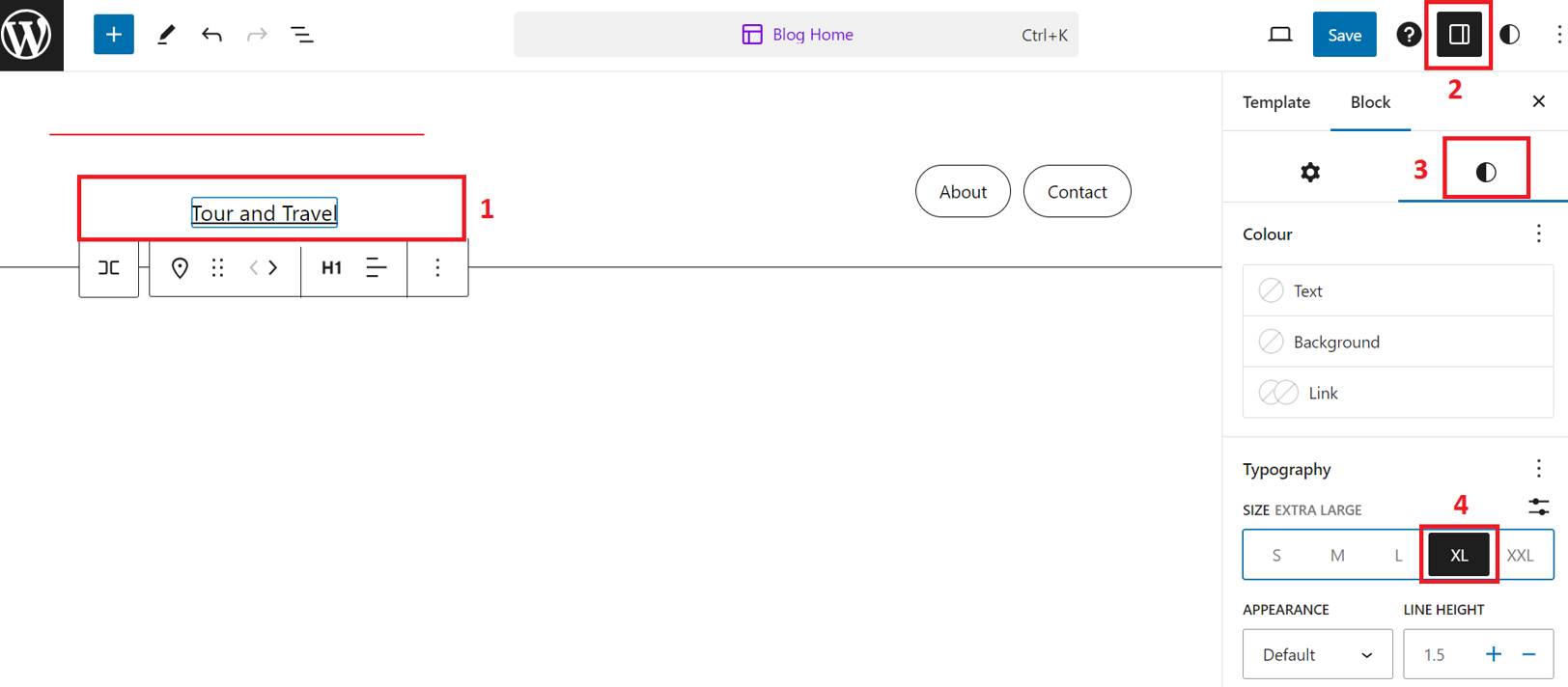
- To make changes in the header, you need to select the header title as shown at number 1 in given screenshot, then click on settings at number 2, after this click on style at number 3, and then choose size accordingly at number 4.
要在标题中做更改,您需要选择截图中的编号 1 所示的标题,然后点击编号 2 处的设置,之后点击编号 3 处的样式,然后在编号 4 处相应地选择大小。
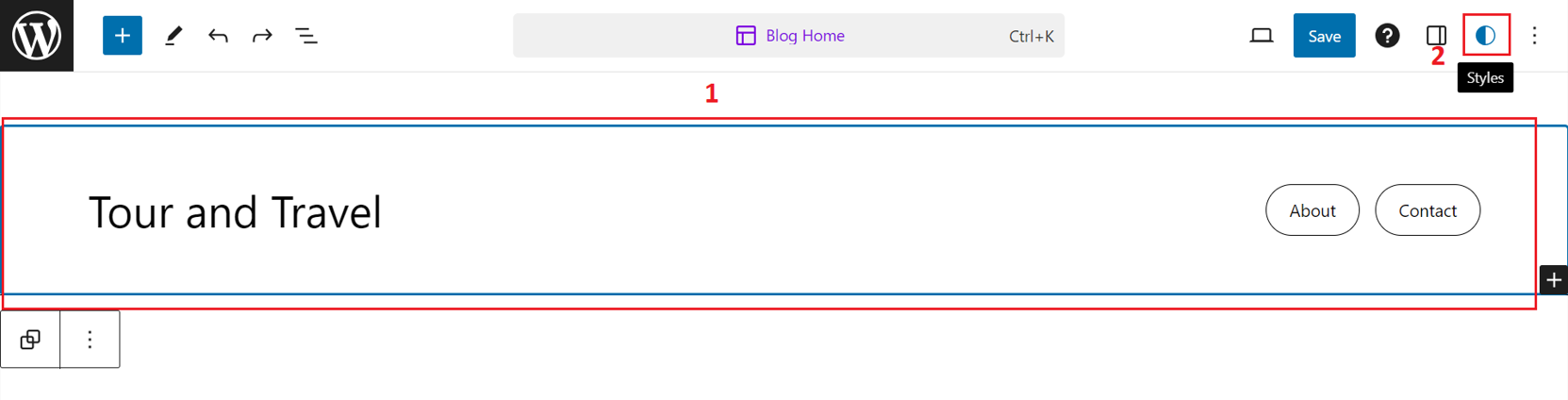
- You can also change the color layout of the entire header block by selecting it and then clicking on style options at top right corner.
您也可以通过选择整个页眉块并点击右上角的样式选项来更改整个页眉的颜色布局。
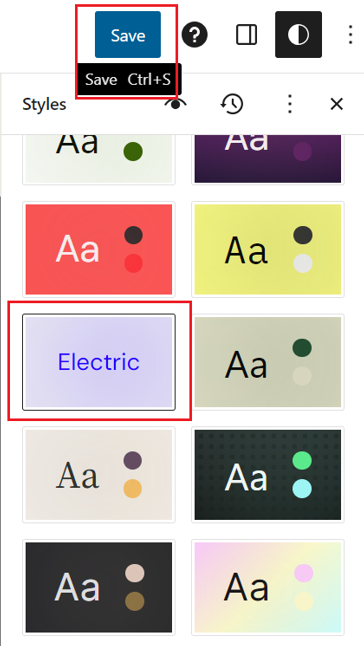
- Edit style using given steps:
使用给定步骤编辑样式: - Click on Browse Styles. 点击浏览样式。
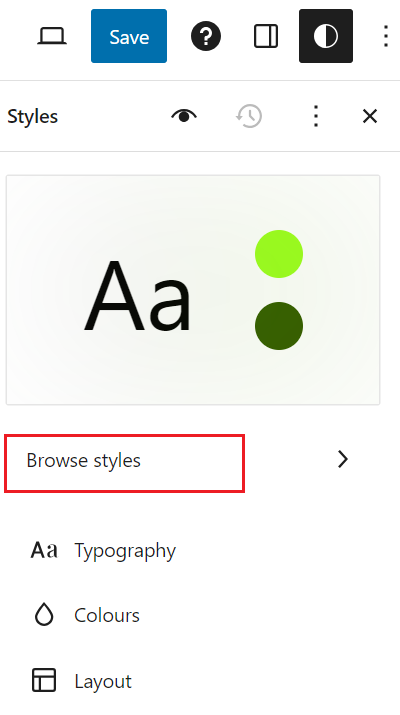
- Then choose any style you want and then click on save button on top menu bar on right side.
然后选择您想要的任何样式,然后点击顶部菜单栏右侧的保存按钮。
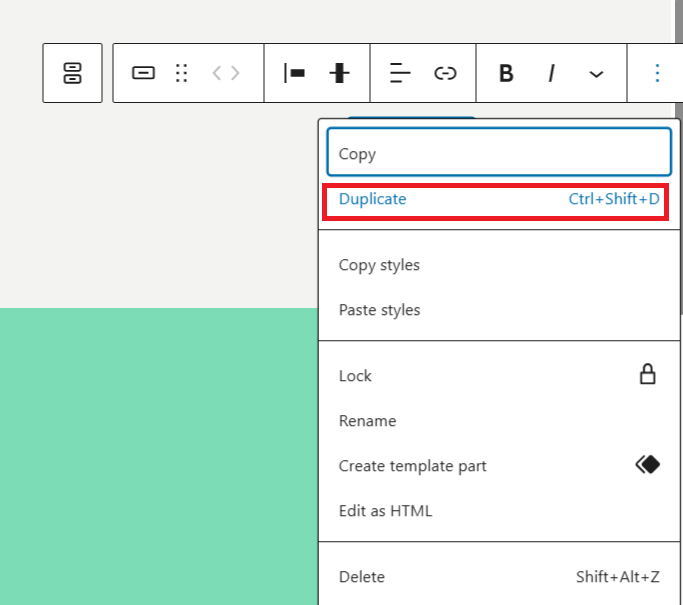
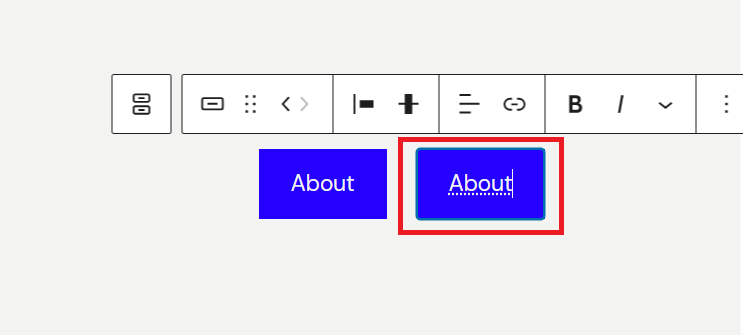
- You can include multiple buttons in header by right-clicking on the selected button and choose duplicate value to populate header with more buttons.
您可以通过在选定的按钮上右键单击并选择复制值来在标题中包含多个按钮,以在标题中添加更多按钮。
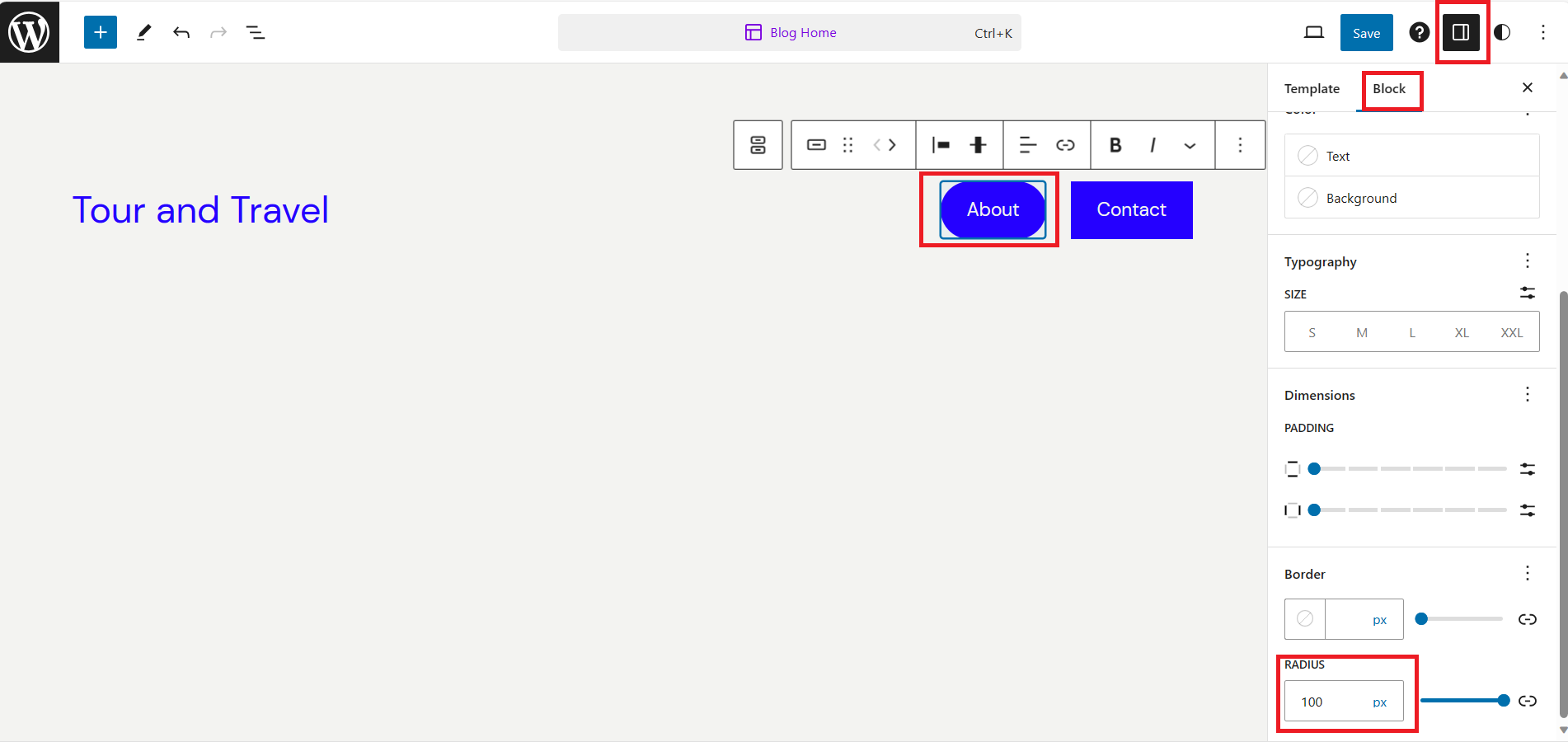
Additionaly you can also change the style of each button as shown below:
另外,您还可以根据以下所示更改每个按钮的样式:
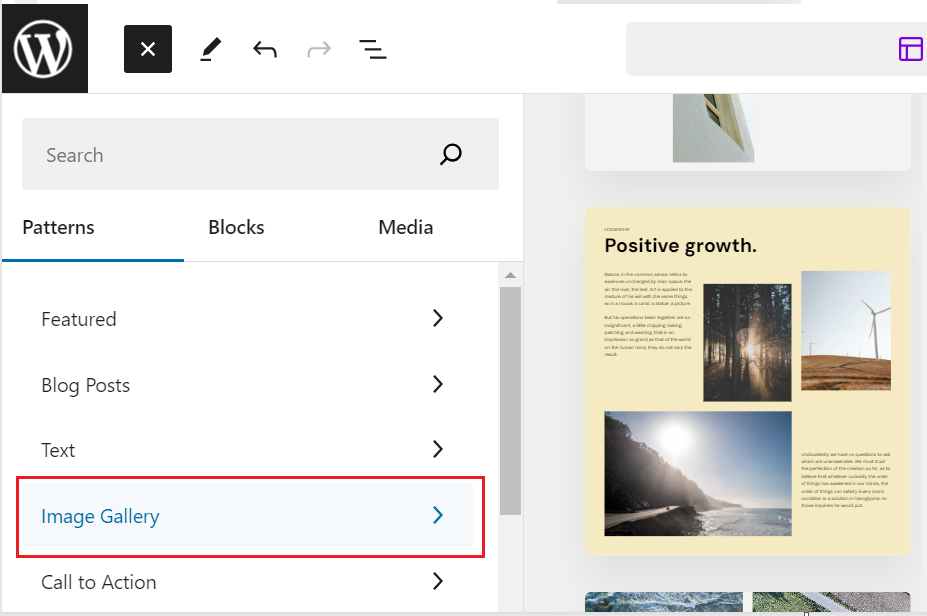
- Now you can include body section by selecting any pattern from toggle block inserter. For instance, we have selcted Image Gallery or Gallery from pattern and chose the best-suited pattern to inlcude in body section.
现在您可以通过从切换块插入器中选择任何模式来包含正文部分。例如,我们已从模式中选择图像库或相册,并选择了最适合包含在正文部分的模式。
- You can also change the background color of the body section or header section by navigating in style options at top right corner and then choose background color to change it.
您也可以通过在右上角样式选项中导航来更改主体部分或页眉部分的背景颜色,然后选择背景颜色进行更改。
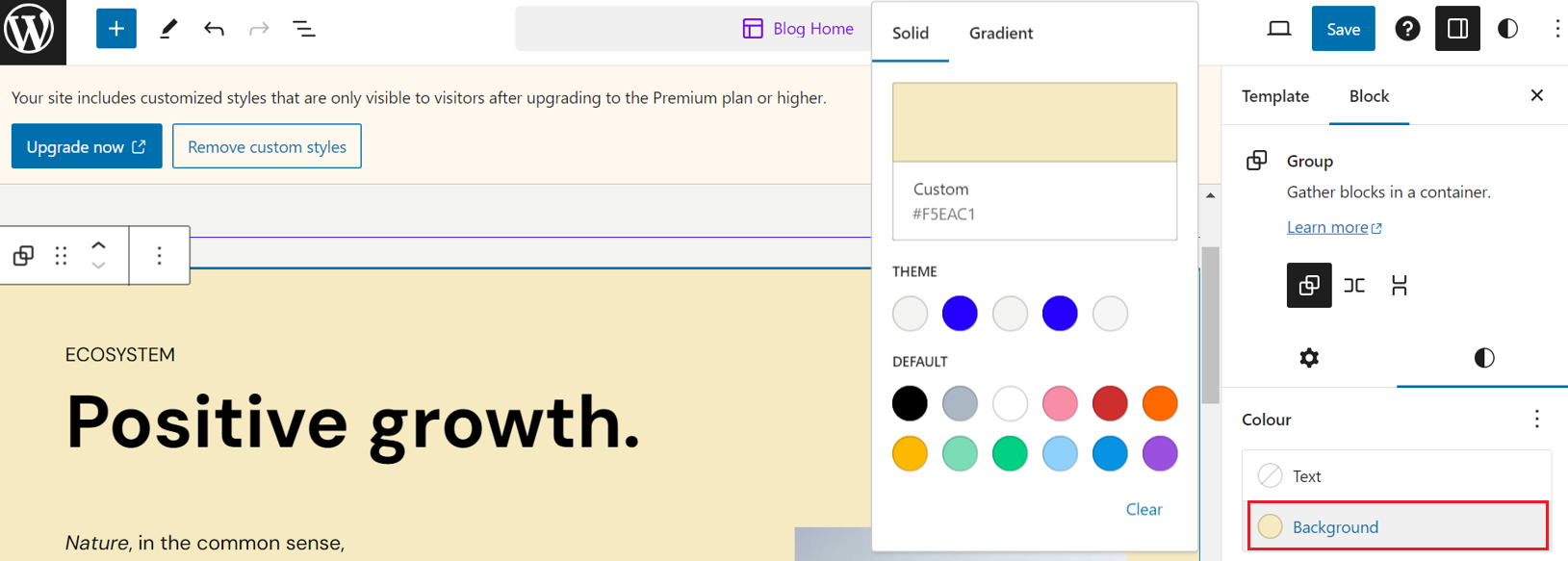
Similarly the button background color can also be changed.
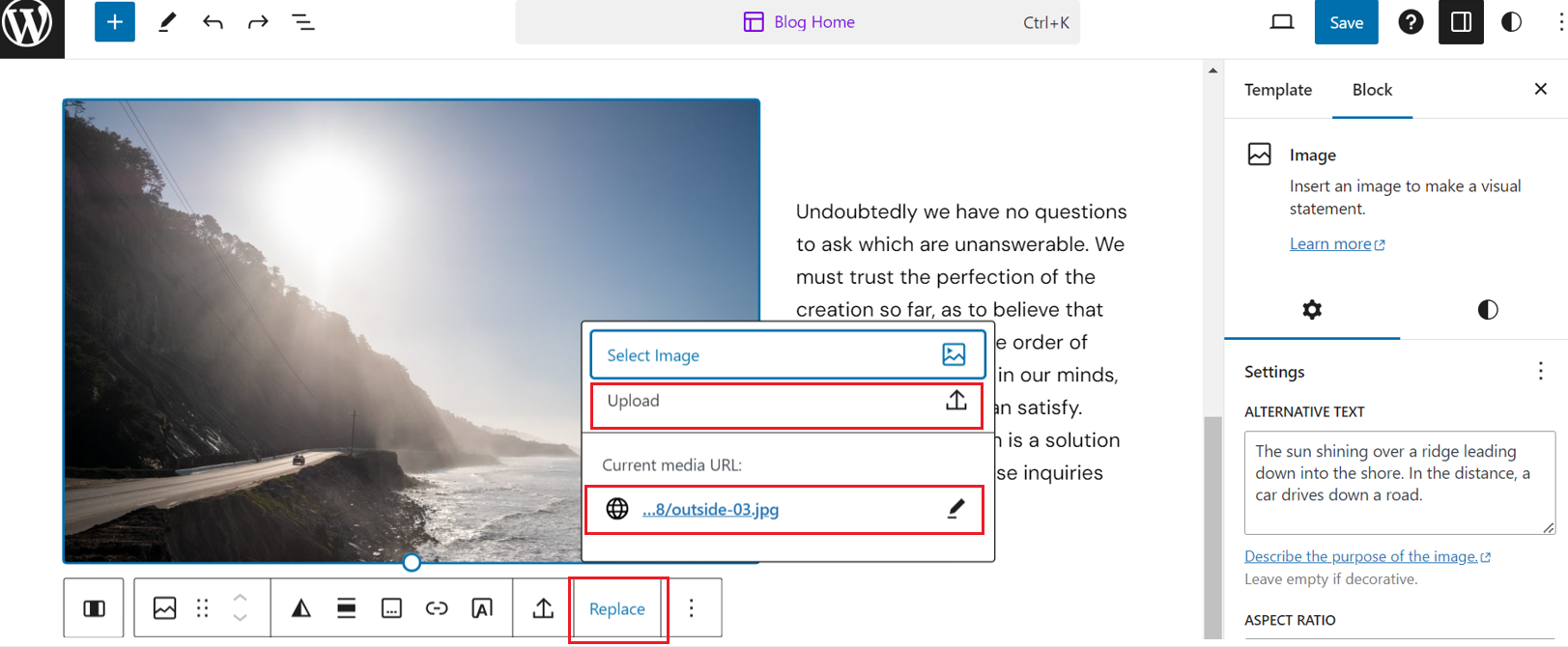
同样,按钮的背景颜色也可以更改。 - After this, you can replace the images by selecting image, choosing the replace option, and then uploading or including the URL by clicking on the pencil icon for the desired image.
之后,您可以通过选择图片、选择替换选项,然后点击铅笔图标上传或包含所需图片的 URL 来替换图片。
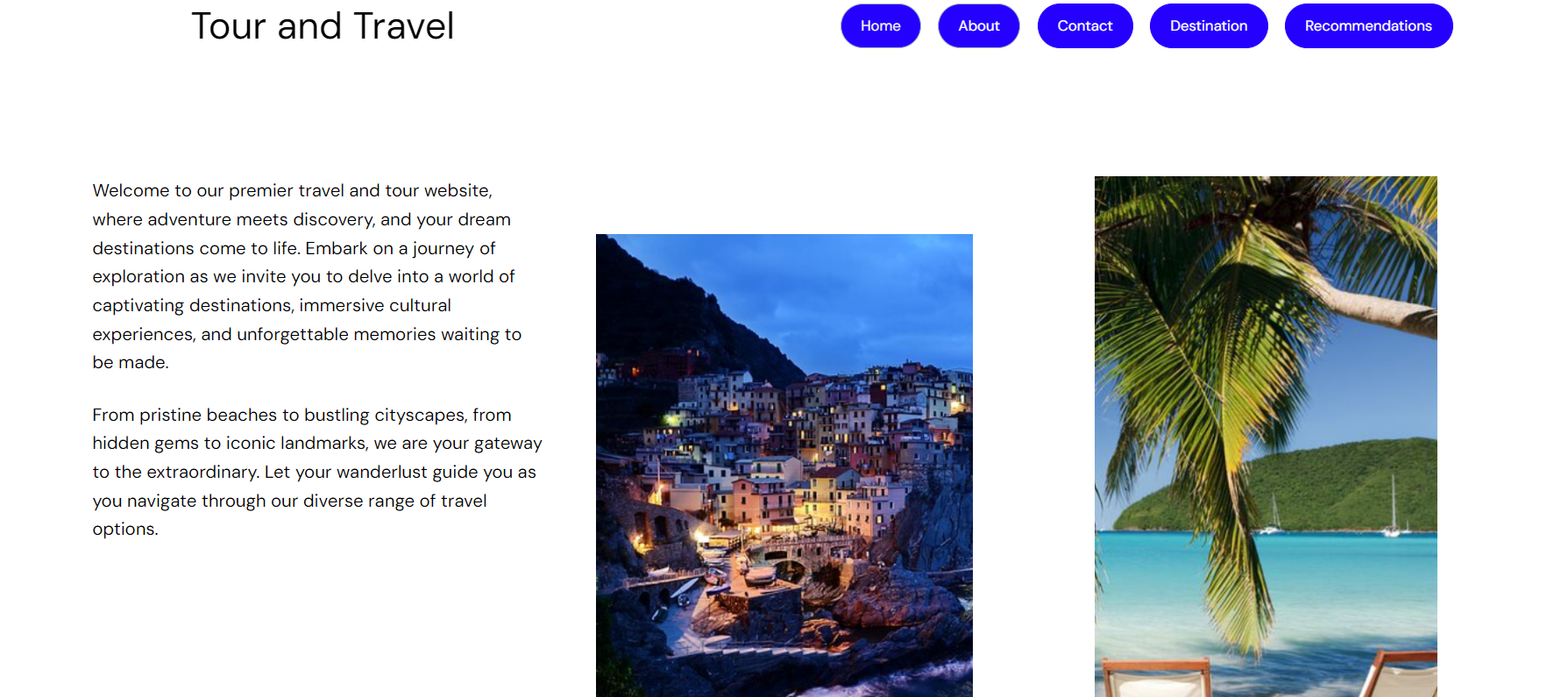
- The final page looks like below:
最后一页看起来如下:
Exercise 4: Create About Us Page of Travel Website 练习 4:创建旅游网站“关于我们”页面
You need to create one About Us page which will include the information of your website and 3 of the popular travel sites. For this, you need to follow the given steps.
您需要创建一个关于我们页面,该页面将包含您网站的信息以及 3 个流行的旅游网站的信息。为此,您需要遵循以下步骤。
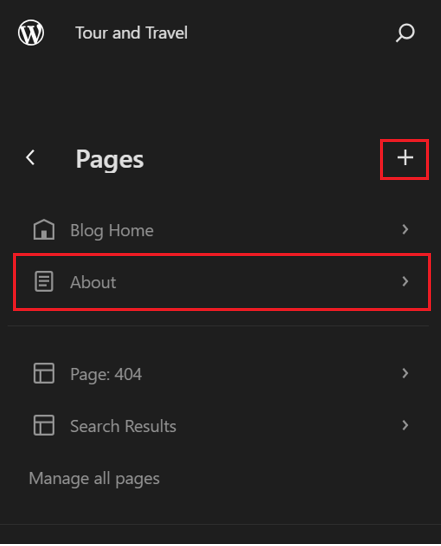
- Begin by selecting the WordPress logo located in the upper left corner. Next, go to the 'Pages' section, where you should click the + symbol to initiate the creation of a new page. Name this new page 'About,' and it will be generated.
首先选择位于左上角的 WordPress 标志。接下来,进入“页面”部分,点击加号符号以开始创建新页面。将此新页面命名为“关于”,它将被生成。
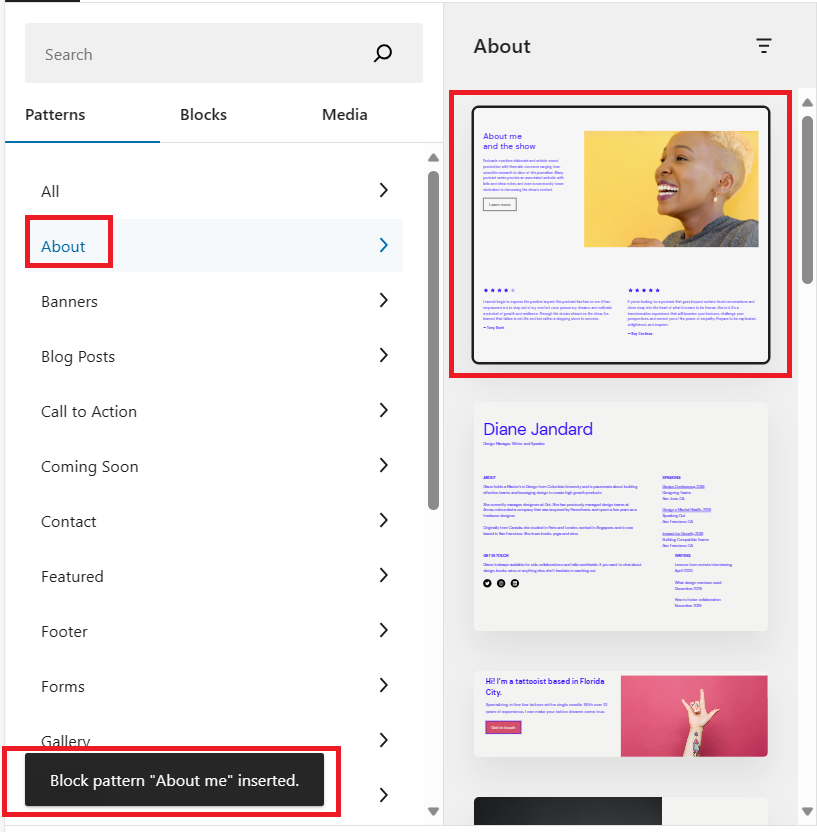
- Once more, select the toggle inserter block option, and from the Patterns tab, opt for the About section. Alternatively, you can select any other pattern that aligns with your design preferences.
再次选择切换插入块选项,然后在“模式”选项卡中,选择“关于”部分。或者,您可以选择任何与您的设计偏好相符的其他模式。
For example, the highlighted pattern for the About section in a striking red color has been chosen for the About page.
例如,关于部分的醒目红色高亮图案已被选为关于页面。
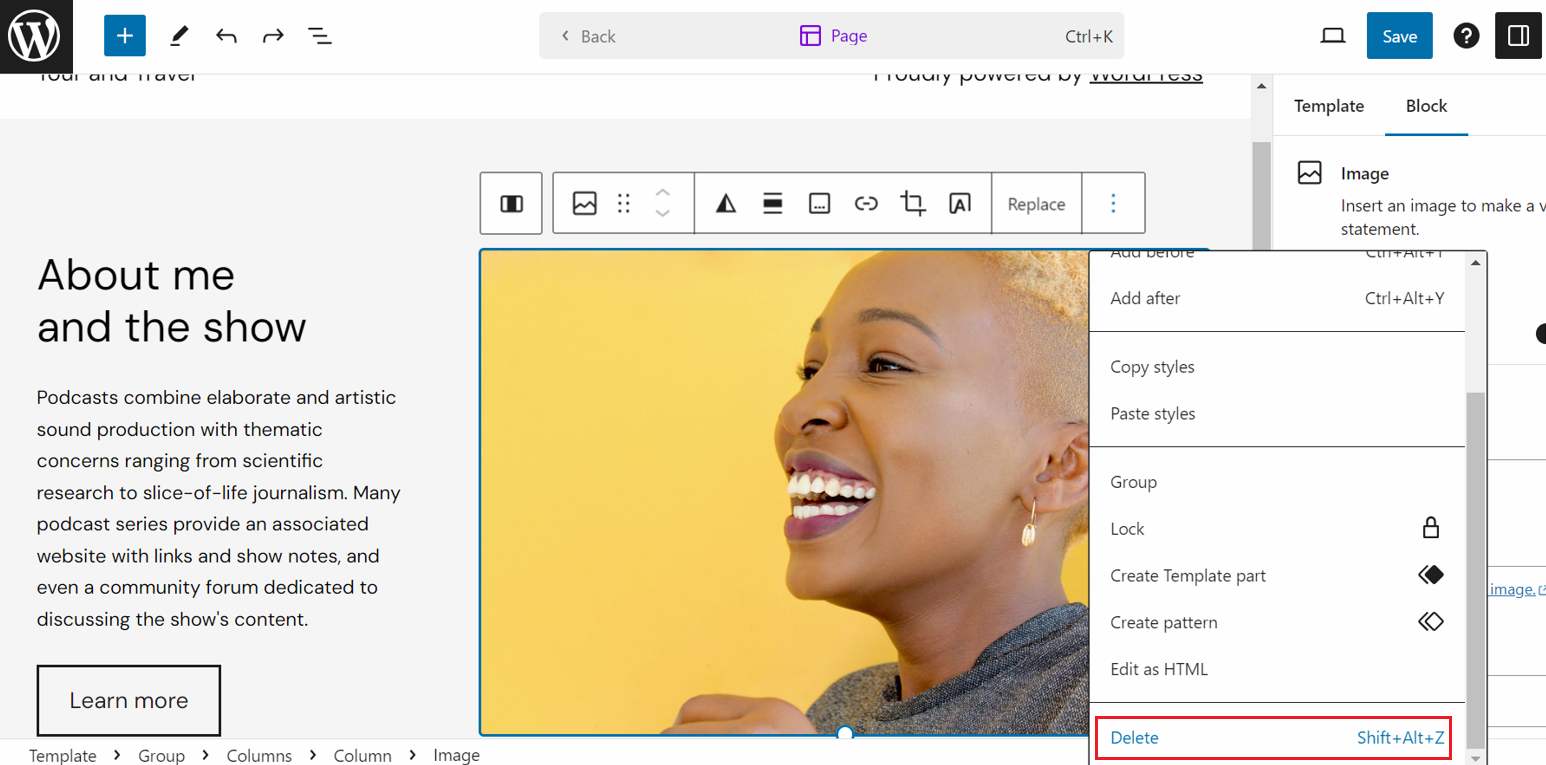
- This layout consists of two columns. Should you desire to expand the width of the first column to align with your About page design, you have the option to delete one of the columns.
此布局由两列组成。如果您想将第一列的宽度扩展以与您的关于页面设计对齐,您可以选择删除其中一列。
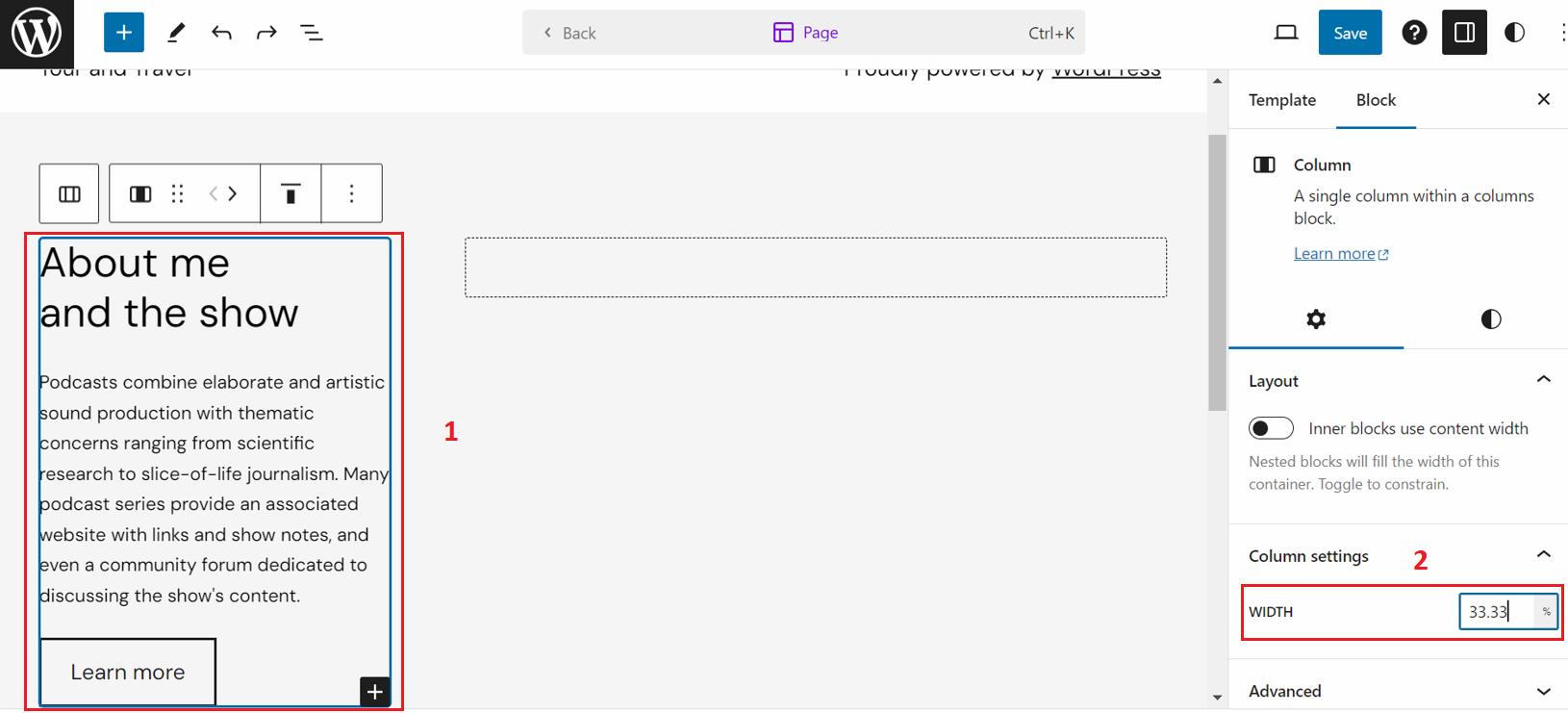
- After selecting the first column, you can widen it by clicking on the entire column, as indicated in step 1. Next, input the value 100 in step 2 to extend the column's width to cover the entire row.
选择第一列后,您可以点击整个列来加宽它,如步骤 1 所示。接下来,在步骤 2 中输入值 100,以扩展列宽以覆盖整个行。
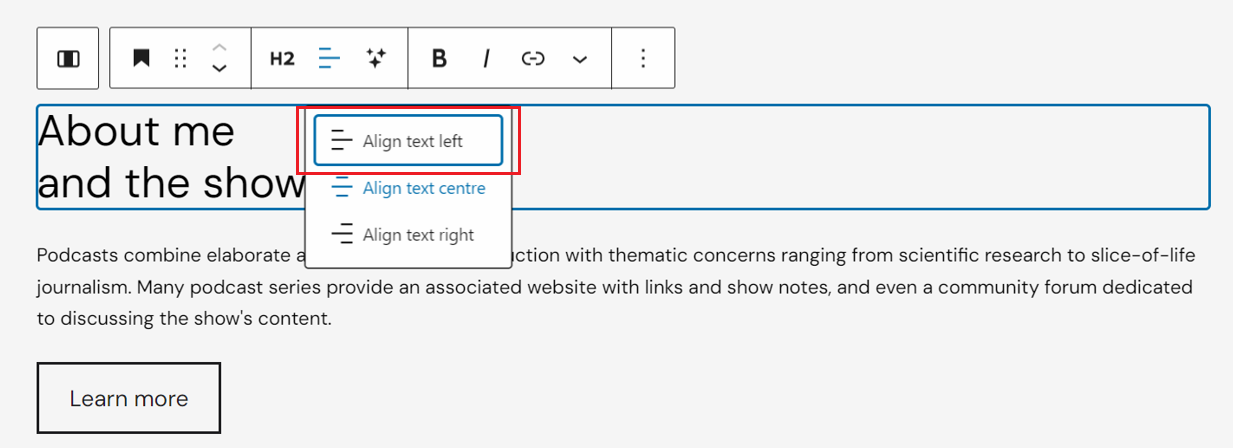
- Following these steps, you can make the necessary adjustments to input content relevant to your travel-related website. Additionally, you have the option to center-align the entire content using the Align property, as demonstrated in the provided screenshot.
按照这些步骤,您可以对与您的旅游相关网站相关的输入内容进行必要的调整。此外,您还可以使用对齐属性将整个内容居中对齐,如提供的截图所示。
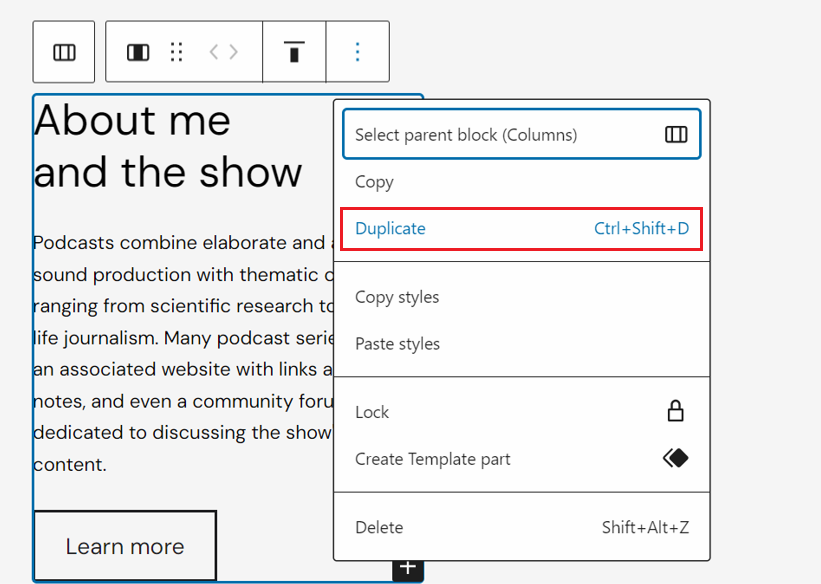
- If you wish to add additional columns following the first row, you can also duplicate them by selecting the column and then clicking on the three dots that appear at the end. Here you can enter the related data of your about section.
如果您想在第一行之后添加额外的列,也可以通过选择列然后点击末尾出现的三个点来复制它们。在这里,您可以输入关于部分的关联数据。
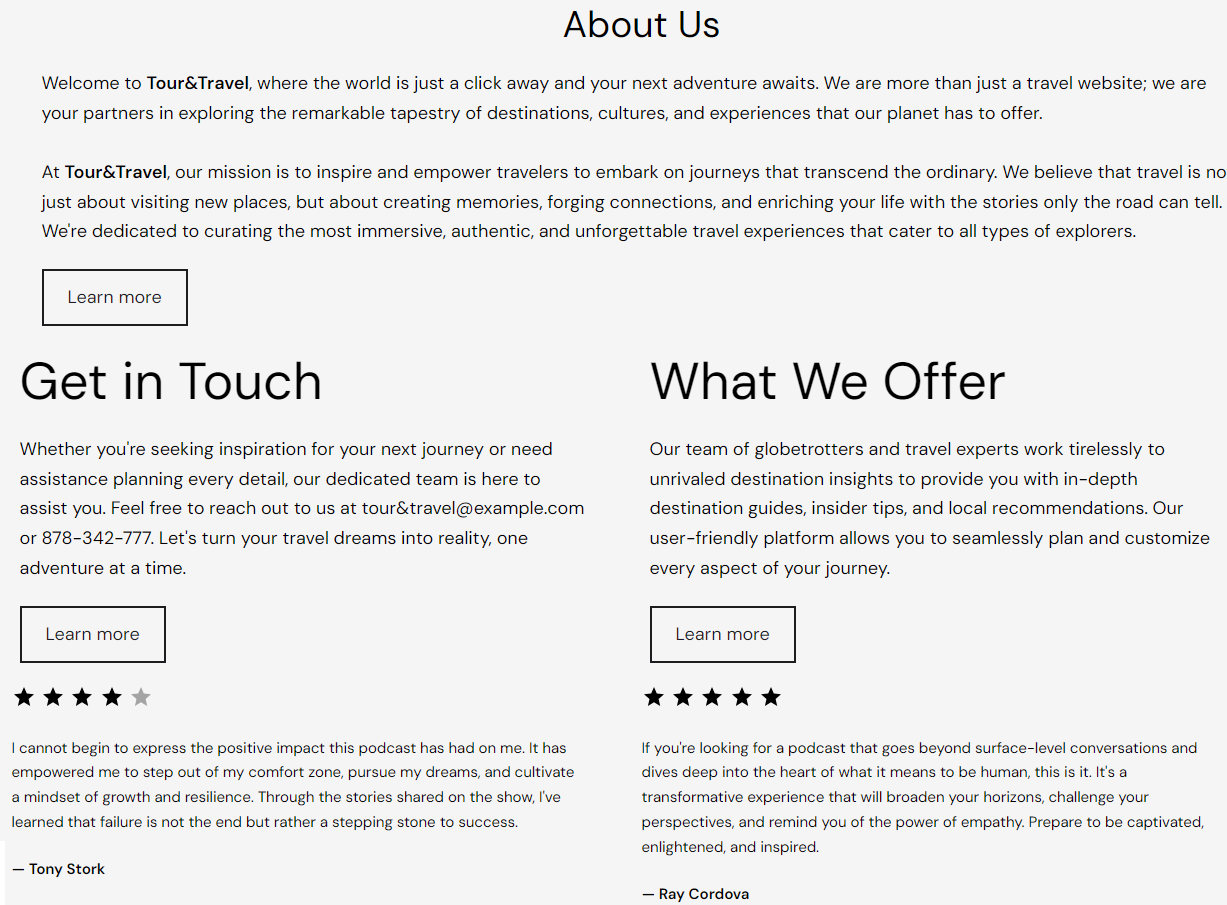
- The completed 'About' section will resemble the following:
完成的“关于”部分将类似于以下内容:
Note: You can also change the buttons background colors as discussed in the previous exercise.
注意:您还可以根据前一个练习中讨论的内容更改按钮的背景颜色。
Exercise 5: Create Contact Us and Destination Page of Travel Website 练习 5:创建“联系我们”和“目的地”页面
In this lab, you need to set up a Contact Us page for users to reach out via email. Lastly, establish a Destinations page that includes two categories, Beach and City, each featuring 2-3 items complete with images and descriptions. Follow the provided instructions to complete these tasks.
在此实验室中,您需要为用户设置一个“联系我们”页面,以便他们通过电子邮件进行联系。最后,建立一个包含两个类别(海滩和城市),每个类别展示 2-3 个项目,包括图片和描述的“目的地”页面。按照提供的说明完成这些任务。
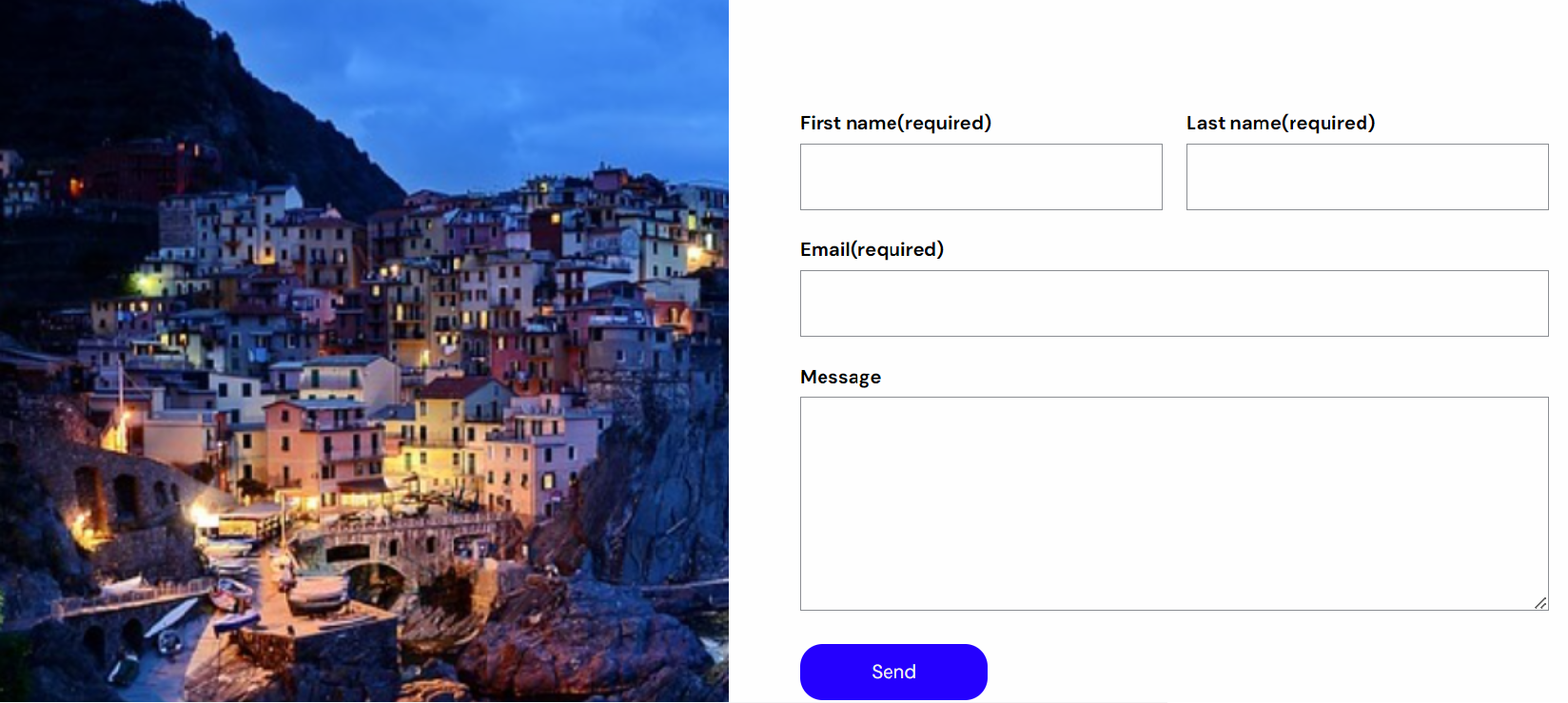
- For the contact us page, create a new page. You can choose the pattern of your choice and include it in your page.
关于联系我们页面,创建一个新页面。您可以选择您喜欢的模式并将其包含在您的页面上。
- You can enhance the contact us page by including one more pattern below above pattern.
您可以通过在上述模式下方再添加一个模式来增强“联系我们”页面。
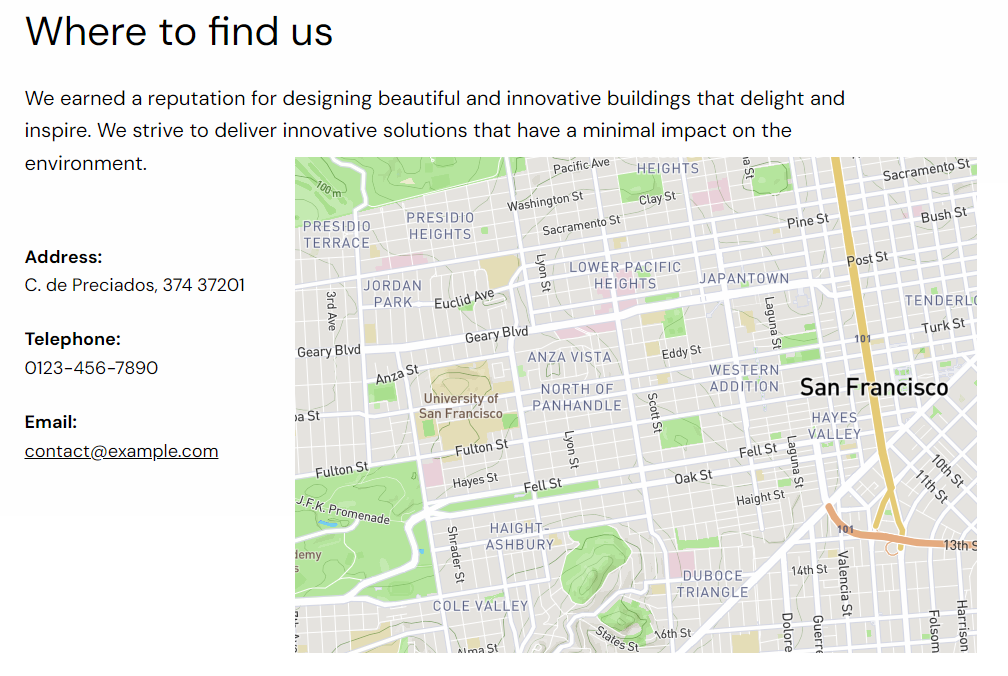
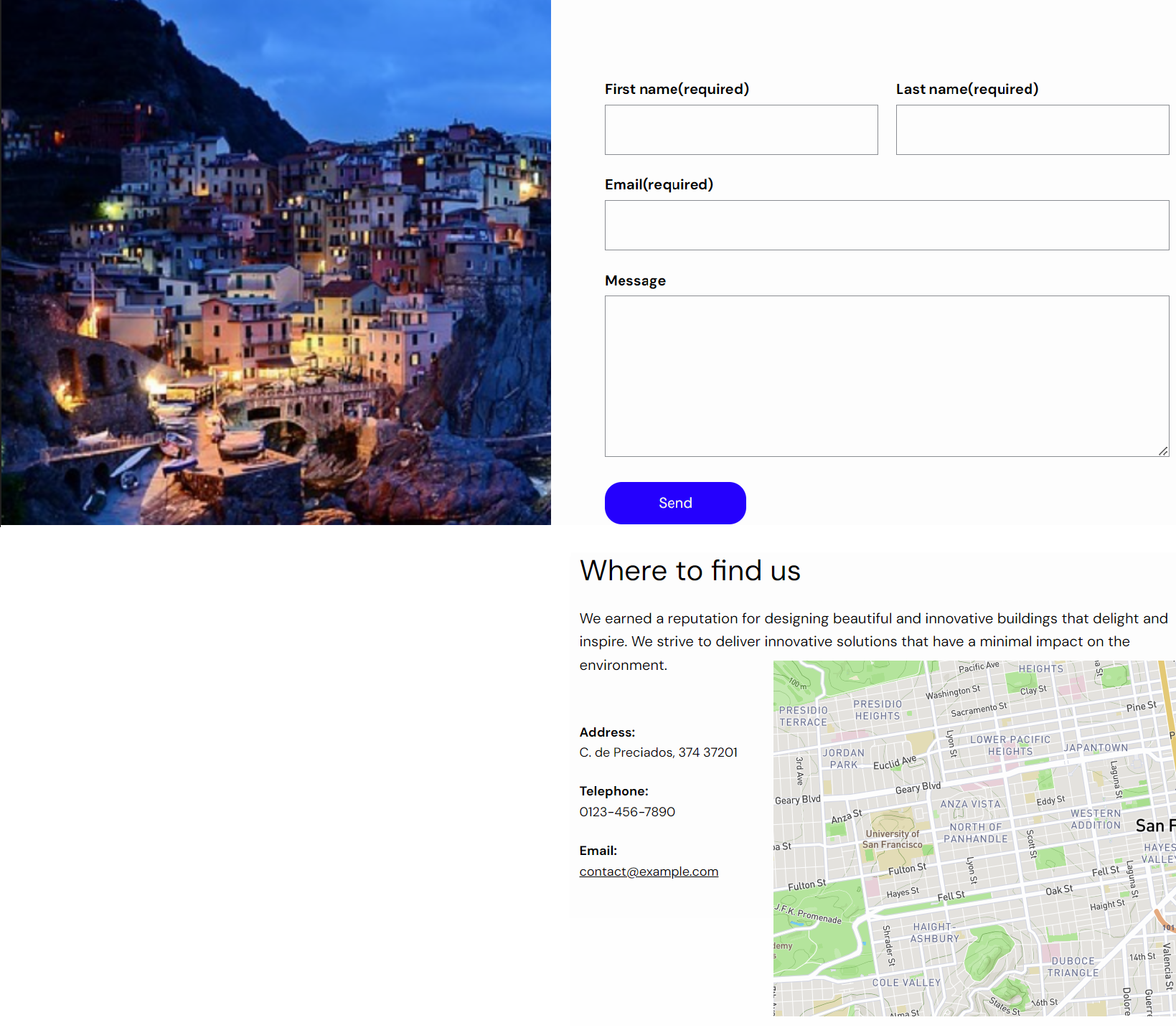
- The completed Contact Us section will resemble the following:
完成的“联系我们”部分将类似于以下内容:
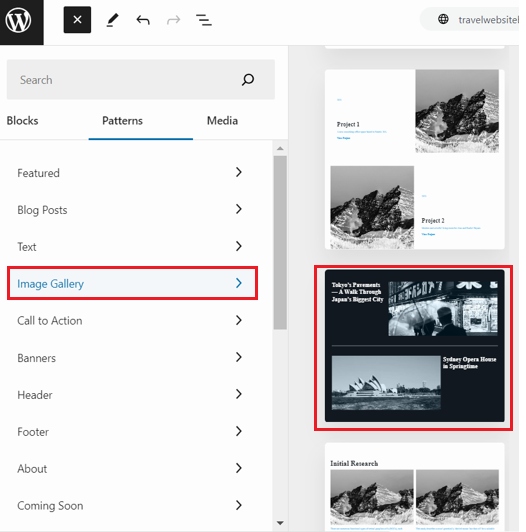
- Similarly, you can create one page for destinations and select a pattern according to your design layout. You can take reference from the destinations page shown in the below screenshot by cicking on Image Gallery or Gallery.
同样,您可以创建一个用于目的地的页面,并根据您的布局设计选择一个模式。您可以通过点击图片库或画廊来参考下方的截图中的目的地页面。
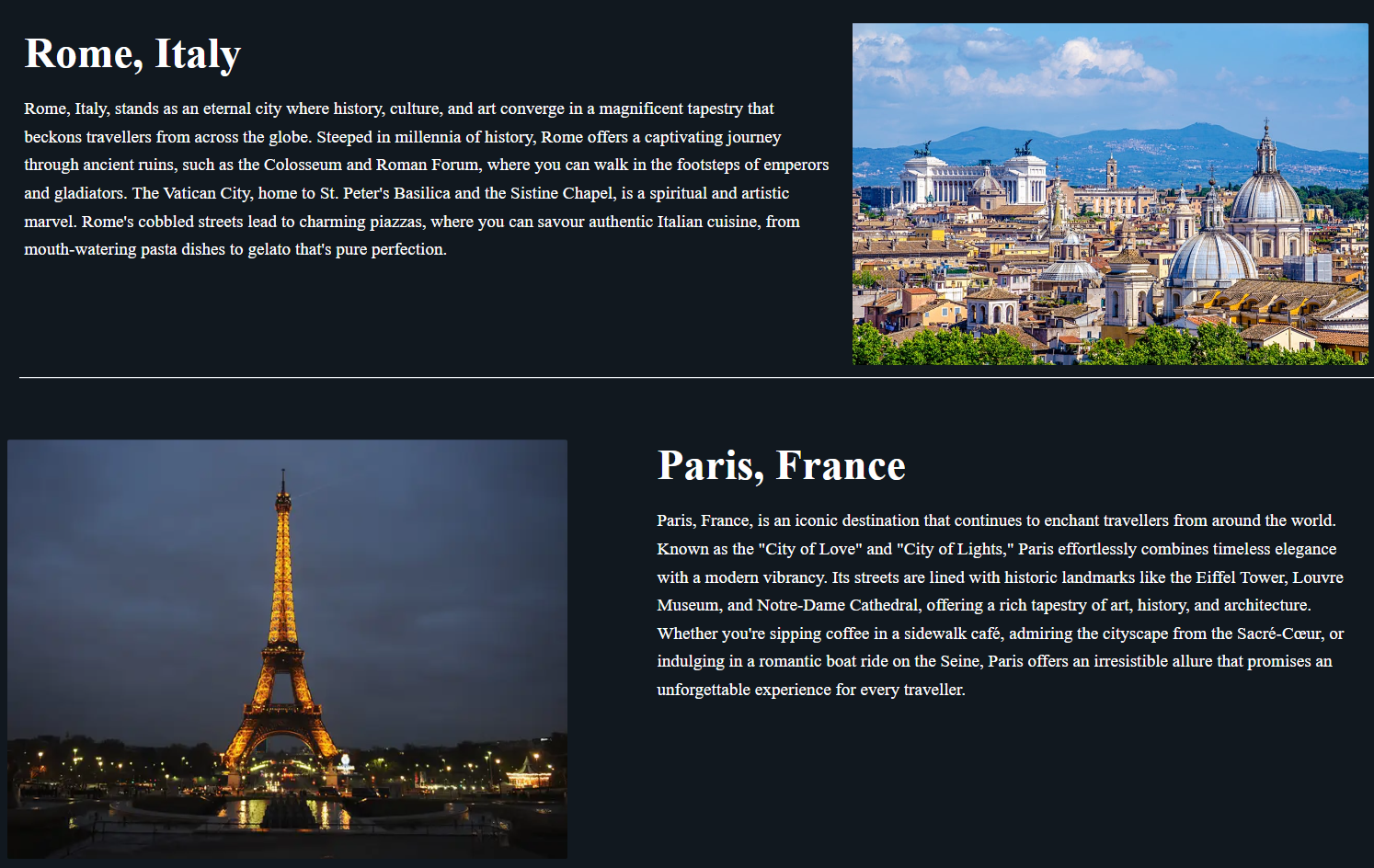
- Make changes in the selected pattern and replace images and text based on your choosen images.
对所选图案进行修改,并根据您选择的图片替换图片和文本。
Exercise 6: Create Recommendations Page of Travel Website 练习 6:创建旅游网站推荐页面
In this lab, you need to set up a Recommendations page for users. To create this page, you need to follow given steps.
在此实验室中,您需要为用户设置一个推荐页面。要创建此页面,您需要遵循以下步骤。
- This page will have 2 categories for users to explore.
本页面将为用户探索提供 2 个类别。
- Adventurous Trips 冒险之旅
- Family trip 家庭旅行
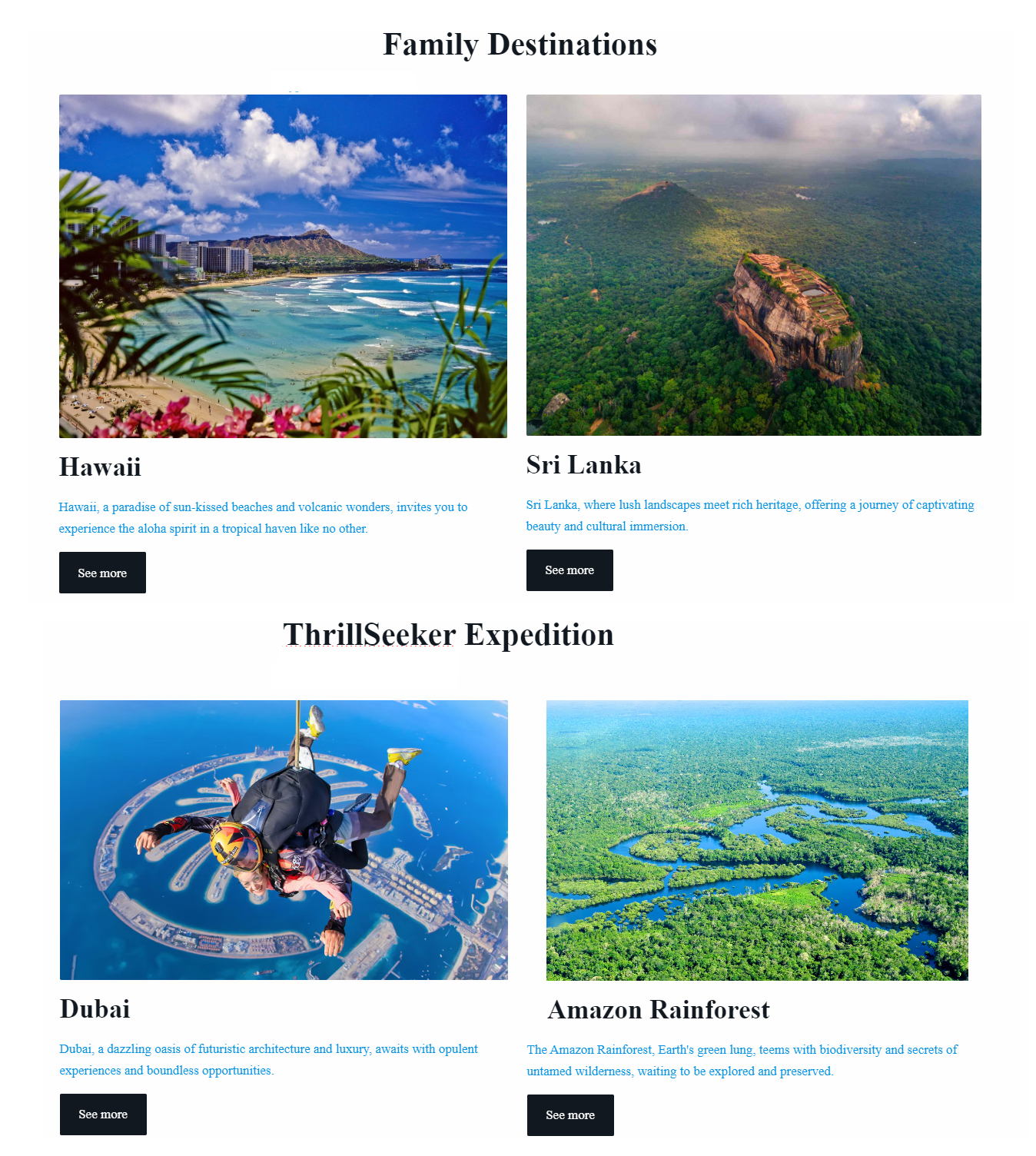
- You will create one common page to show at least 4 destination places: two for family trips and the other for adventurous trips.
您将创建一个页面,展示至少 4 个目的地:其中两个用于家庭旅行,另外两个用于冒险旅行。 - Then you will create one page for each destination which will have 2-3 items with images, descriptions, and how to reach there.
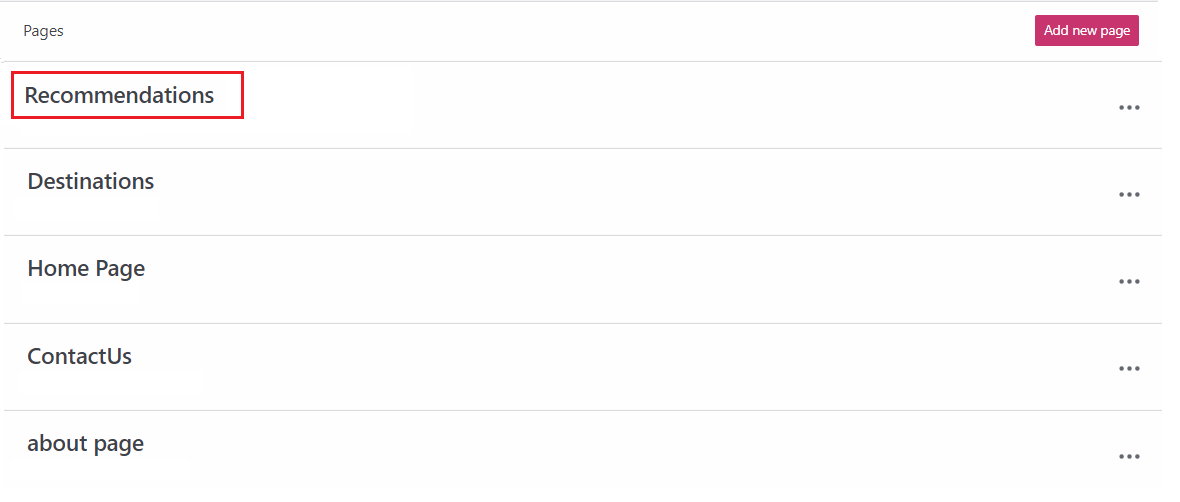
然后,您将为每个目的地创建一页,每页包含 2-3 个带有图片、描述和如何到达那里的项目。 - To create common page for the recommendations, you need to add a new page among other pages.
为创建推荐内容的通用页面,您需要在其他页面中添加一个新页面。
- After this, you can go inside the page and choose the desired pattern of your choice to recommend two categories for destinations.
在此之后,您可以进入页面并选择您想要的推荐目的地两个类别的模式。
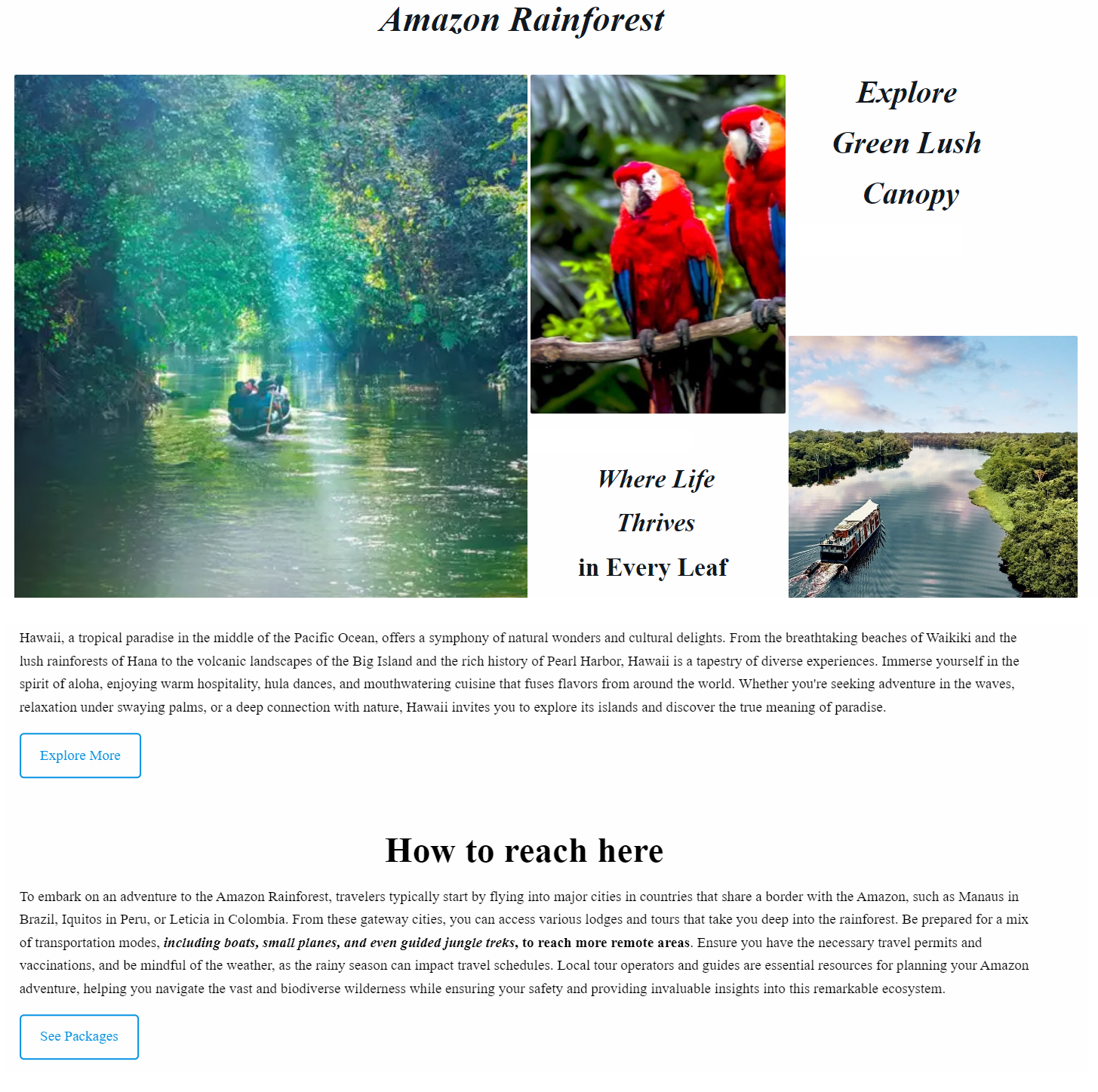
- You can now create one page for each destination to give more information about these destinations.
您现在可以为每个目的地创建一页,以提供更多关于这些目的地的信息。 - Again, you can choose the pattern of your choice to show more information about each destination place by adding images, descriptions, and information about how to reach there. You can also create buttons to explore more about destinations and see packages for how to reach there.
再次,您可以选择您喜欢的模式来显示更多关于每个目的地的信息,通过添加图片、描述以及如何到达那里的信息。您还可以创建按钮来探索更多关于目的地,并查看如何到达那里的套餐。
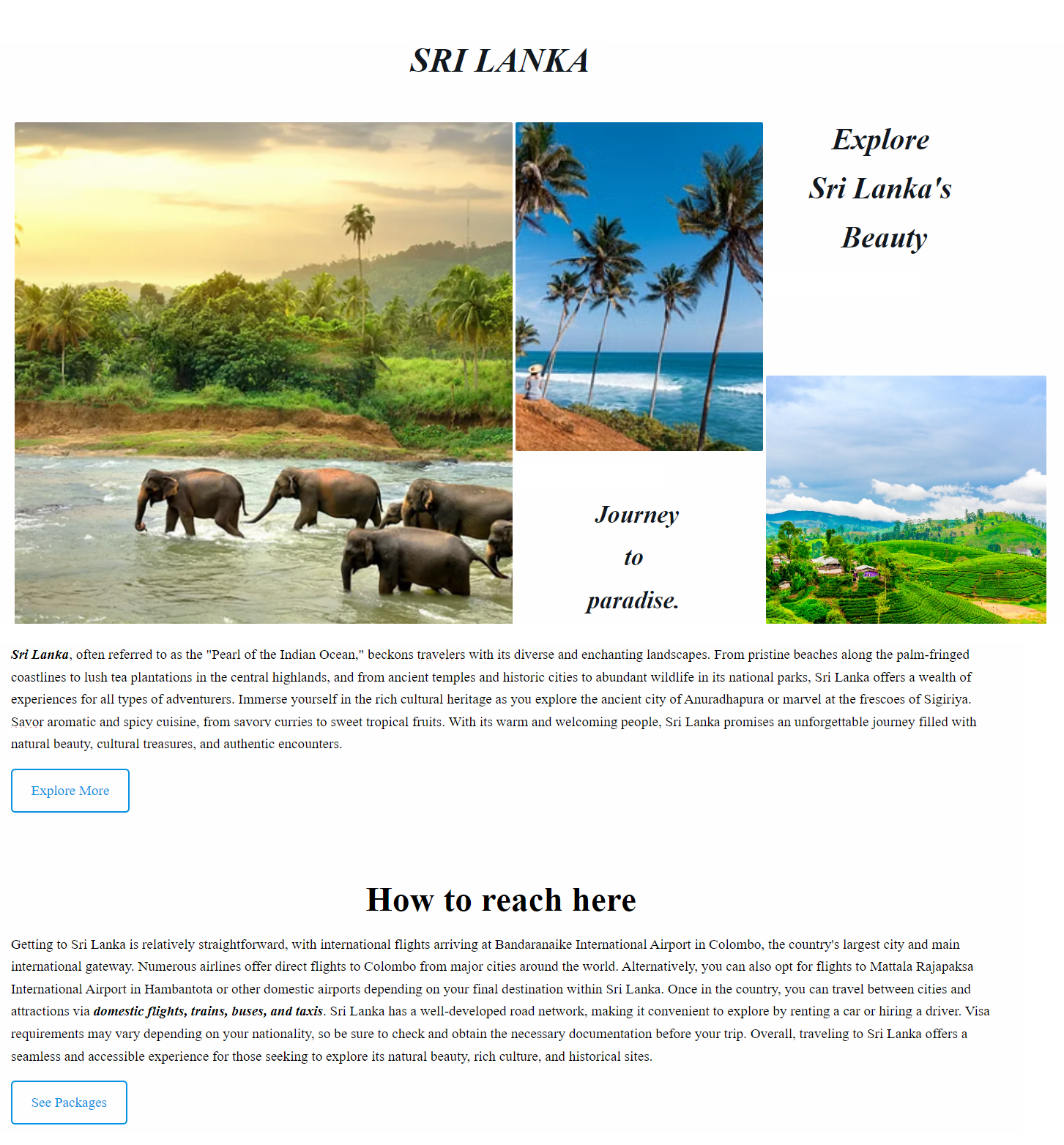
- One more instance has been given below for your reference.
以下再提供一个实例供您参考。
Exercise 7: Linking Pages With Menu Items 练习 7:使用菜单项链接页面
In this lab, you will gain the knowledge to connect the homepage with all its pages through the header's menu buttons.
在这个实验室,您将获得通过页眉菜单按钮将主页与其所有页面连接起来的知识。
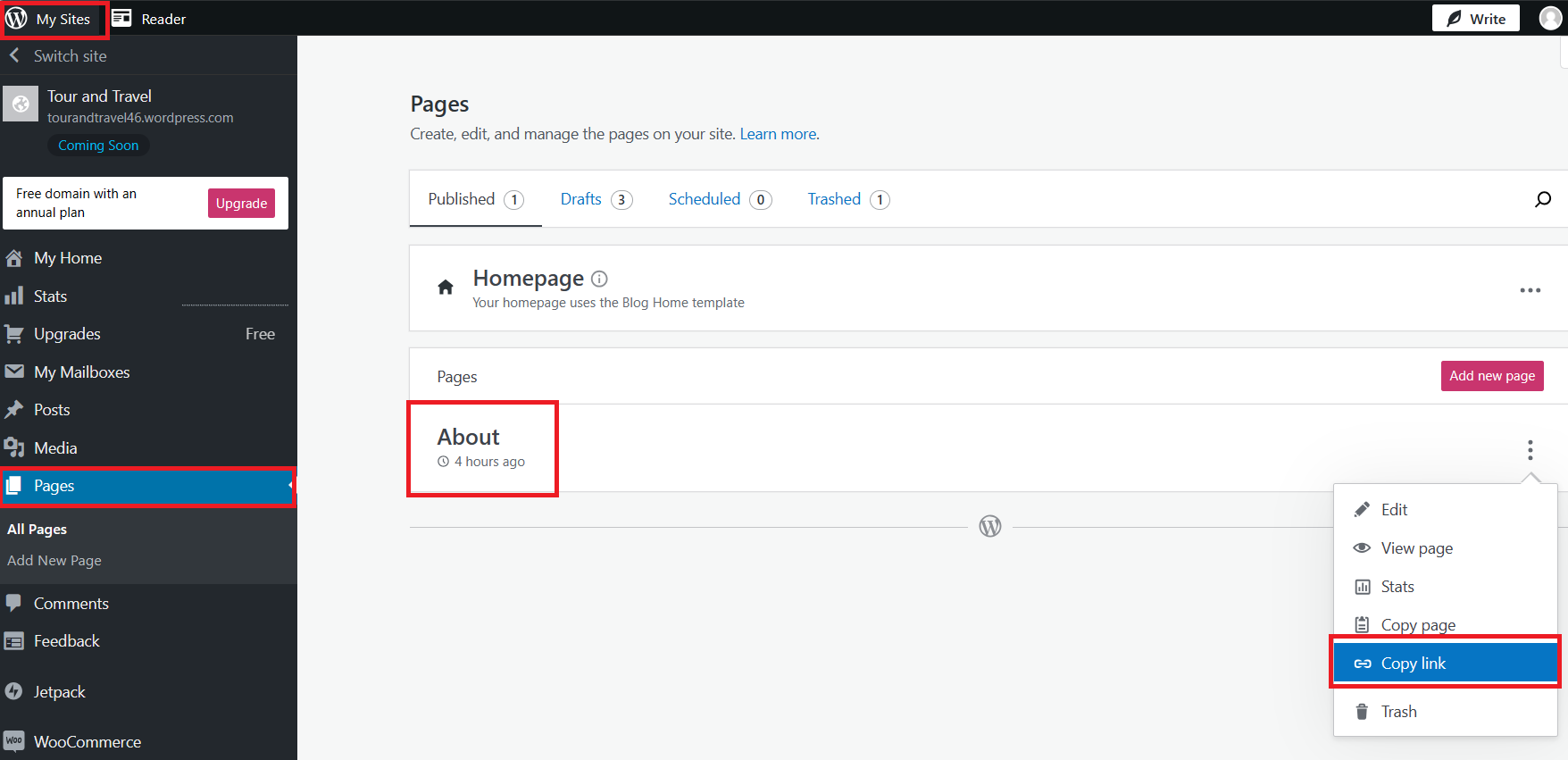
- To access the 'All Pages' section, begin by navigating through the left sidebar of the interface on going back to dashboard of the WordPress site. Once in the sidebar, locate and hover on the Pages menu item and then click on All Pages option.
要访问“所有页面”部分,请先通过界面的左侧边栏导航回到 WordPress 网站的仪表板。一旦进入边栏,找到并悬停在“页面”菜单项上,然后点击“所有页面”选项。
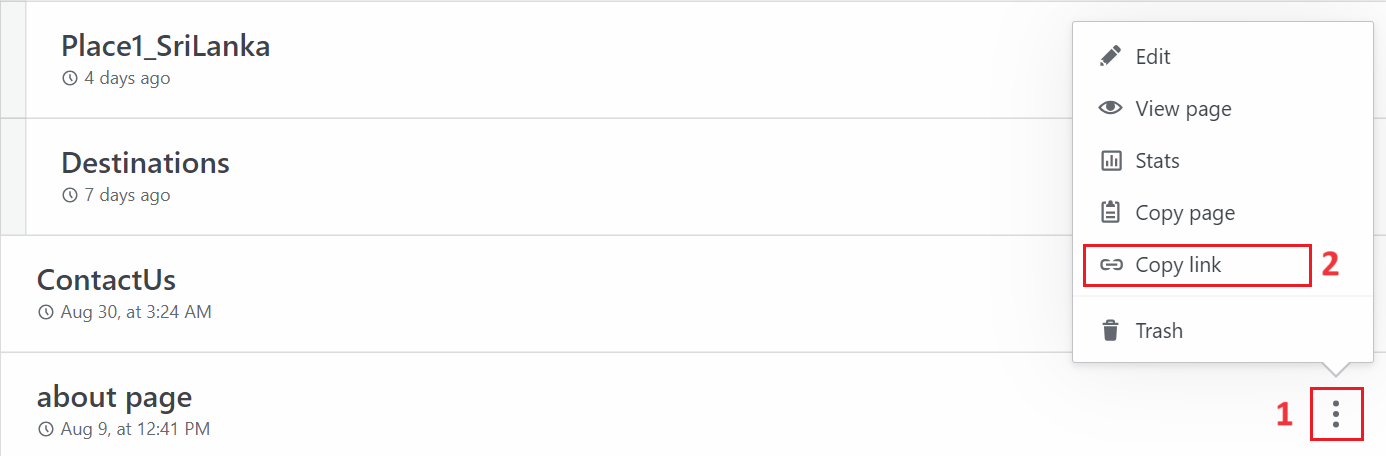
- Next, click on the ellipsis (three dots) for the About page, as indicated by number 1, and then proceed to select 'Copy the link,' marked as number 2.
接下来,点击关于页面上的省略号(三个点),如编号 1 所示,然后继续选择“复制链接”,如编号 2 所示。
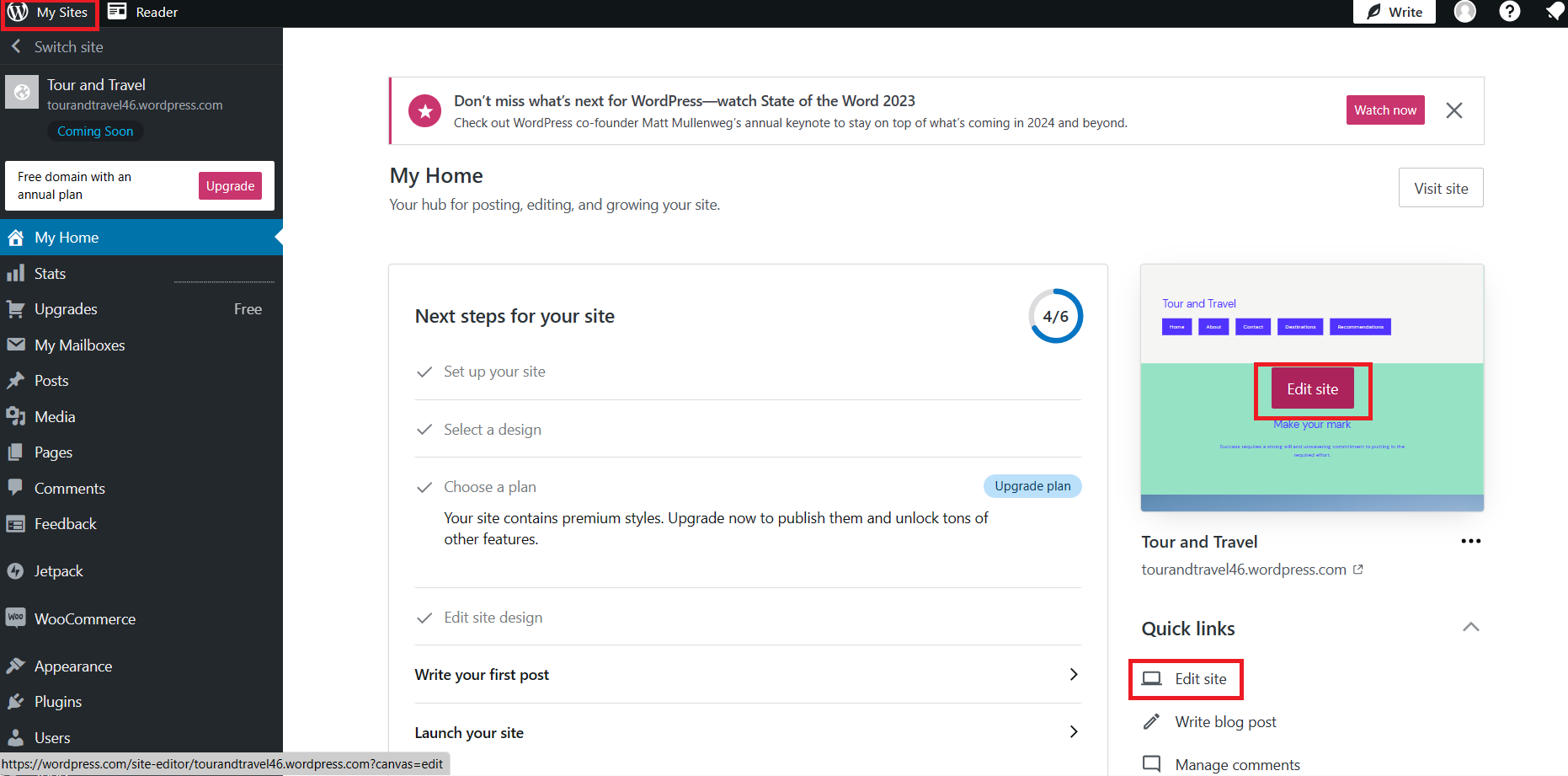
- Following that, navigate to your site's Home Page and choose the header section.
随后,导航至您的网站首页并选择头部区域。

- Next, choose the About menu button and click on the pencil icon to edit. If the button you are creating has no predefined link in it, then you can click in edit link highlighted in black color and then edit.
接下来,选择“关于”菜单按钮,点击铅笔图标进行编辑。如果您创建的按钮中没有预定义的链接,则可以点击高亮显示的黑底编辑链接进行编辑。
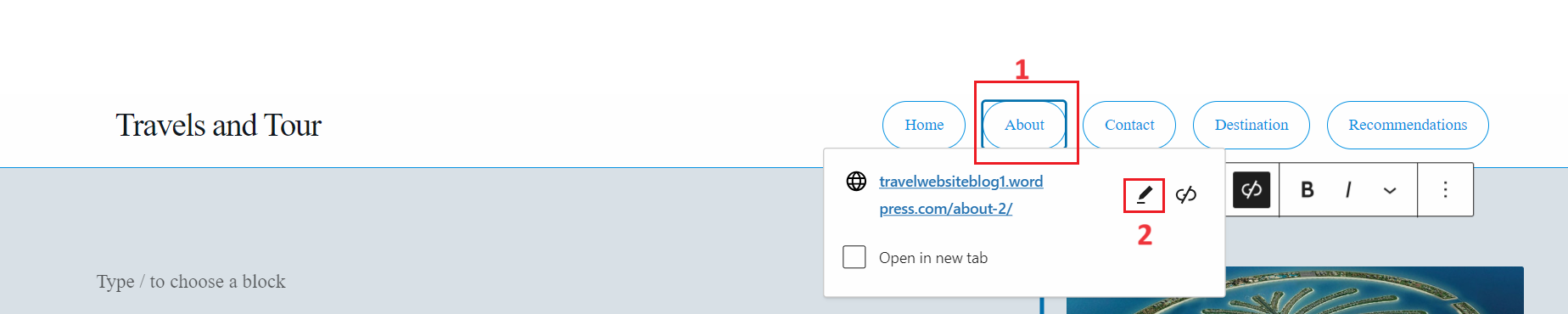
- A text box will appear, where you can paste the copied link.
一个文本框将出现,您可以将复制的链接粘贴进去。 - Reiterate the procedure for the remaining menu buttons to establish links to their respective pages.
重复剩余菜单按钮的步骤,以建立它们各自页面的链接。
Congratulations! You have completed the lab, Build a Mini Website on WordPress for Travel. 恭喜!您已成功完成实验,构建了一个 WordPress 旅行迷你网站。
Summary: 摘要
In this lab, you set up a WordPress account and created a travel website using stunning themes and multi-page construction.
在这个实验室中,您设置了 WordPress 账户,并使用令人惊叹的主题和多页面结构创建了一个旅游网站。