Module 02 · Web API Essentials: REST API and GraphQL
Hands-on Lab: CRUD Operations with Python动手实验:使用 Python 进行 CRUD 操作
In this lab, you will learn how to create a Product's list using Flask server. Your application should allow you to add a product, retrieve the products, retrieve a specific product with its id, update a specific product with its id, and delete a product with its id. All these operations will be achieved through the REST API endpoints in your Flask server.
You will create an application with API endpoints to perform Create, Retrieve, Update, and Delete operations on the above data using a Flask server.
You will use cURL and Swagger to test the implemented endpoints.
Hands-on Lab - CRUD operations using Python
Estimated Time Needed: 45 mins
In this lab, you will learn how to create a Product's list using a Flask server. Your application should allow you to add a product, retrieve the products, retrieve a specific product with its id, update a specific product with its id, and delete a product with its id. All these operations will be achieved through the REST API endpoints in your Flask server.
You will create an application with API endpoints to perform Create, Retrieve, Update, and Delete operations on the above data using a Flask server.
You will use cURL and POSTMAN to test the implemented endpoints.
Objectives
After completing this lab you will be able to:
- Create API endpoints to perform Create, Retrieve, Update, and Delete operations on transient data with a Flask server.
- Create REST API endpoints, and use POSTMAN to test your REST APIs.
Set-up : Create application
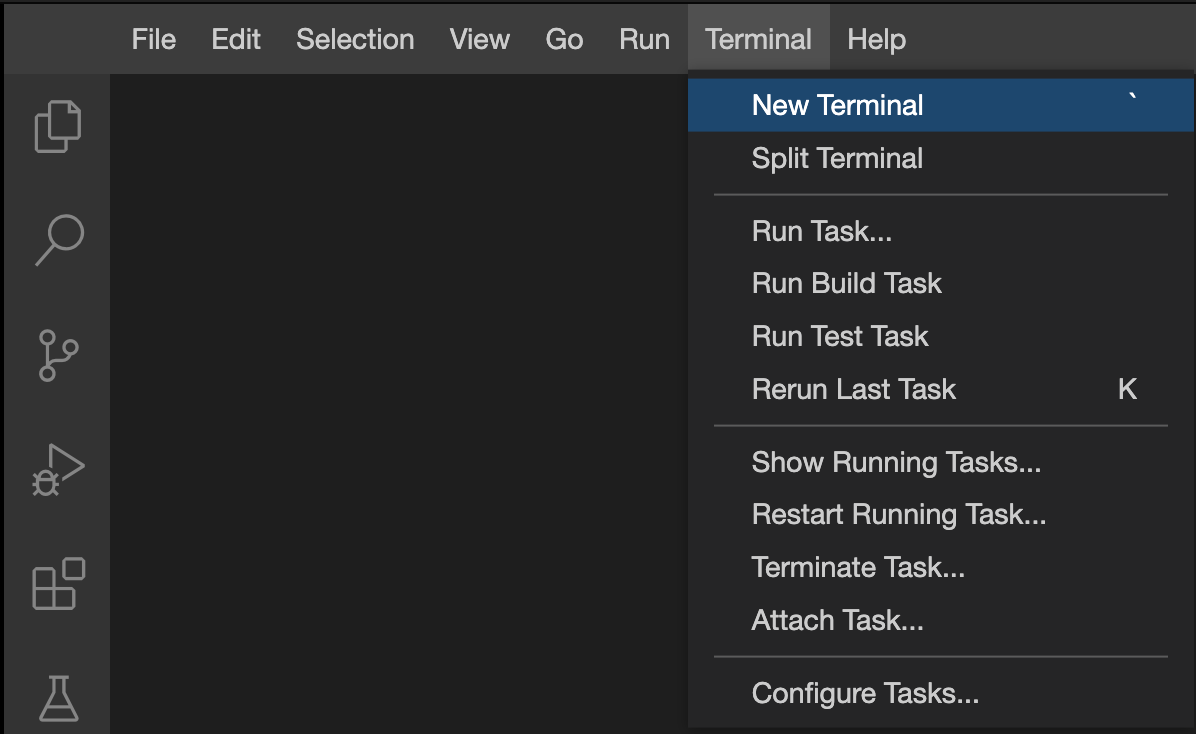
- Open a terminal window by using the menu in the editor: Terminal > New Terminal.
- Change to your project folder, if you are not in the project folder already.
cd /home/project
- Run the following command to clone the Git repository that contains the starter code needed for this lab, if it doesn't already exist.
[ ! -d 'jmgdo-microservices' ] && git clone https://github.com/ibm-developer-skills-network/jmgdo-microservices.git
- Change to the directory jmgdo-microservices/CRUD to start working on the lab.
cd jmgdo-microservices/CRUD
- List the contents of this directory to see the artifacts for this lab.
ls
- Run the following command on the terminal to install the packages that are required.
python3 -m pip install flask flask_cors
Exercise 1: Understand the server application
- In the Files Explorer open the jmgdo-microservices/CRUD folder and view products.py.
- You first need to import the packages required to create REST APIs with Flask.
from flask import Flask, jsonify, request
import json
- You can then create the Flask application, which will service all the REST APIs for adding, retrieving, updating, and deleting products.
app = Flask("Product Server")
- The code has precreated products added to the list. These are defined in the following code.
products = [
    {'id': 143, 'name': 'Notebook', 'price': 5.49},
    {'id': 144, 'name': 'Black Marker', 'price': 1.99}
]
- Now that the server is defined, you will create the REST API endpoints and define the routes or paths, one for each of the following operations.
- Retrieve all the products -
GETRequest Method - Retrieve a product by its id -
GETRequest Method - Add a product -
POSTRequest Method - Update a product by its id -
PUTRequest Method - Delete a product by its id -
DELETERequest Method
Add the following code to products.py in the space provided.
# Example request - http://localhost:5000/products
@app.route('/products', methods=['GET'])
def get_products():
    return jsonify(products)

# Example request - http://localhost:5000/products/144 - with method GET
@app.route('/products/<id>', methods=['GET'])
def get_product(id):
    id = int(id)
    product = [x for x in products if x["id"] == id][0]
    return jsonify(product)

# Example request - http://localhost:5000/products - with method POST
@app.route('/products', methods=['POST'])
def add_product():
    products.append(request.get_json())
    return '', 201

# Example request - http://localhost:5000/products/144 - with method PUT
@app.route('/products/<id>', methods=['PUT'])
def update_product(id):
    id = int(id)
    updated_product = json.loads(request.data)
    product = [x for x in products if x["id"] == id][0]
    for key, value in updated_product.items():
        product[key] = value
    return '', 204

# Example request - http://localhost:5000/products/144 - with method DELETE
@app.route('/products/<id>', methods=['DELETE'])
def remove_product(id):
    id = int(id)
    product = [x for x in products if x["id"] == id][0]
    products.remove(product)
    return '', 204
Run and test the server with cURL
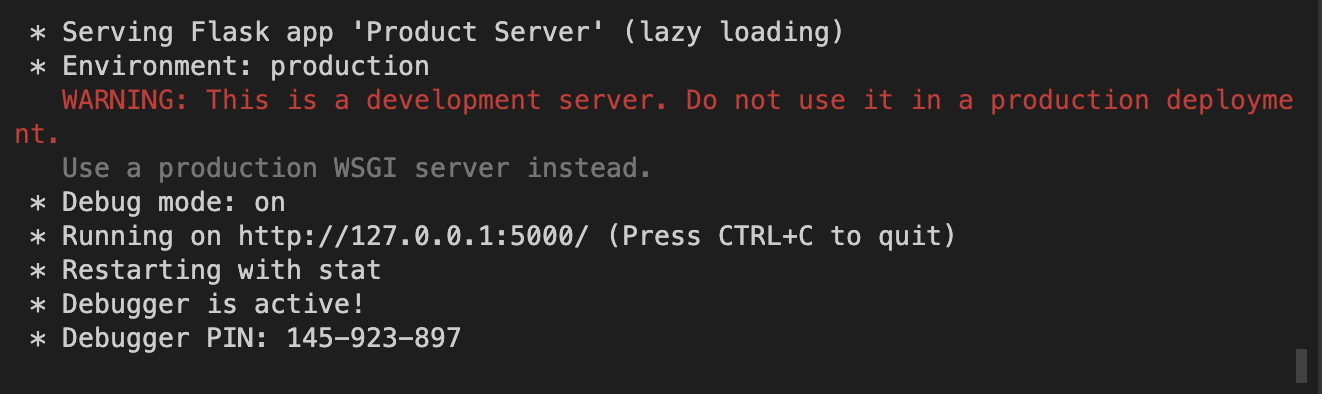
- In the terminal, run the python server using the following command.
python3 products.py
The server starts running and listening at port 5000.
2. Open another Terminal by clicking the Terminal menu and selecting New Terminal.
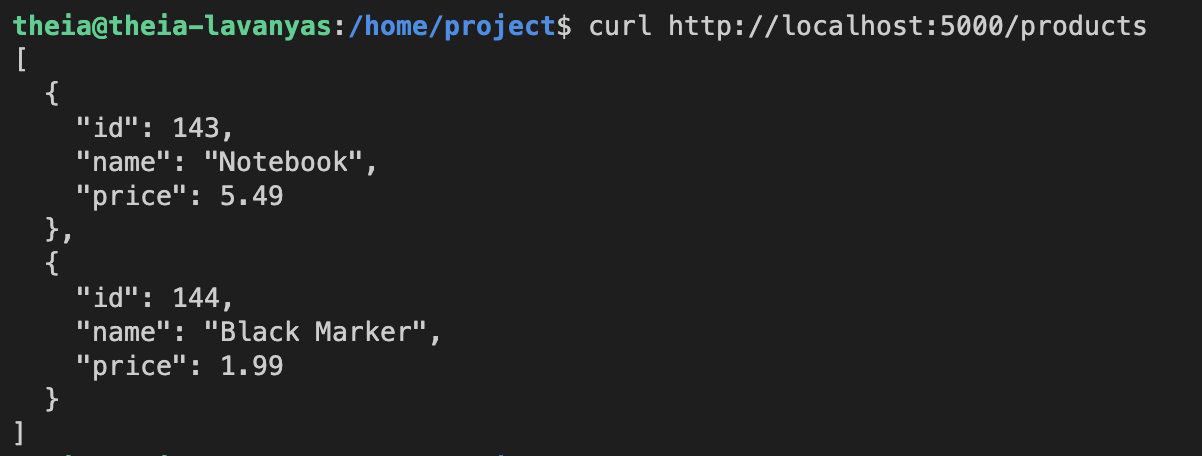
3. In the new terminal, run the following command to access the http://localhost:5000/products API endpoint. curl command stands for Client URL and is used as command line interfacing with the server serving REST API endpoints. It is, by default, a GET request.
curl http://localhost:5000/products
This returns a JSON with the products that have been preloaded.
4. In the terminal, run the following command to add a product to the list. This will be a POST request to which you will pass the product parameter as a JSON.
curl -X POST -H "Content-Type: application/json" \
    -d '{"id": 145, "name": "Pen", "price": 2.5}' \
    http://localhost:5000/products
This command will not return any output. It will add the product to the list of products.
5. Verify if the product is added by running the following command.
curl http://localhost:5000/products/145
This should return the details of the product you just added with a POST request.

Using POSTMAN to test the REST API endpoints
While the GET endpoints are easy to test with curl using a command line interface, the POST, PUT and DELETE commands can be cumbersome. To circumvent this problem, you can use Postman, which is a software that is available as a service.
Postman will need remote access to the server as it is an external entity. To get the URL click the following button.
Launch Application
Copy the URL into a notepad or other text editors. Go to https://www.postman.com/ and sign up before you start using POSTMAN.
Click here for instructions to sign up for Postman services.
- Go to www.postman.com.
- Click Sign up to initiate the sign up process.
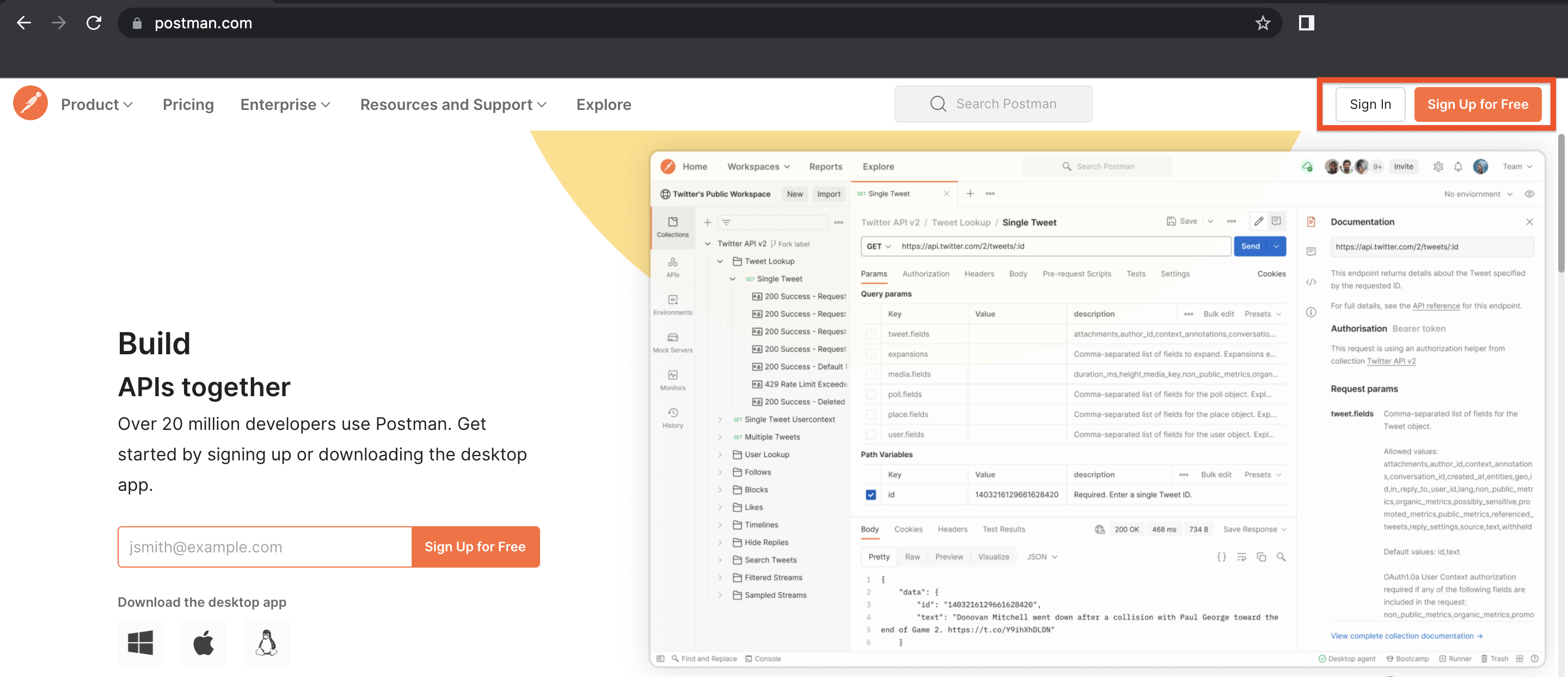
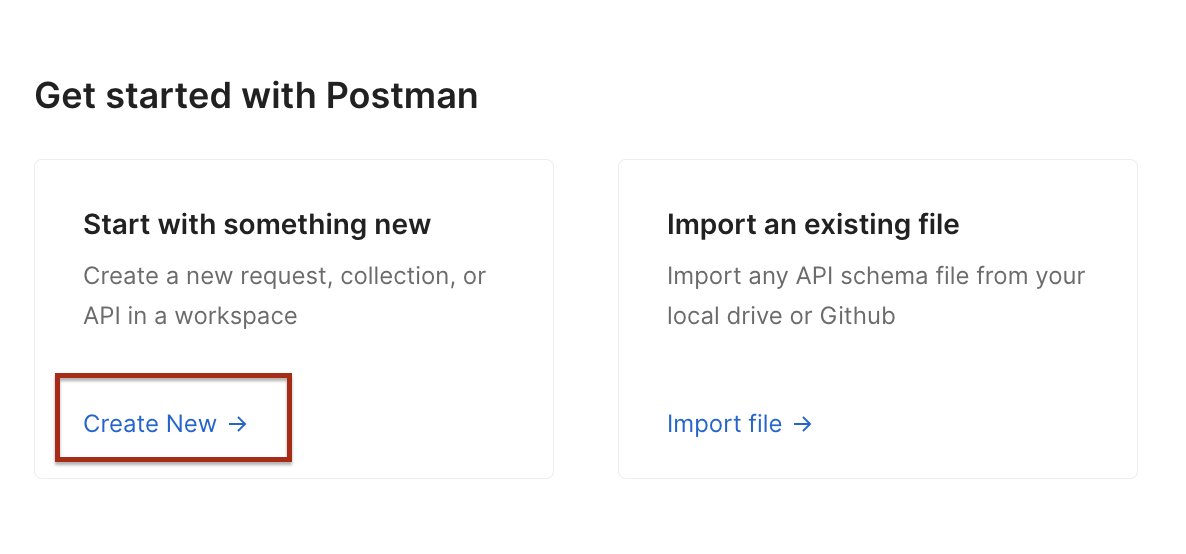
You can either sign up by providing your email details and setting your password or opt to sign in with your Google account. - Click Create New to start creating a request to the REST API endpoint.
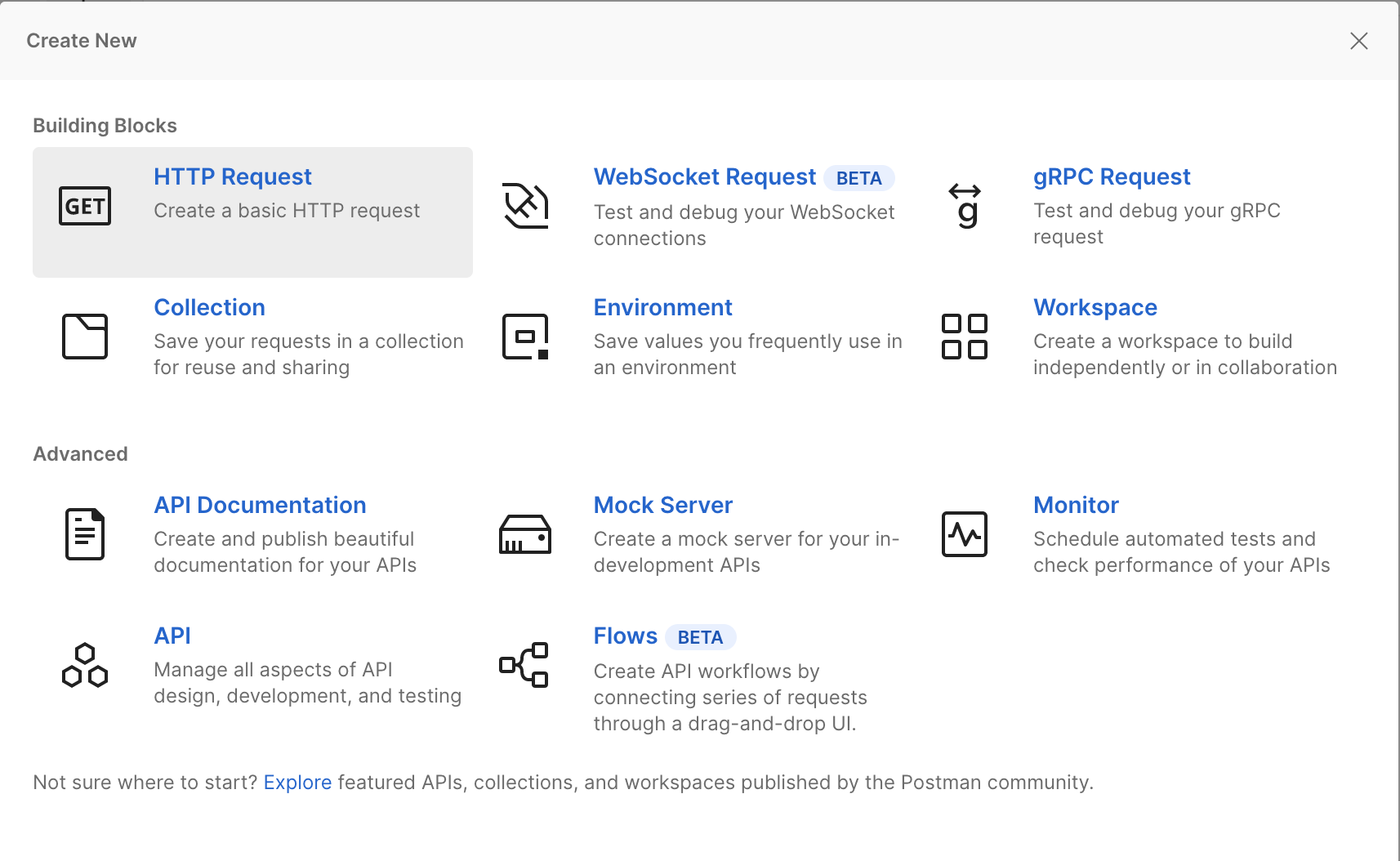
- Choose HTTP Request from the options that you are presented with.
- Paste the URL that you have copied into the address bar. Change the request type to
POST. To send input as JSON, choosebody->raw->JSON.
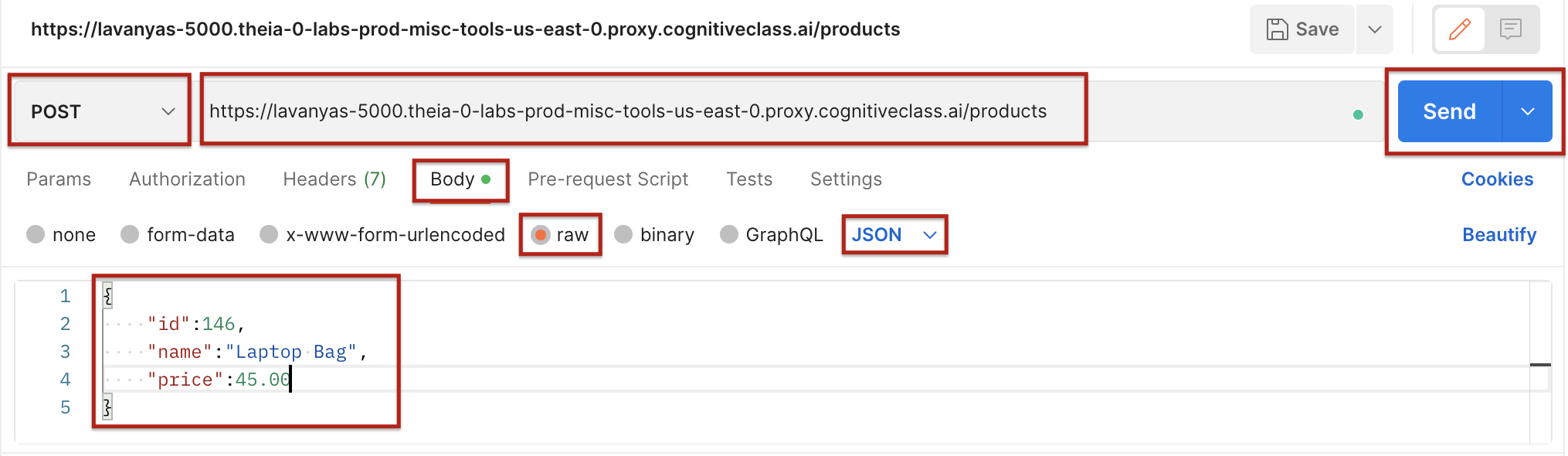
- Enter the following JSON object and click the
Sendbutton. This will add the product to your previous list of products.
{
    "id":146,
    "name":"Laptop Bag",
    "price":45.00
}
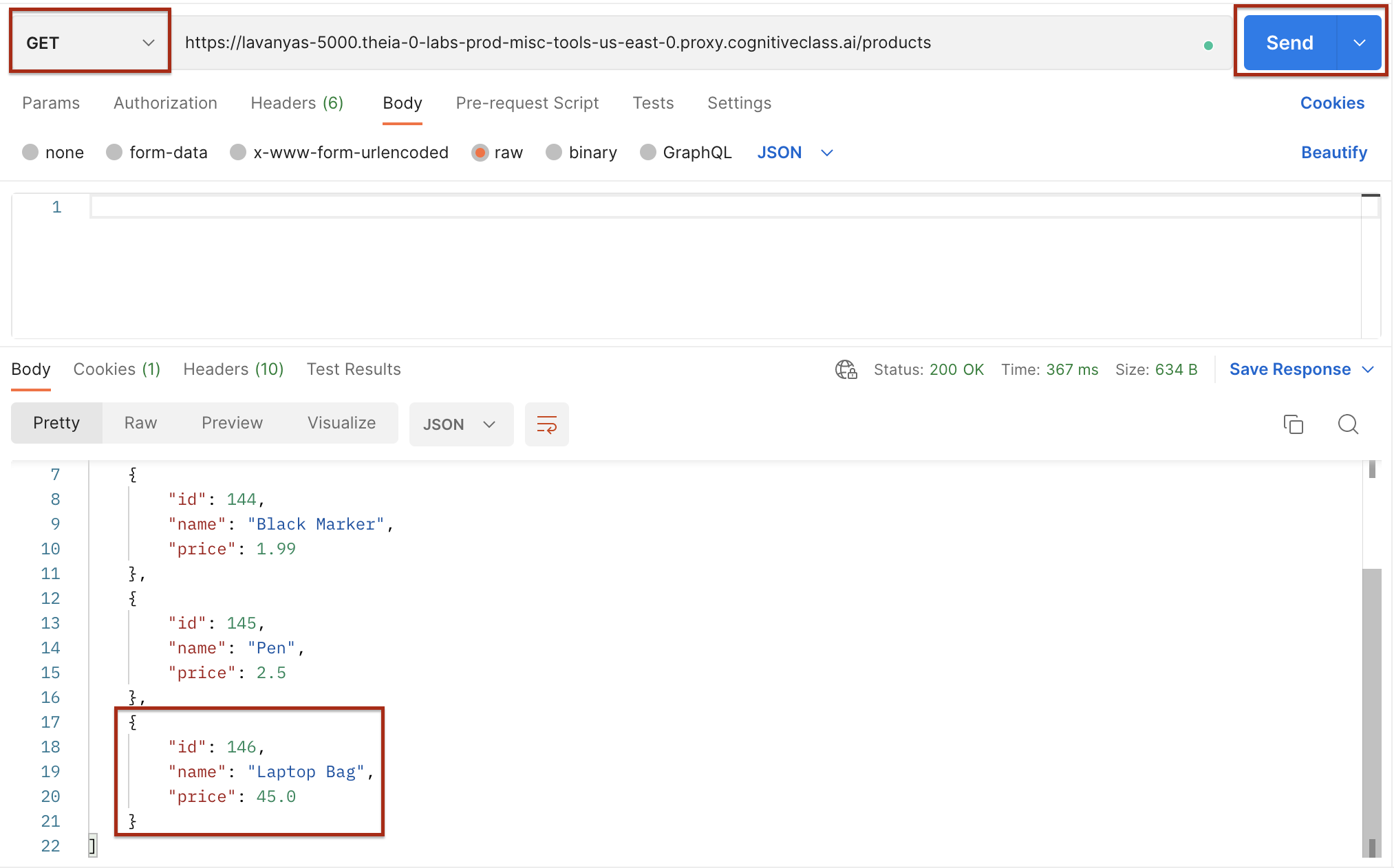
- Verify the list of products to ensure that the request has gone through and the product is added. Change the request type to
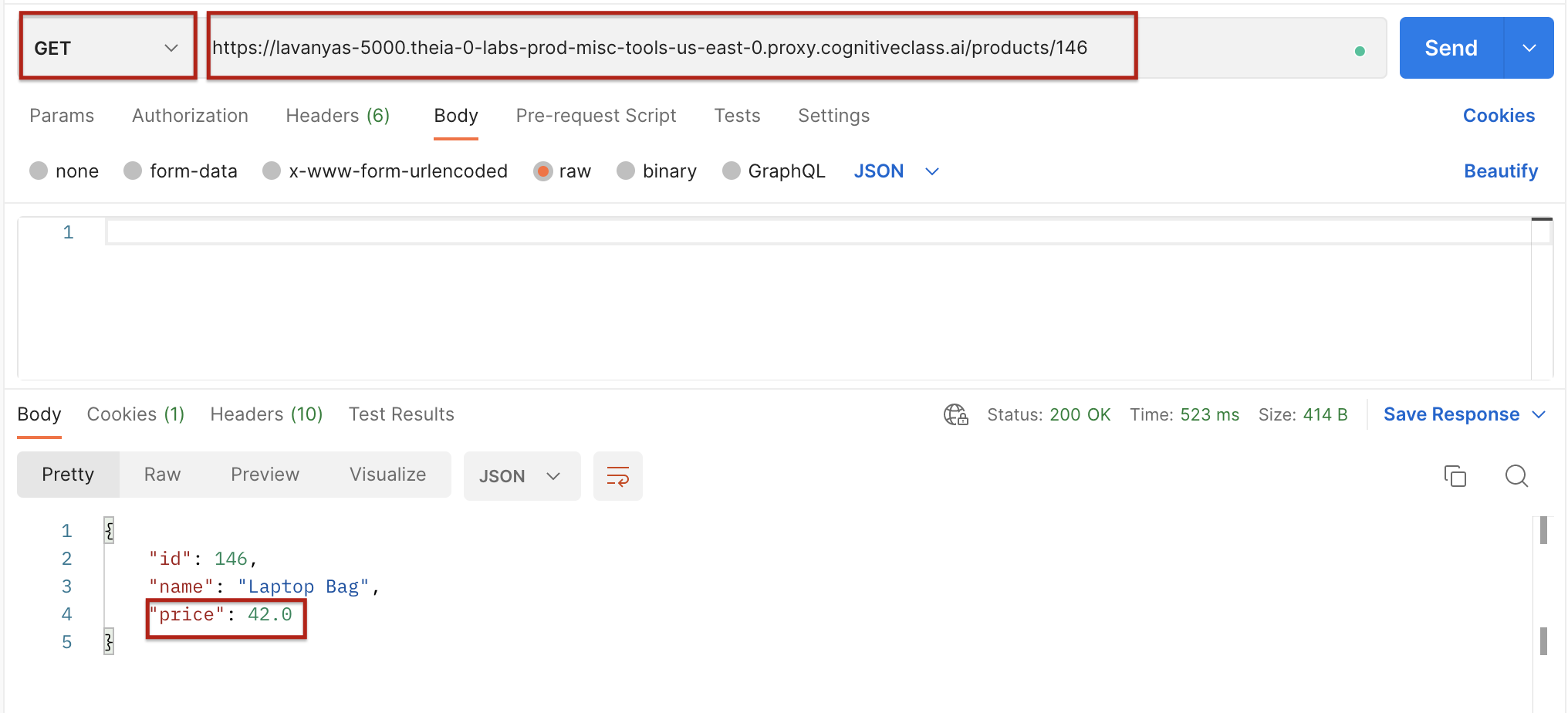
GETand remove the JSON object from the request body. ClickSendand observe the output in the response window.
- Test the
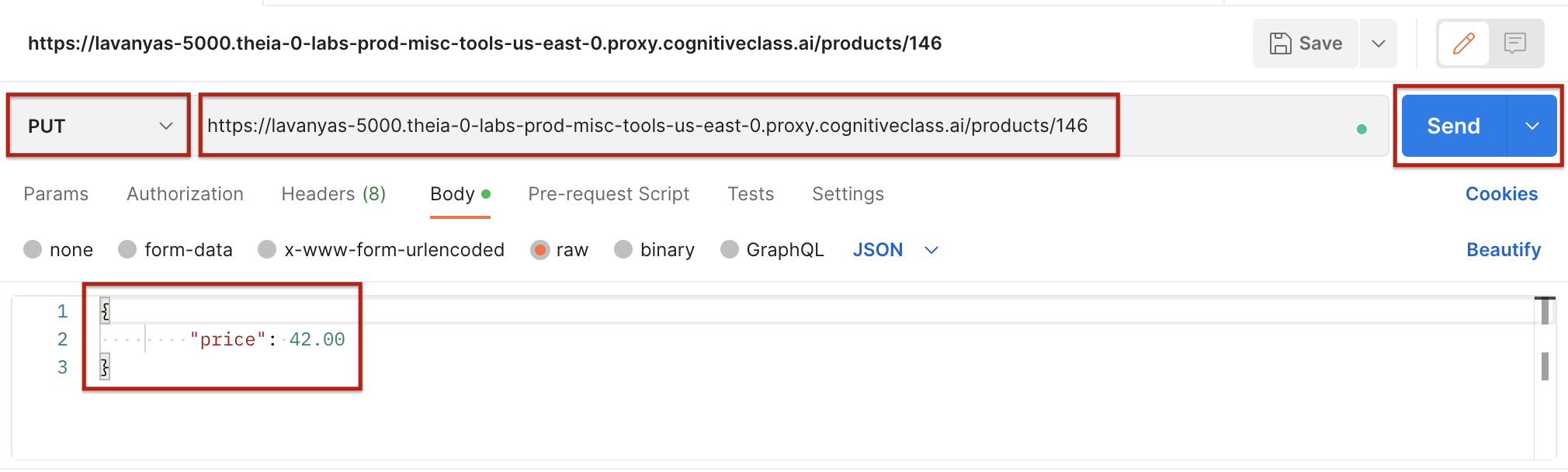
PUTendpoint to update product details by changing the price of the item with id 146 to 42.00. Set the request type toPUTand add the product id to the end of the URL and add the value to be changed as a JSON body and clickSend.
{
    "price":42.00
}
9. Verify the product with id 146 to ensure that the request has gone through and the product is updated. Change the request type to GET and remove the JSON object from the request body. Click Send and observe the output in the response window.
Practice labs
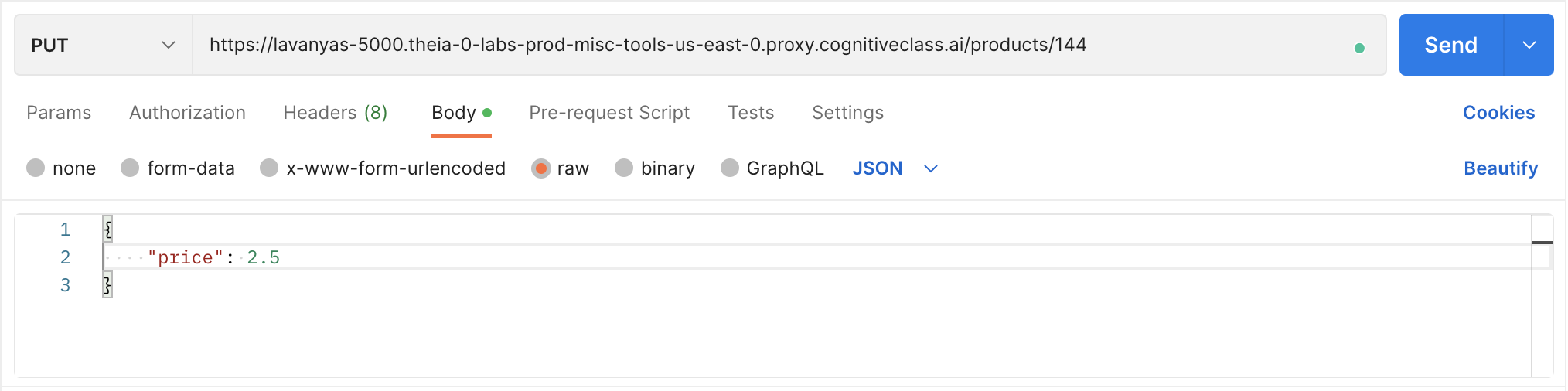
- Update product details of product with id 144 by changing its price to 2.50.
Click here for a hintGo to products/144 endpoint. Set the request type toPUTand add the product id to the end of the URL and add the value to be changed as a JSON body and clickSend.
{
    "price":2.50
}
2. Add the following product using POST method.
{
    "id":142,
    "name":"Eraser",
    "price":1.50
}
Refer to step 3 of the previous exercise
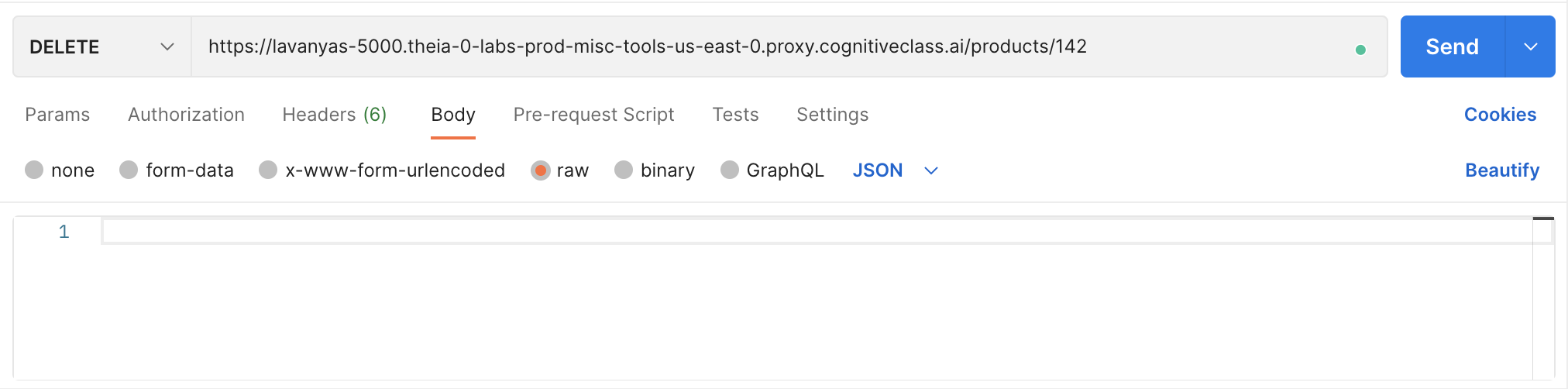
3. Delete the product with id 142.
Go to products/142 endpoint. Set the request type to DELETE and click Send.Click here for the solution
Congratulations! You have completed the lab for CRUD operations with Python.
Summary
In this lab, you have performed CRUD Operations like GET, POST, PUT, and DELETE on a Python server App and tested the above methods using POSTMAN.