Module 02 · Web API Essentials: REST API and GraphQL
Optional: Hands-on Lab: Querying with GraphQL(可选)动手实验:使用 GraphQL 查询
In this lab, you will become familiar with using GraphQL to query the APIs served through a GraphQL service running on a server using Postman.
Hands-on Lab - Querying with GraphQL using Python 动手实验 - 使用 Python 进行 GraphQL 查询
Estimated Time: 60 minutes
预计时间:60 分钟
In this lab, you will become familiar with using GraphQL to query the APIs served through a GraphQL service running on a server using Postman.
在本实验中,你将熟悉使用 GraphQL 查询通过服务器上运行的 GraphQL 服务提供的 API,使用 Postman 进行。
Learning Objectives: 学习目标
After completing this exercise, you should be able to perform the following tasks:
完成此练习后,您应该能够执行以下任务:
- Use GraphQL with Postman to access GraphQL Service
使用 Postman 和 GraphQL 访问 GraphQL 服务 - Structure queries to access APIs to get selective information that you need
构建查询以访问 API 以获取您需要的选择性信息
Pre-requisites 前提条件
- You must be familiar with Docker applications and commands.
你必须熟悉 Docker 应用和命令。 - You must have a good understanding of API.
您必须对 API 有很好的理解。 - You must be familiar with using Postman.
您必须熟悉使用 Postman。
Task 1 - Sign-up for Postman 任务 1 - 注册 Postman
If you already have a Postman account, you can skip this task.
如果您已经拥有一个 Postman 账户,可以跳过此任务。
- On your browser, go to www.postman.com
在您的浏览器中,访问 www.postman.com
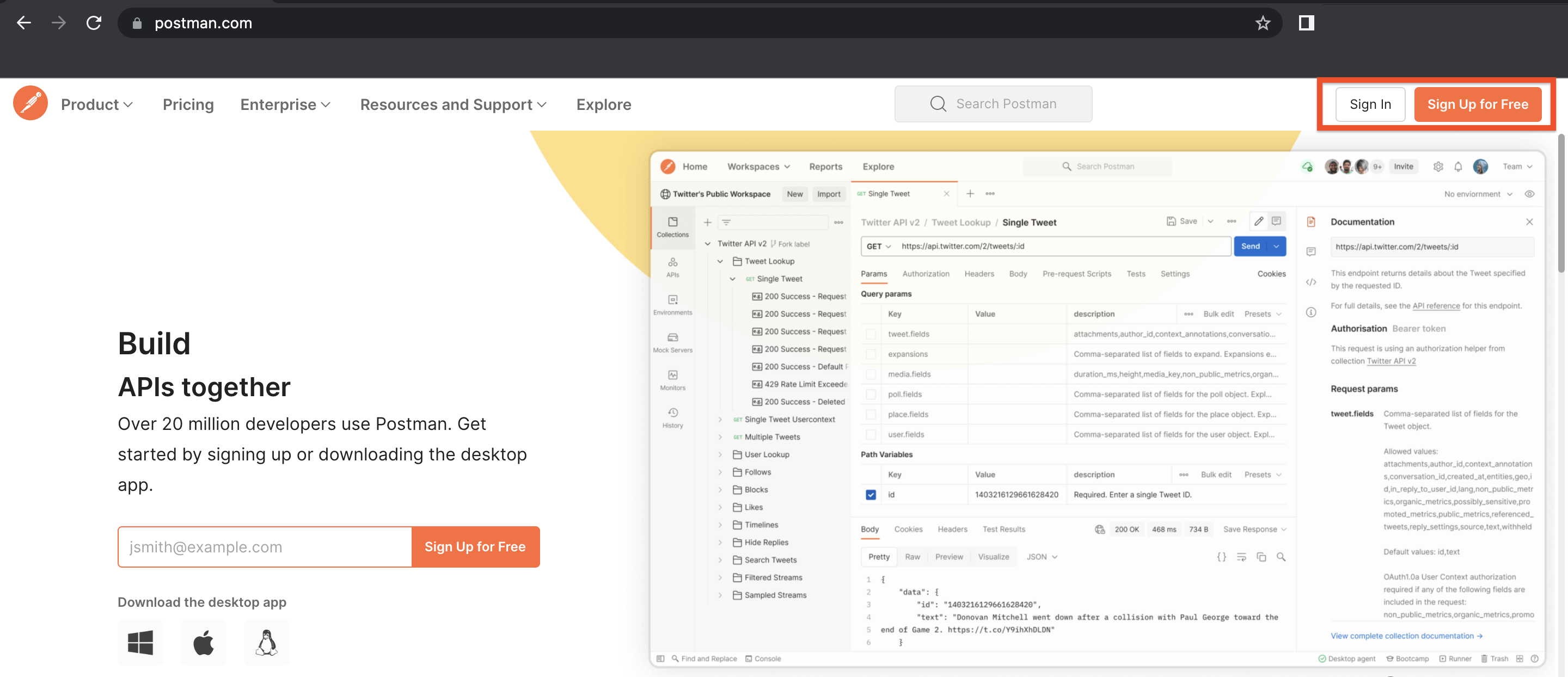
- Click Sign Up for Free.
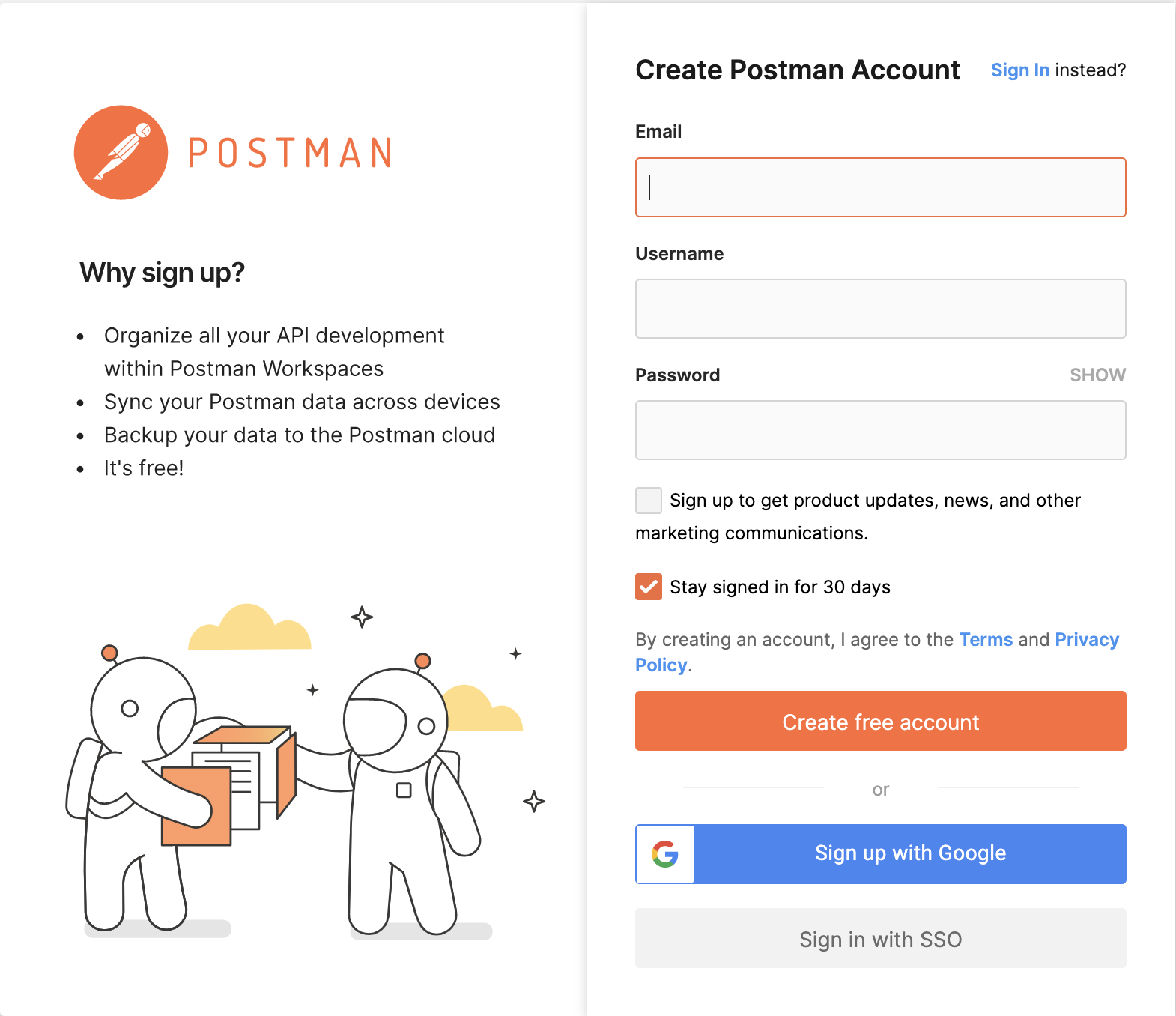
点击免费注册。 - Enter your email and choose a password, confirm it, and create a free account. You can alternatively use your Google account to sign in too. You may notice that Stay signed in for 30 days is selected by default. It is highly recommended that you uncheck that option if you are not using a personal computer for this lab.
输入您的电子邮件地址,选择一个密码,确认密码,并创建一个免费账户。您也可以选择使用您的 Google 账户登录。您可能会注意到“保持登录 30 天”选项默认被选中。如果您不是使用个人计算机进行此实验,强烈建议您取消选中该选项。
You have successfully created a Postman account.
您已成功创建了一个 Postman 账户。
Task 2 - Run a GraphQL service 任务 2 - 运行一个 GraphQL 服务
- Open a terminal window by using the top menu in the IDE: Terminal > New Terminal.
通过 IDE 中的顶部菜单打开终端窗口:终端 > 新建终端。 - In the terminal, clone the repository which has the GraphQL service code ready by pasting the following command. The repository that you clone has code that will run a GraphQL service where we can query details on US cities and states.
在终端中,通过粘贴以下命令来克隆包含 GraphQL 服务代码的仓库。你克隆的仓库包含运行 GraphQL 服务的代码,我们可以通过它查询美国城市和州的详细信息。
git clone https://github.com/ibm-developer-skills-network/jmgdo-microservices.git
- Change the working directory to jmgdo-microservices/graphql_example by running the following command.
通过运行以下命令将工作目录更改为 jmgdo-microservices/graphql_example。
cd jmgdo-microservices/graphql_example
- Build the application by running the following command. This will build the docker application using the docker file in the current directory and tag it graphqlservice.
通过运行以下命令构建应用程序。这将使用当前目录中的 Dockerfile 构建 Docker 应用程序,并将其标记为 graphqlservice。
docker build . -t graphqlservice
- Run the application that you just built on port 8080, by running the following command on the terminal.
通过在终端中运行以下命令,在端口 8080 上运行你刚刚构建的应用程序。
docker run -dp 8080:4000 graphqlservice
You will get a hex code that indicates the application has started.
您将获得一个十六进制代码,该代码表示应用程序已启动。
- To confirm that the service is running, execute the following command.
要确认服务正在运行,请执行以下命令。
curl localhost:8080

If the output is as seen in the image above, your service is up and running.
如果输出与上图所示相同,则您的服务已启动并运行。
7. Click on the Skills Network button on the left, it will open the "Skills Network Toolbox". Then click Launch Application, from there you enter the port no. as 8080 and click Your Application button. This will open a browser window.
点击左侧的 Skills Network 按钮,它将打开“Skills Network Toolbox”。然后点击启动应用程序,在那里您将端口号输入为 8080,并点击您的应用程序按钮。这将打开一个浏览器窗口。
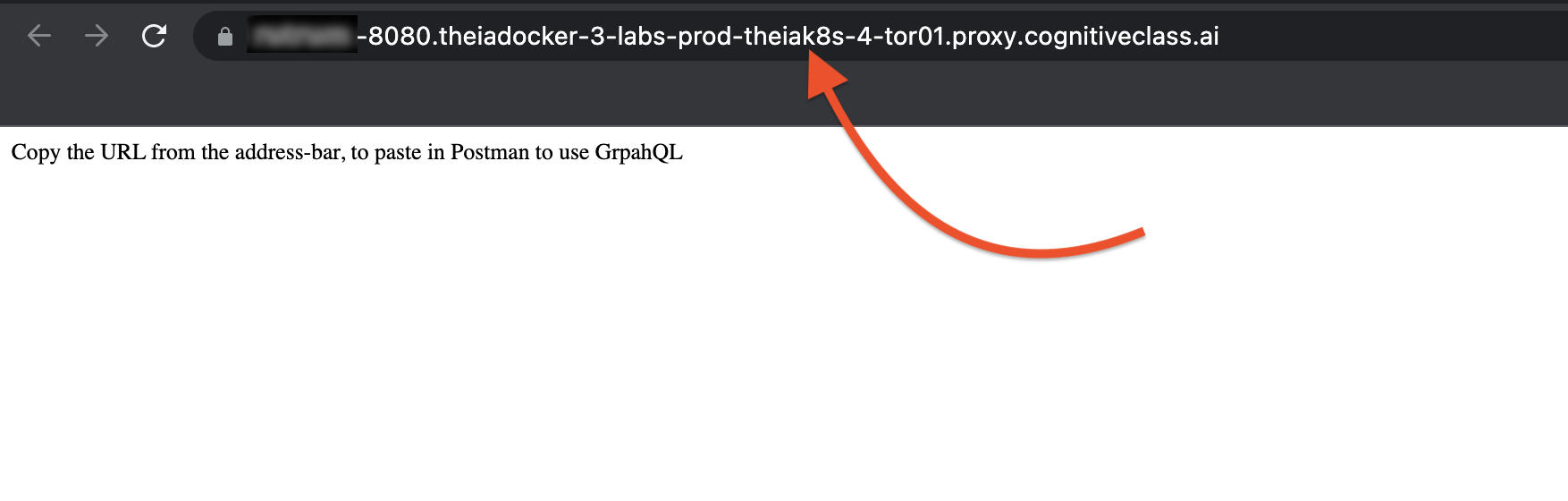
8. This will launch a browser page. Copy the URL that you see in the address bar.
这将启动一个浏览器页面。复制地址栏中显示的 URL。
Task 3 - Run GraphQL queries on Postman 任务 3 - 在 Postman 上运行 GraphQL 查询
- Go to www.postman.com and sign in to Postman. Please note that the home page may look different for every person depending on the day of the year and the region you are signing in from.
前往 www.postman.com 并登录 Postman。请注意,主页的显示可能会因登录日期和地区不同而有所差异。 - On the homepage, click Create new.
在主页上,点击“创建新的”。
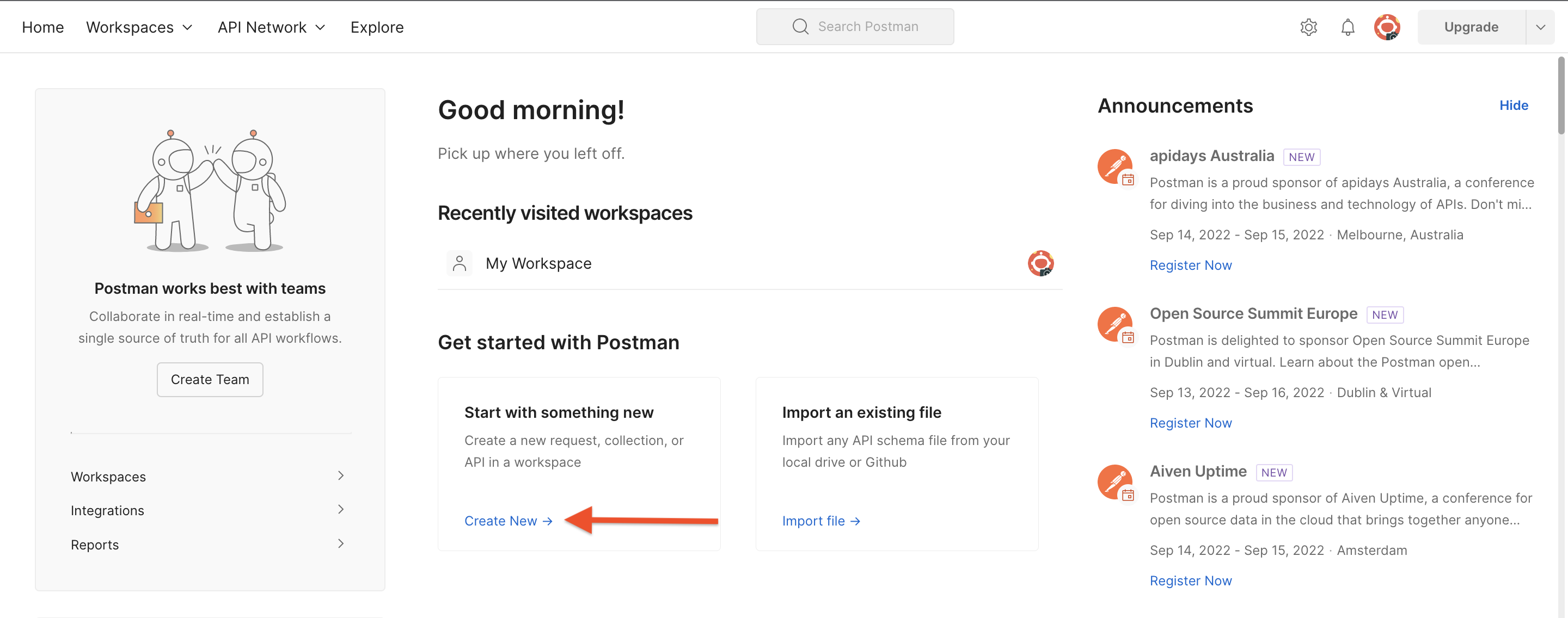
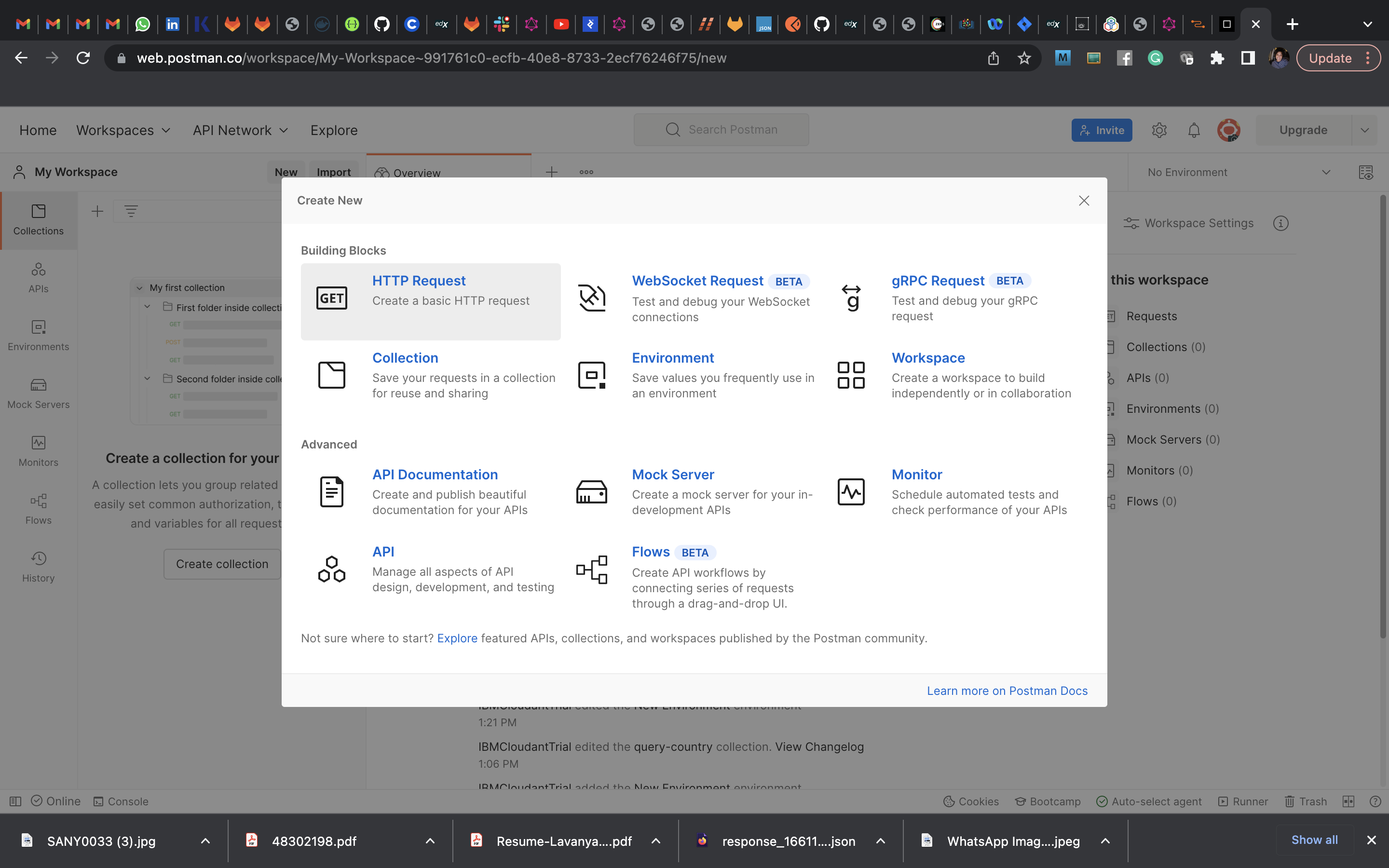
- This brings up the set of options you can use with Postman. Choose HttpRequest.
这将显示您可以使用 Postman 的选项集。选择 HttpRequest。
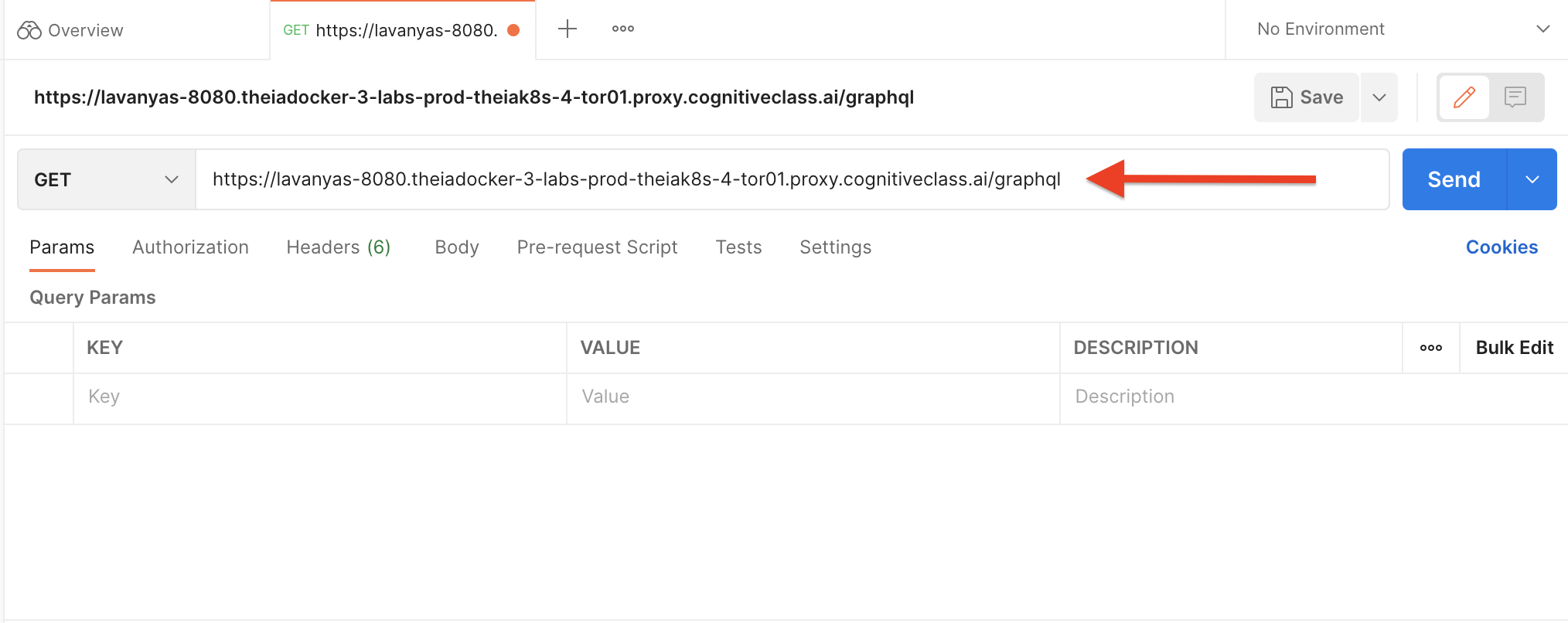
- In the space provided for the GET request URL paste the URL you copied from step 8 of the previous task and suffix it with /graphql.
在为 GET 请求 URL 提供的空间中,粘贴您从上一步任务的第 8 步复制的 URL,并在其后添加 /graphql。
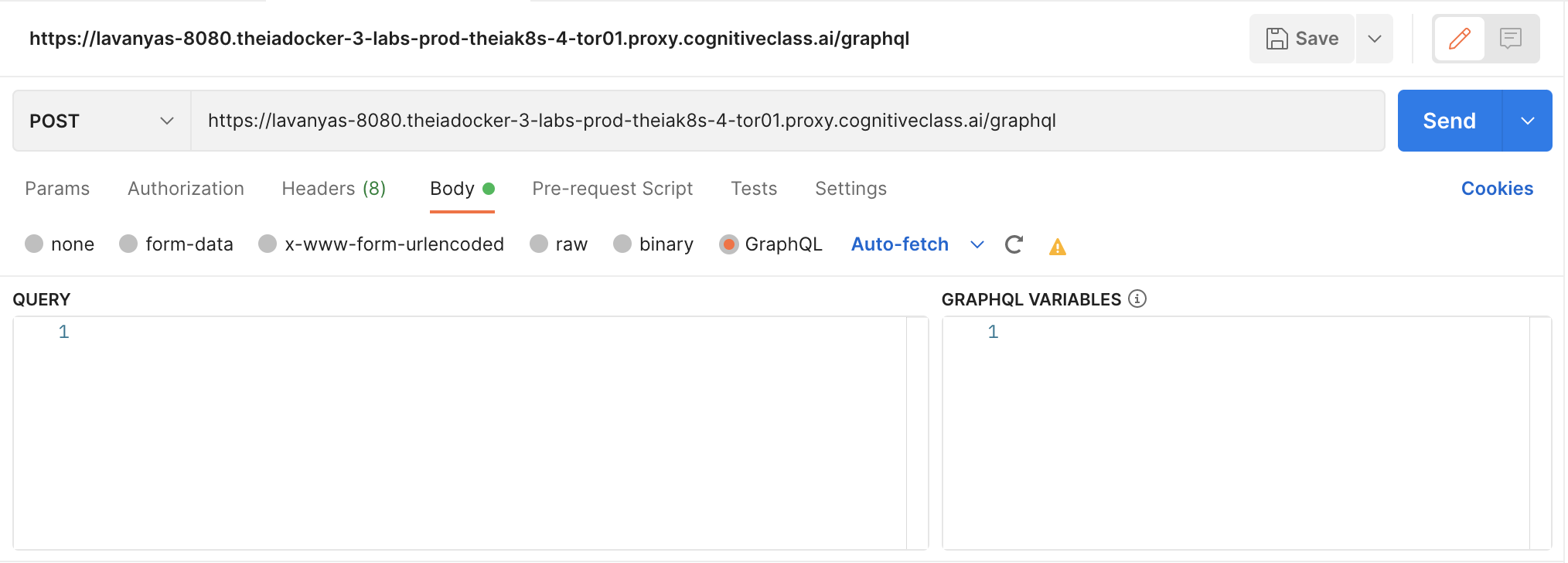
- Choose Body and GraphQL as shown in the image below to start entering your query. Method will change to POST.
选择下方图像中所示的 Body 和 GraphQL 以开始输入您的查询。方法将更改为 POST。
- You will first query for all the cities in the US. What you can get is the city name and the state they are in. Paste the following in the Query tab and click Send.
您将首先查询美国所有城市。您将获得城市名称及其所在州。将以下内容粘贴到查询选项卡中并点击发送。
{
    cities {
        city
        state
        }
}
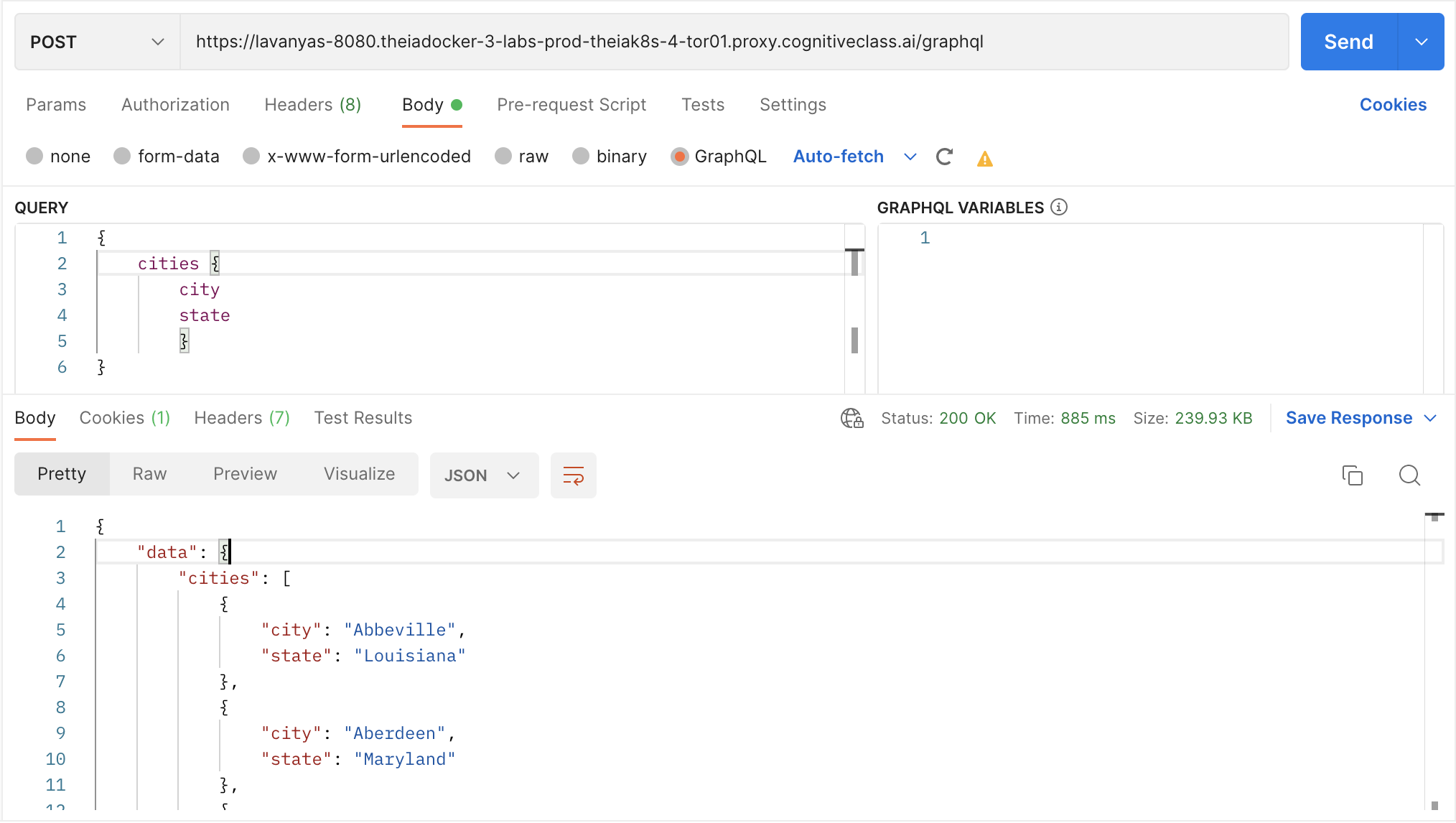
As you can see, it lists all the 5980 cities in the US in the output tab.
如您所见,输出选项卡中列出了美国的所有 5980 个城市。
7. You can now try to retrieve just the names of the cities in a particular state. To do this, you need to pass the state as a parameter. You will now request the state name in the return value as you are querying only for one state.
现在您可以尝试检索特定州的城市名称。为此,您需要将州作为参数传递。在查询仅一个州的情况下,您将在返回值中请求州名称。
{
    cities(state:"Florida") {
        city
    }
}
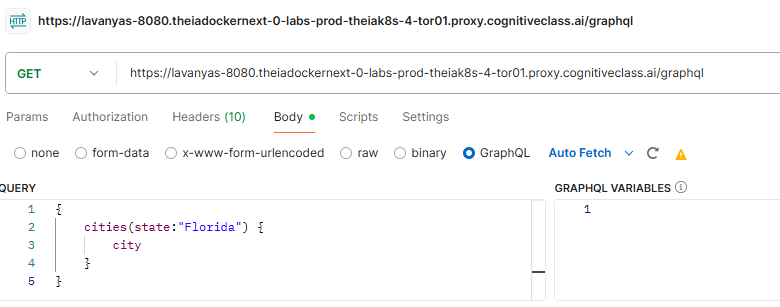
As you can see, only the names of the cities in Florida are returned.
如您所见,仅返回了佛罗里达州的城市名称。
Additional Task 附加任务
- Construct a query to return all the cities in the state of “Ohio”, along with the state name.
构建一个查询,以返回俄亥俄州的所有城市,以及州名。
Click here for the solution
点击此处获取答案
{
    cities(state:"Ohio") {
        city
        state
    }
}
Congratulations! You have learned to construct queries using GraphQL.
恭喜!你已经学会了使用 GraphQL 构建查询。