Module 01 · Getting Started with SQL
Hands-on Lab: INSERT, UPDATE, DELETE动手实验:INSERT、UPDATE、DELETE

Estimated time needed: 20 minutes
In this lab, you will learn some commonly used DML (Data Manipulation Language) statements of SQL other than SELECT. First, you will learn the INSERT statement, which is used to insert new rows into a table. Next, you will learn the UPDATE statement which is used to update the data in existing rows in the table. Lastly, you will learn the DELETE statement which is used to remove rows from a table.
Objectives
After completing this lab, you will be able to:
- Insert new rows into a table
- Update data in existing rows of the table
- Remove rows from a table
Concepts covered
How does the syntax of an INSERT statement look?
INSERT INTO table_name (column1, column2, ... )VALUES (value1, value2, ... );
How does the syntax of an UPDATE statement look?
UPDATE table_nameSET column1 = value1, column2 = value2, ...WHERE condition;
How does the syntax of a DELETE statement look?
DELETE FROM table_nameWHERE condition;
Introduction to Lab Environment
Software Used in this Lab
In this lab, you will use Datasette, an open source tool for exploring and publishing data. You can visit the Datasette GitHub repository here.
Working with Datasette
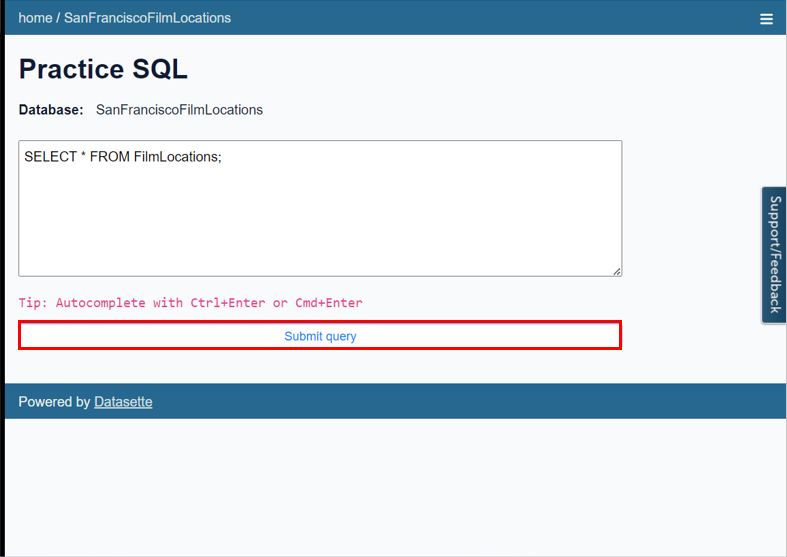
The Datasette tool offers a platform to input and execute SQL queries. By clicking the Submit query button, you can execute the SQL query.
Database Used in this Lab
The dataset used in this lab is an internal database.
Exploring the Database
Let us first explore the Instructors database using the Datasette tool:
- If the first statement listed below is not already in the Datasette textbox on the right, then copy the code below by clicking on the little copy button on the bottom right of the codeblock below and then paste it into the textbox of the Datasette tool using either Ctrl+V or right-click in the text box and choose Paste.
SELECT * FROM Instructor;
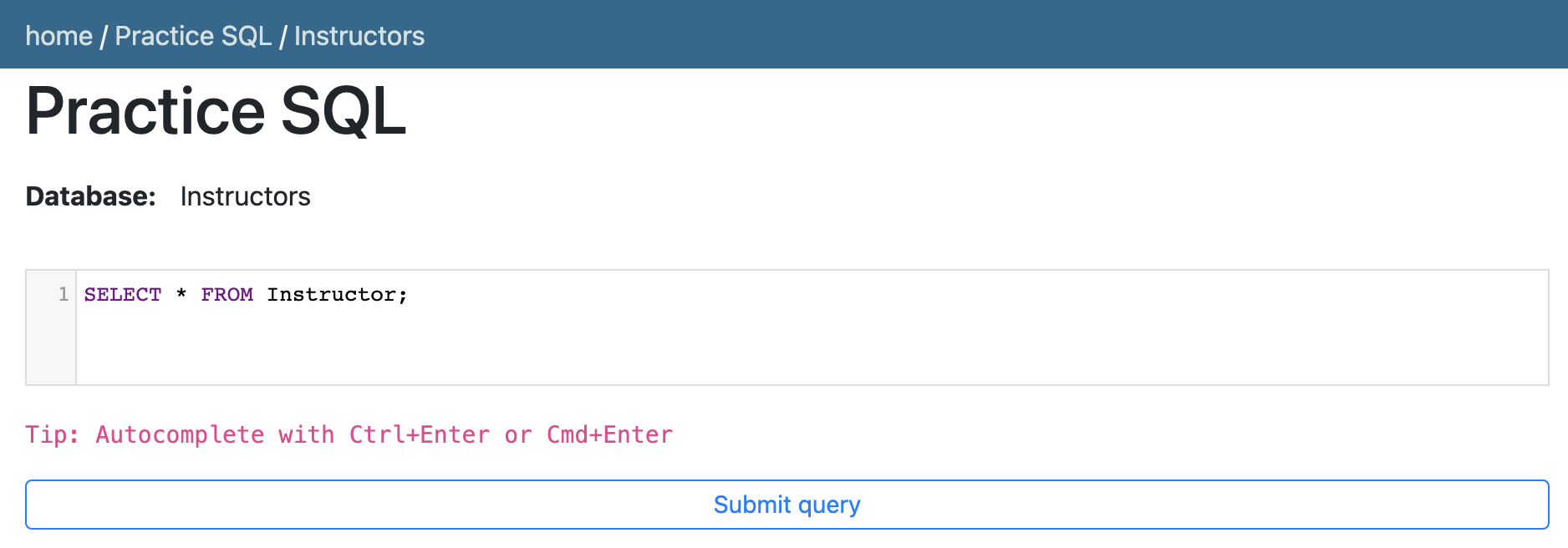
- Click Submit Query.
- Now you can scroll down the table and explore all the columns and rows of the Instructor table to get an overall idea of the table contents.
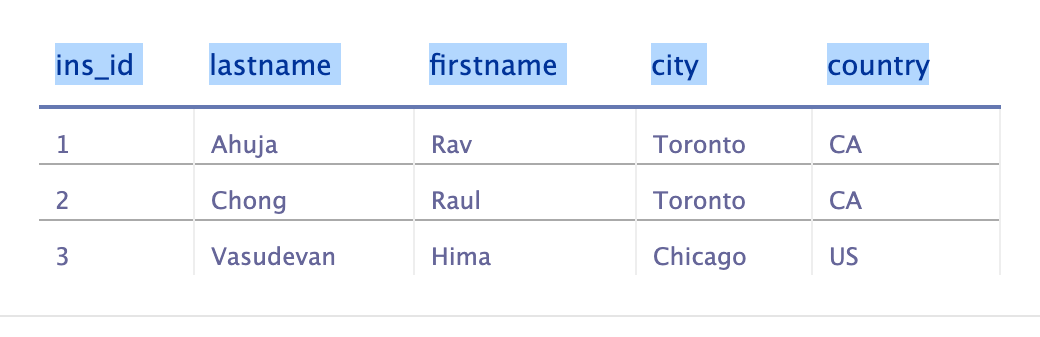
- These are the column attribute descriptions from the Instructor table:
Instructor (ins_id: unique identification number of the instructors,lastname: last name of the instructors,firstname: first name of the instructors,city: name of the cities where instructors are located,country: two-letter country code of the countries where instructors are located)
Exercise 1: INSERT
In this exercise, you will first go through some examples of using INSERT in queries and then solve some exercise problems by using it.
Task A
Example exercises on INSERT
Let us go through some examples of INSERT related queries:
- In this example, suppose we want to insert a new single row into the Instructor table.
- Problem:
> *Insert a new instructor record with id 4 for Sandip Saha who lives in Edmonton, CA into the “Instructor” table.*
- Solution:
```

```
1. `INSERT INTO Instructor(ins_id, lastname, firstname, city, country)`
2. `VALUES(4, 'Saha', 'Sandip', 'Edmonton', 'CA');`
- Copy the solution code above by clicking on the little copy button on the bottom right of the codeblock below and paste it to the textbox of the Datasette tool. Then click Submit query.
- Copy the code below by clicking on the little copy button on the bottom right of the codeblock below and paste it to the textbox of the Datasette tool. Then click Submit query.
```

```
1. `SELECT * FROM Instructor;`
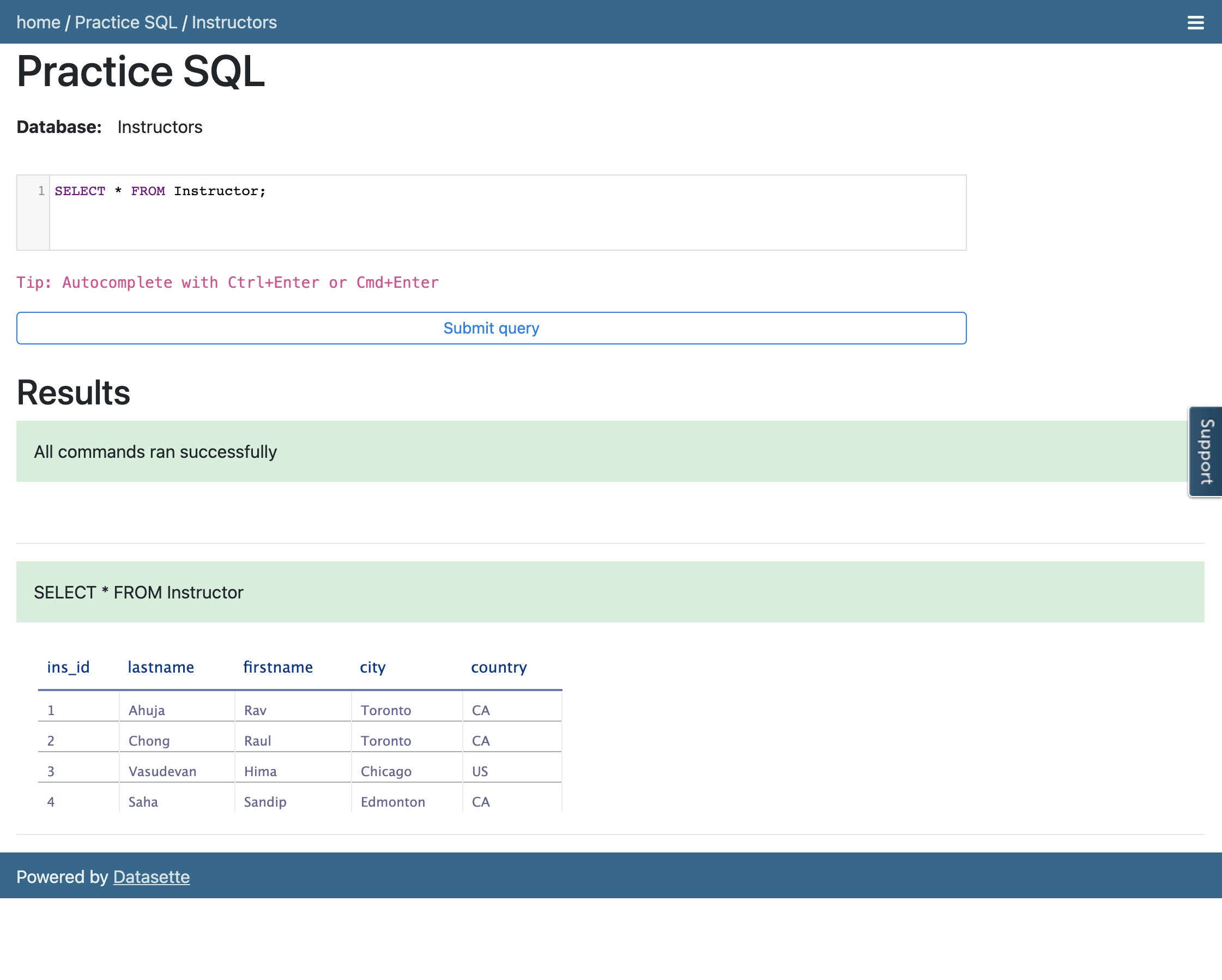
- Your output resultset should look like the image below:
- In this example, suppose we want to insert some new multiple rows into the Instructor table.
- Problem:
> *Insert two new instructor records into the “Instructor” table. First record with id 5 for John Doe who lives in Sydney, AU. Second record with id 6 for Jane Doe who lives in Dhaka, BD.*
- Solution:
```

```
1. `INSERT INTO Instructor(ins_id, lastname, firstname, city, country)`
2. `VALUES(5, 'Doe', 'John', 'Sydney', 'AU'), (6, 'Doe', 'Jane', 'Dhaka', 'BD');`
- Copy the solution code above by clicking on the little copy button on the bottom right of the codeblock below and paste it to the textbox of the Datasette tool. Then click Submit query.
- Copy the code below by clicking on the little copy button on the bottom right of the codeblock below and paste it to the textbox of the Datasette tool. Then click Submit query.
```

```
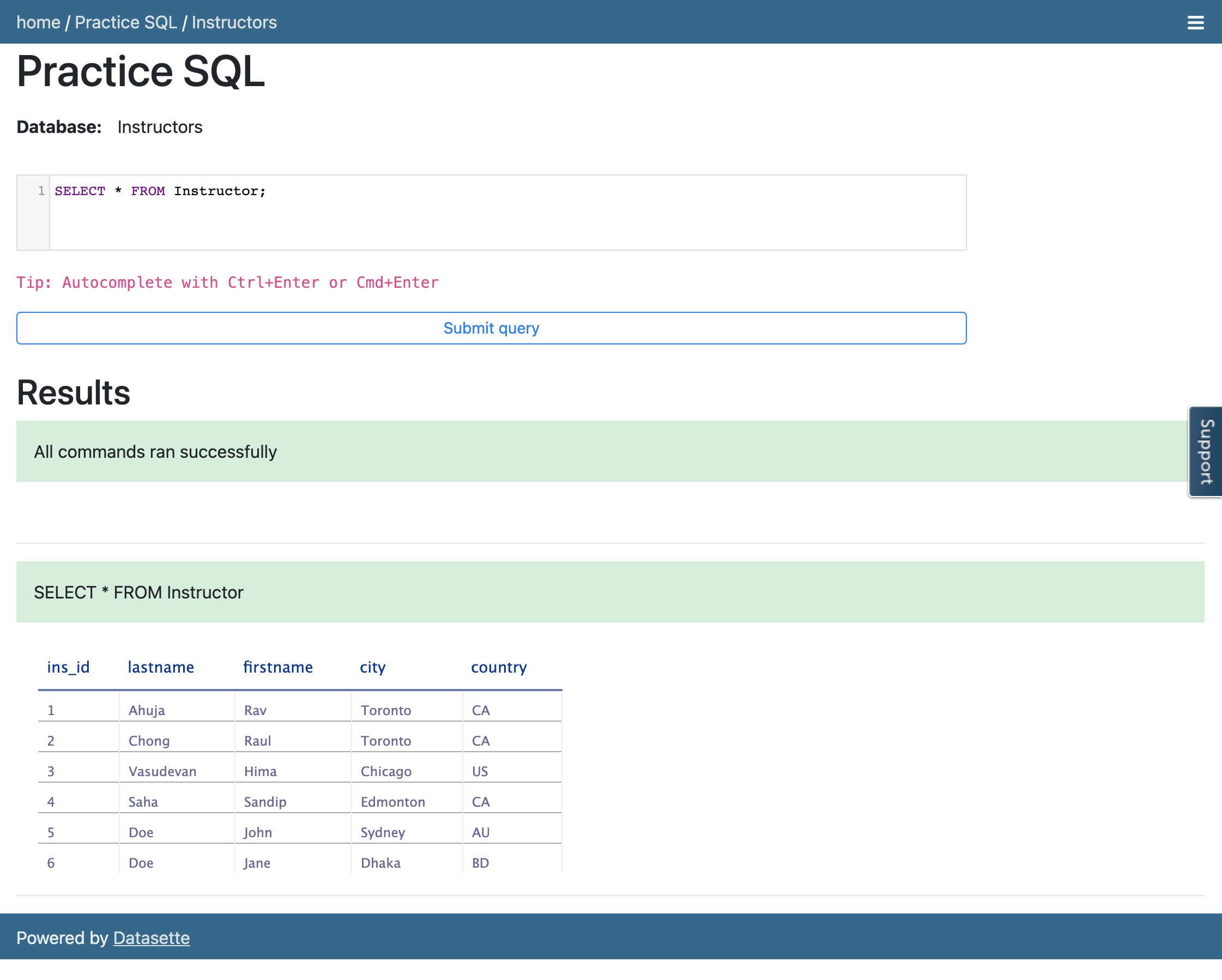
1. `SELECT * FROM Instructor;`
- Your output resultset should look like the image below:
Task B
Practice exercises on INSERT
Now, let us practice creating and running some INSERT related queries.
- Problem:
Insert a new instructor record with id 7 for Antonio Cangiano who lives in Vancouver, CA into the “Instructor” table.
Hint
Follow example 1 of the INSERT exercise.
INSERT INTO table_name([columnn1],[column2], [column3], [column4], [column5])VALUES(7, 'Cangiano', 'Antonio', 'Vancouver', 'CA');SELECT * FROM tablename;
Solution
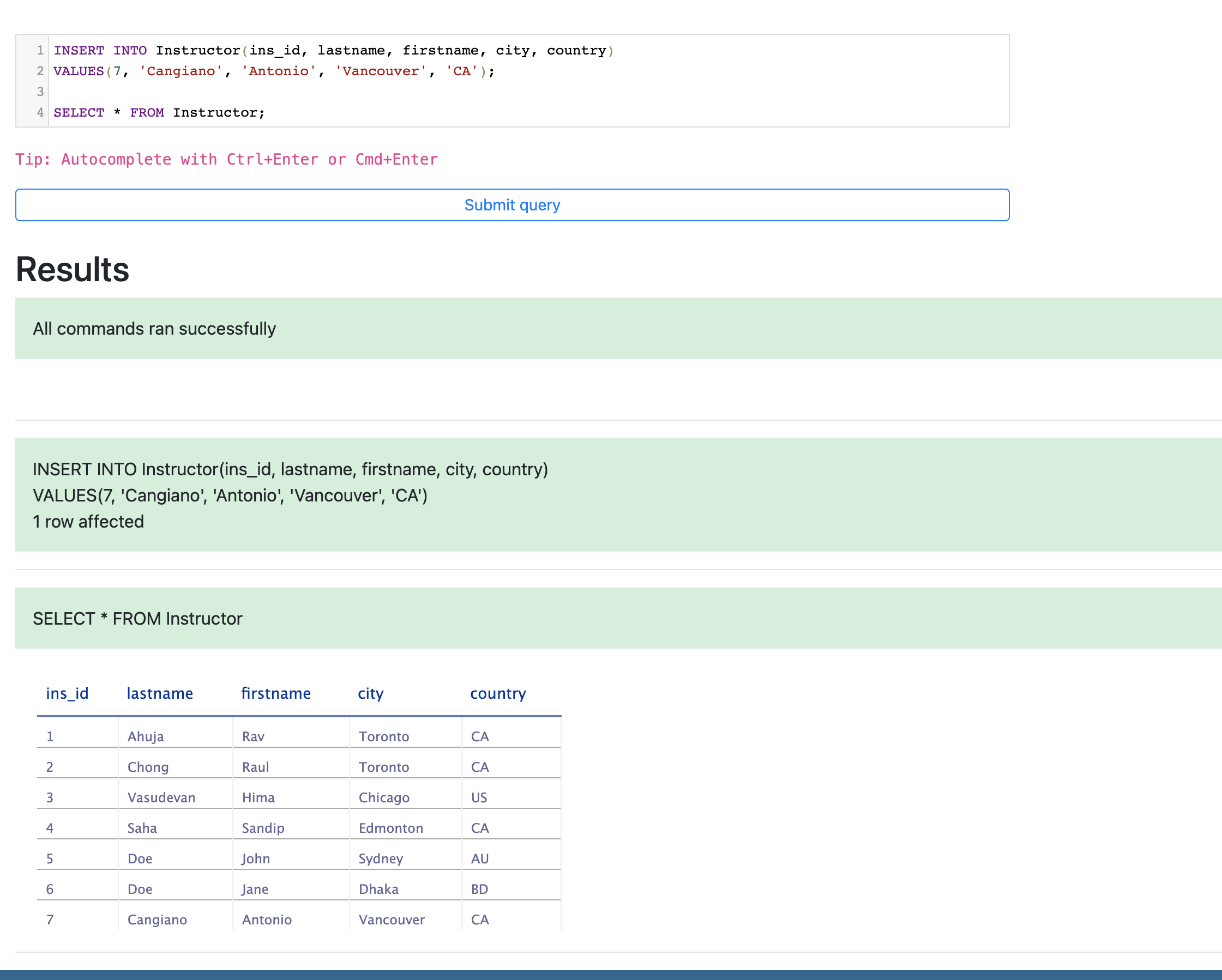
INSERT INTO Instructor(ins_id, lastname, firstname, city, country)VALUES(7, 'Cangiano', 'Antonio', 'Vancouver', 'CA');SELECT * FROM Instructor;
Output
- Problem:
Insert two new instructor records into the “Instructor” table. First record with id 8 for Steve Ryan who lives in Barlby, GB. Second record with id 9 for Ramesh Sannareddy who lives in Hyderabad, IN.
Hint
Follow example 2 of the INSERT exercise.
INSERT INTO table_name([columnn1],[column2], [column3], [column4], [column5])VALUES(8, 'Ryan', 'Steve', 'Barlby', 'GB'), (9, 'Sannareddy', 'Ramesh', 'Hyderabad', 'IN');SELECT * FROM tablename;
Solution
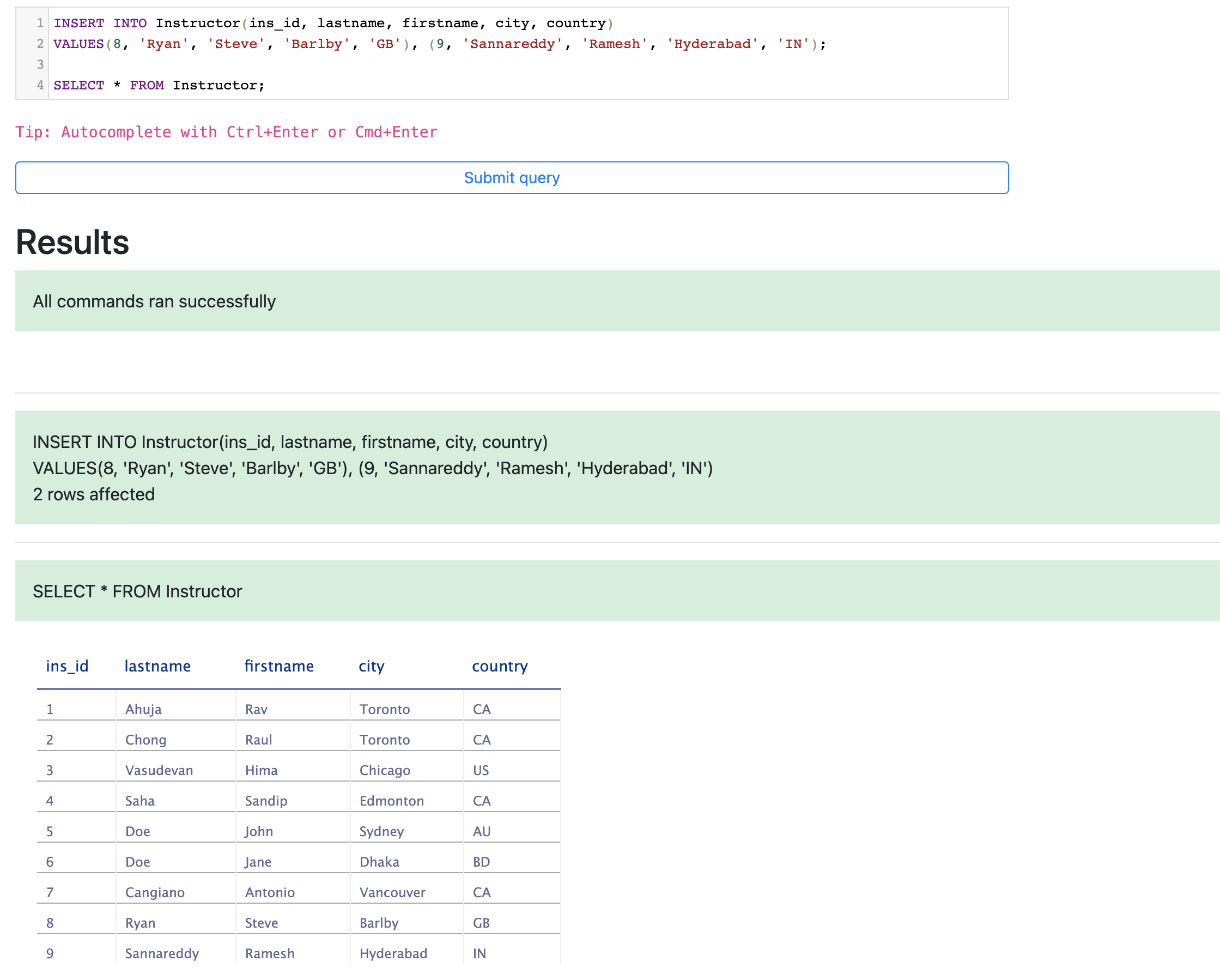
INSERT INTO Instructor(ins_id, lastname, firstname, city, country)VALUES(8, 'Ryan', 'Steve', 'Barlby', 'GB'), (9, 'Sannareddy', 'Ramesh', 'Hyderabad', 'IN');SELECT * FROM Instructor;
Output
Exercise 2: UPDATE
In this exercise, you will first go through some examples of using UPDATE in queries and then solve some exercise problems by using it.
Task A
Example exercises on UPDATE
Let us go through some examples of UPDATE related queries:
- In this example, we want to update one column of an existing row of the table.
- Problem:
> *Update the city for Sandip to Toronto.*
- Solution:
```

```
1. `UPDATE Instructor `
2. `SET city='Toronto' `
3. `WHERE firstname="Sandip";`
- Copy the solution code above by clicking on the little copy button on the bottom right of the codeblock below and paste it to the textbox of the Datasette tool. Then click Submit query.
- Copy the code below by clicking on the little copy button on the bottom right of the codeblock below and paste it to the textbox of the Datasette tool. Then click Submit query.
```

```
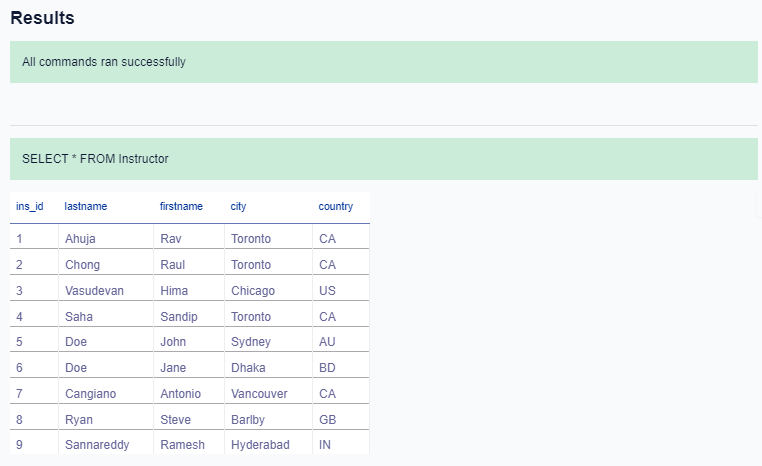
1. `SELECT * FROM Instructor;`
- Your output resultset should look like the image below:
- In this example, we want to update multiple columns of an existing row of the table.
- Problem:
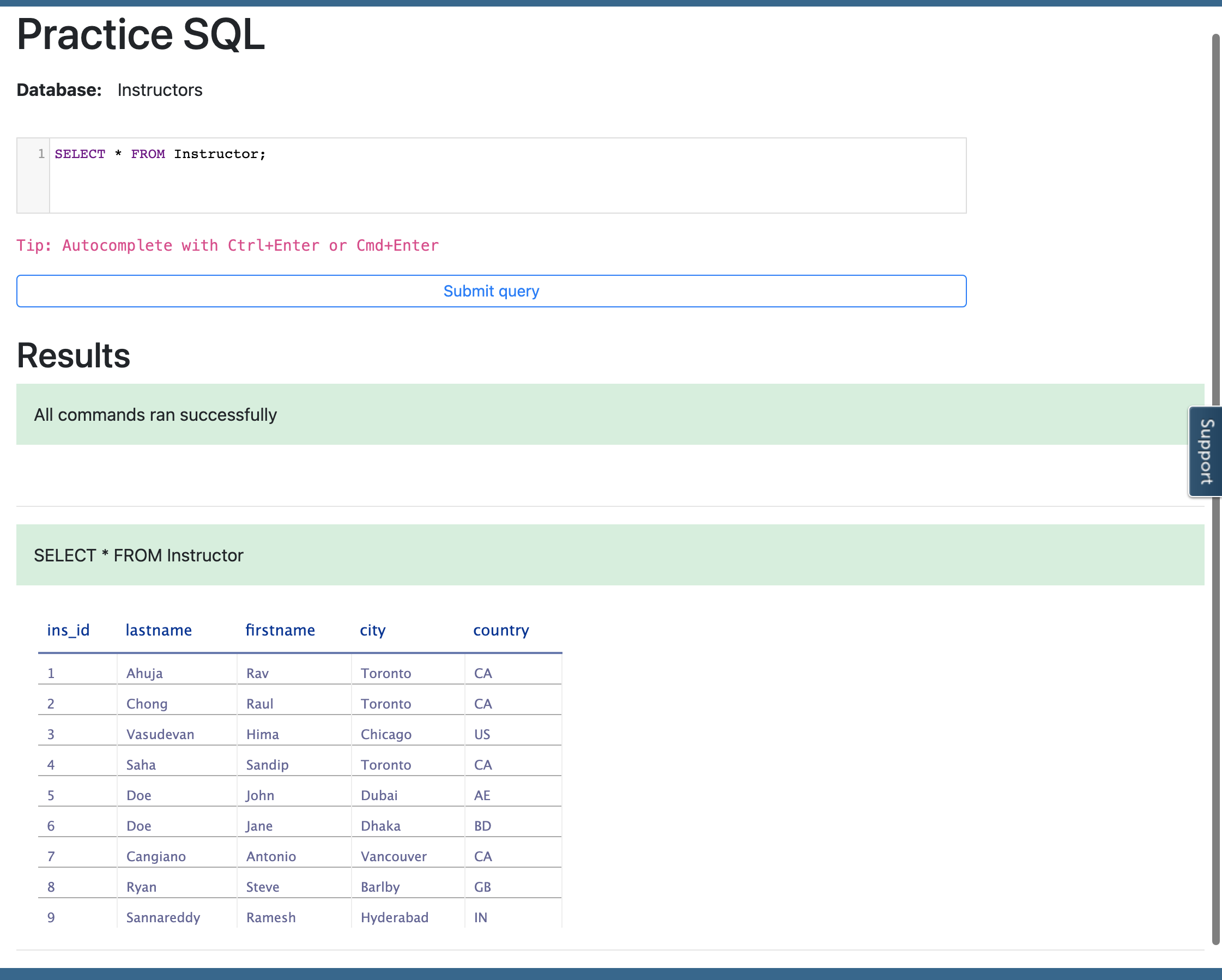
> *Update the city and country for Doe with id 5 to Dubai and AE respectively.*
- Solution:
```

```
1. `UPDATE Instructor `
2. `SET city='Dubai', country='AE' `
3. `WHERE ins_id=5;`
- Copy the solution code above by clicking on the little copy button on the bottom right of the codeblock below and paste it to the textbox of the Datasette tool. Then click Submit query.
- Copy the code below by clicking on the little copy button on the bottom right of the codeblock below and paste it to the textbox of the Datasette tool. Then click Submit query.
```

```
1. `SELECT * FROM Instructor;`
- Your output resultset should look like the image below:
Task B
Practice exercises on UPDATE
Now, let us practice creating and running some UPDATE related queries.
- Problem:
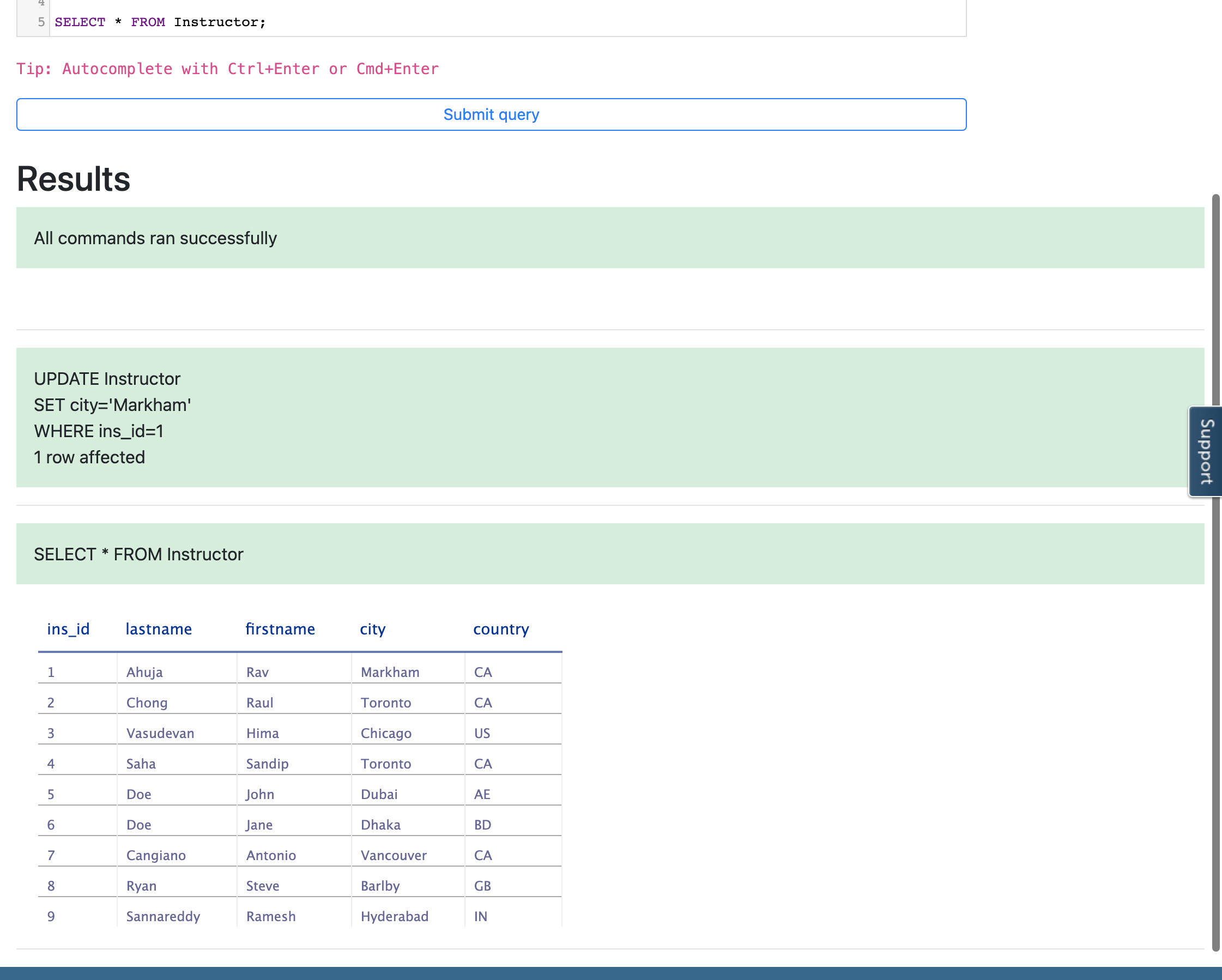
Update the city of the instructor record to Markham whose id is 1.
Hint
Follow example 1 of the UPDATE exercise.
UPDATE table_nameSET [column1]='Markham'WHERE [specifiedcolumn]=1;SELECT * FROM tablename;
Solution
UPDATE InstructorSET city='Markham'WHERE ins_id=1;SELECT * FROM Instructor;
Output
- Problem:
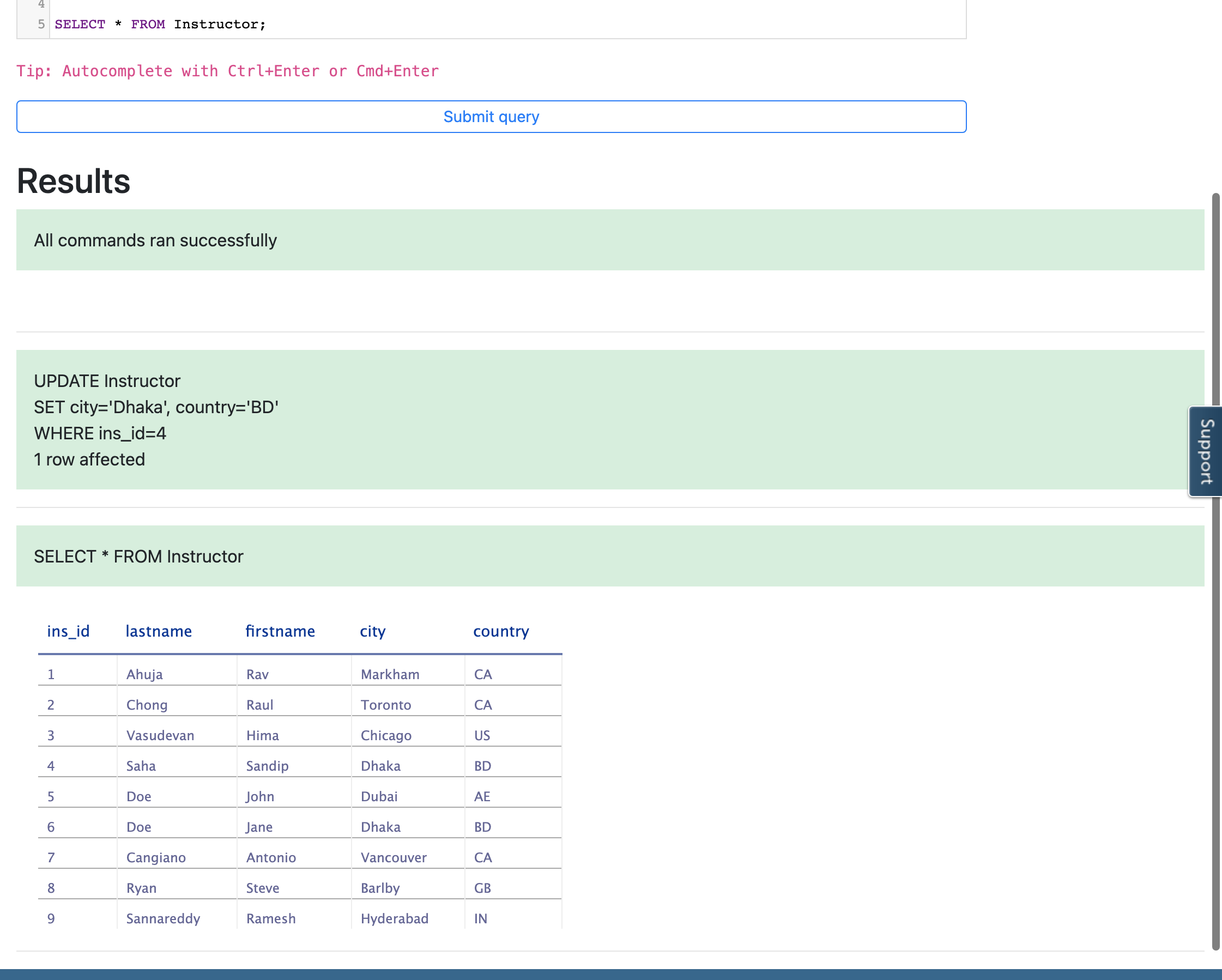
Update the city and country for Sandip with id 4 to Dhaka and BD respectively.
Hint
Follow example 2 of the UPDATE exercise.
UPDATE table_nameSET [column1]='Dhaka', [column2]='BD'WHERE [specifiedcolumn]=4;SELECT * FROM tablename;
Solution
UPDATE InstructorSET city='Dhaka', country='BD'WHERE ins_id=4;SELECT * FROM Instructor;
Output
Exercise 3: DELETE
In this exercise, you will first go through an example of using DELETE in a query and then solve an exercise problem by using it.
Task A
Example exercise on DELETE
Let us go through an example of a DELETE related query:
- In this example, we want to remove a row from the table.
- Problem:
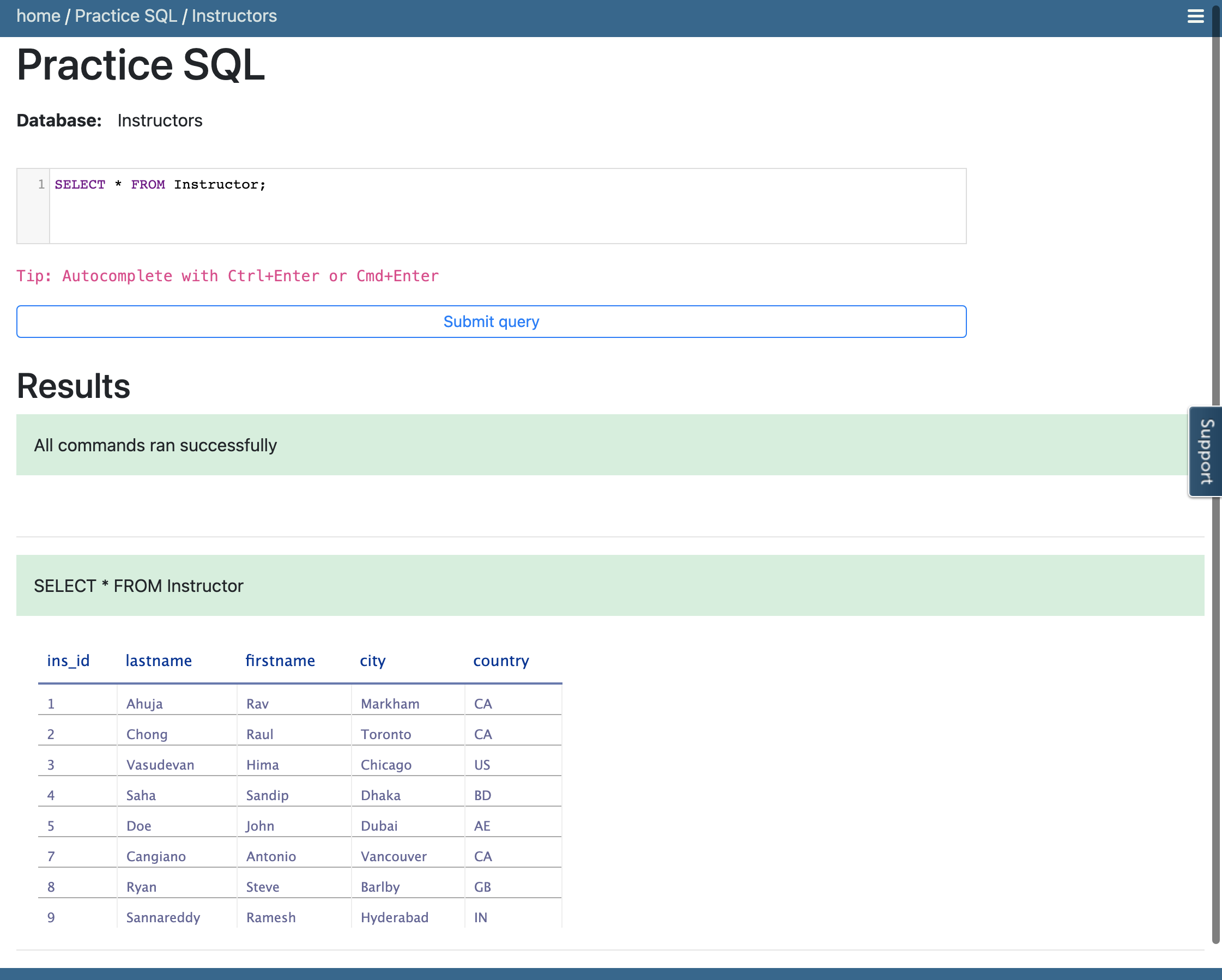
> *Remove the instructor record of Doe whose id is 6.*
- Solution:
```

```
1. `DELETE FROM instructor`
2. `WHERE ins_id = 6;`
- Copy the solution code above by clicking on the little copy button on the bottom right of the codeblock below and paste it to the textbox of Custom SQL query of the Datasette tool. Then click Submit query.
- Copy the code below by clicking on the little copy button on the bottom right of the codeblock below and paste it to the textbox of the Datasette tool. Then click Submit query.
```

```
1. `SELECT * FROM Instructor;`
- Your output resultset should look like the image below:
Task B
Practice exercise on DELETE
Now, let us practice creating and running a DELETE related query.
- Problem:
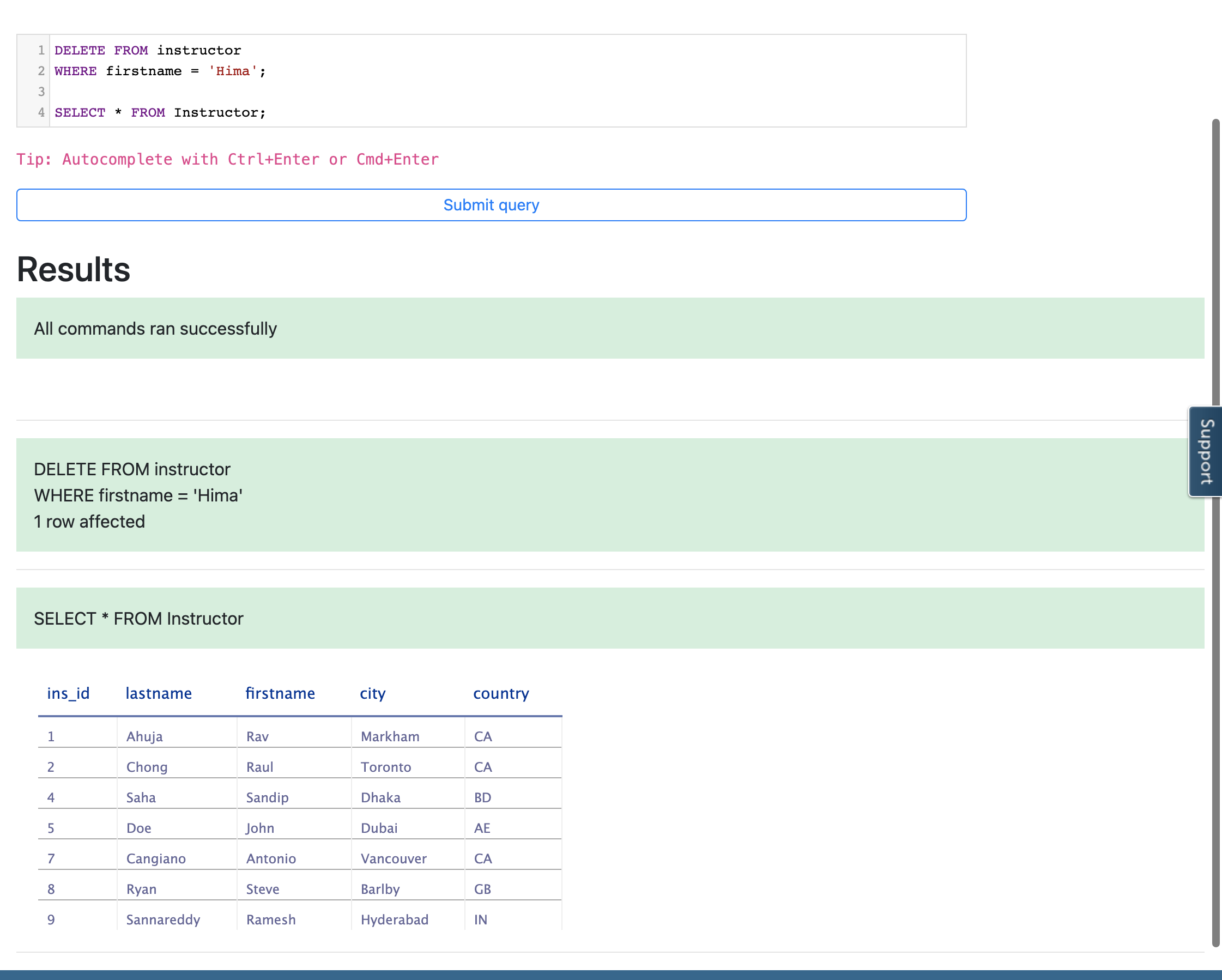
Remove the instructor record of Hima.
Hint
Follow example 1 of the DELETE exercise.
DELETE FROM tablenameWHERE [columnanme1] = 'Hima';SELECT * FROM tablename;
Solution
DELETE FROM instructorWHERE firstname = 'Hima';SELECT * FROM Instructor;
Output
Thank you for completing the Hands-on Lab : INSERT, UPDATE, DELETE! where you learnt to perform operations on tables like inserting and removing rows, and updating the data in existing rows.
Author(s)
