Module 05 · RStudio & GitHub
Optional Reading: Download & Install R and RStudio(可选)阅读:下载与安装 R 和 RStudio
Estimated time needed: 15 minutes
预计所需时间:15 分钟
Multiple programmers are moving towards data science, and in this process, R and RStudio play an essential role. So in this lab, you will understand how to install R and RStudio.
多位程序员正转向数据科学领域,在这一过程中,R and RStudio发挥着至关重要的作用。因此,在本实验中,你将了解如何安装 R 和RStudio。
Objectives 目标
- Download and Install R 下载并安装 R
- Download and Install RStudio
下载并安装RStudio
Overview of R and RStudio R and RStudio 概述
There are several cloud based data science tools that make team collaboration accessible. At times it is useful to work directly on your desktop.
存在几种基于云的数据科学工具,使团队协作变得便捷。有时直接在您的桌面工作也是有益的。
R is a command-line interface; there are several graphical front-ends available. RStudio is an integrated development environment (IDE) for R. It includes the environmental tab, which shows the generated variables. In the history tab, you can see the commands used since starting, and there are other tabs such as files, plots, packages, help, and viewer. It has binaries available for major platforms, including Windows, Linux, and MacOS. This lab includes instructions for downloading and installing R and RStudio on Windows. Mac OS users can download the appropriate .pkg file from https://cran.r-project.org/bin/macosx/ and follow the instructions.
R 是一个命令行界面;有多个图形前端可用。RStudio 是 R 的一个集成开发环境(IDE)。它包括一个环境标签页,显示生成的变量。在历史标签页中,您可以查看自启动以来使用的命令,还有其他标签页,如文件、图形、软件包、帮助和查看器。它为主要的平台提供二进制文件,包括 Windows、Linux 和 MacOS。本实验包括在 Windows 上下载和安装 R 和 RStudio 的说明。Mac OS 用户可以从 https://cran.r-project.org/bin/macosx/ 下载适当的 .pkg 文件,并按照说明进行操作。
Exercise 1: Download & Install R on Windows 练习 1:在 Windows 上下载和安装 R
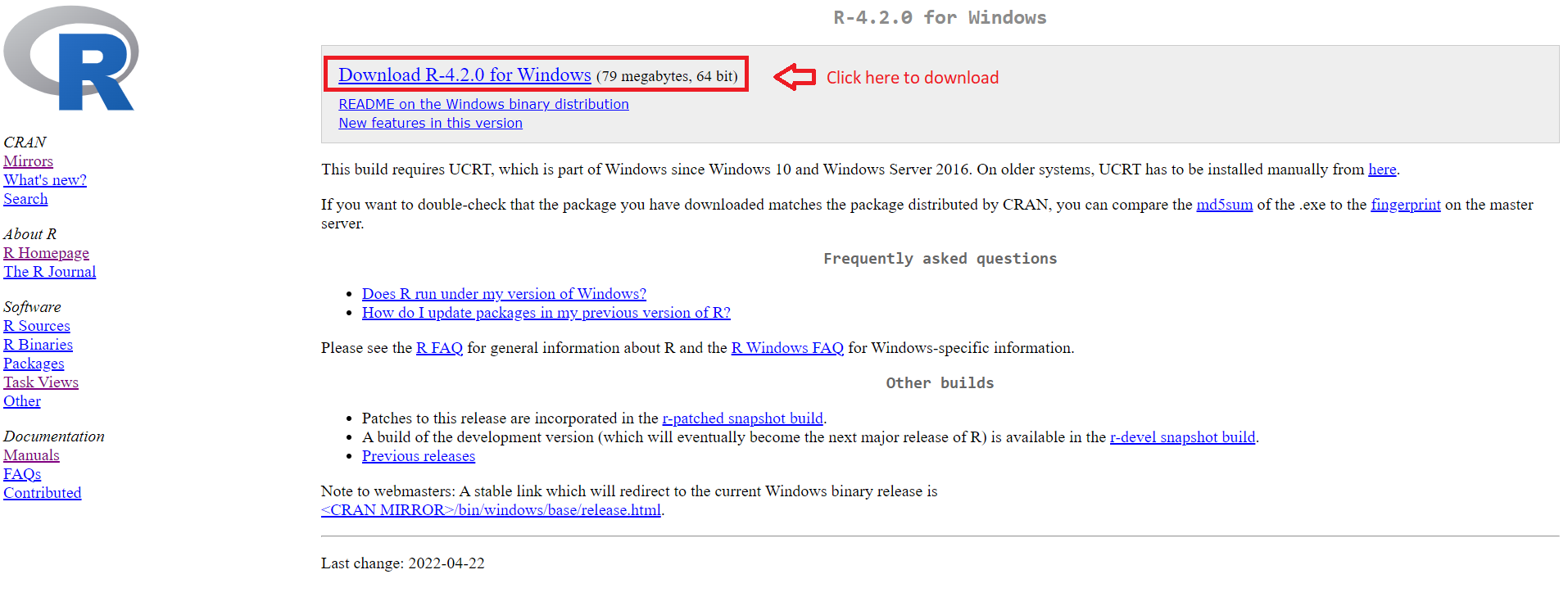
Step 1: The latest version of R can be downloaded by clicking the link.
第一步:点击链接下载最新版本的 R。
Windows: https://cran.r-project.org/bin/windows/base/
Windows:https://cran.r-project.org/bin/windows/base/
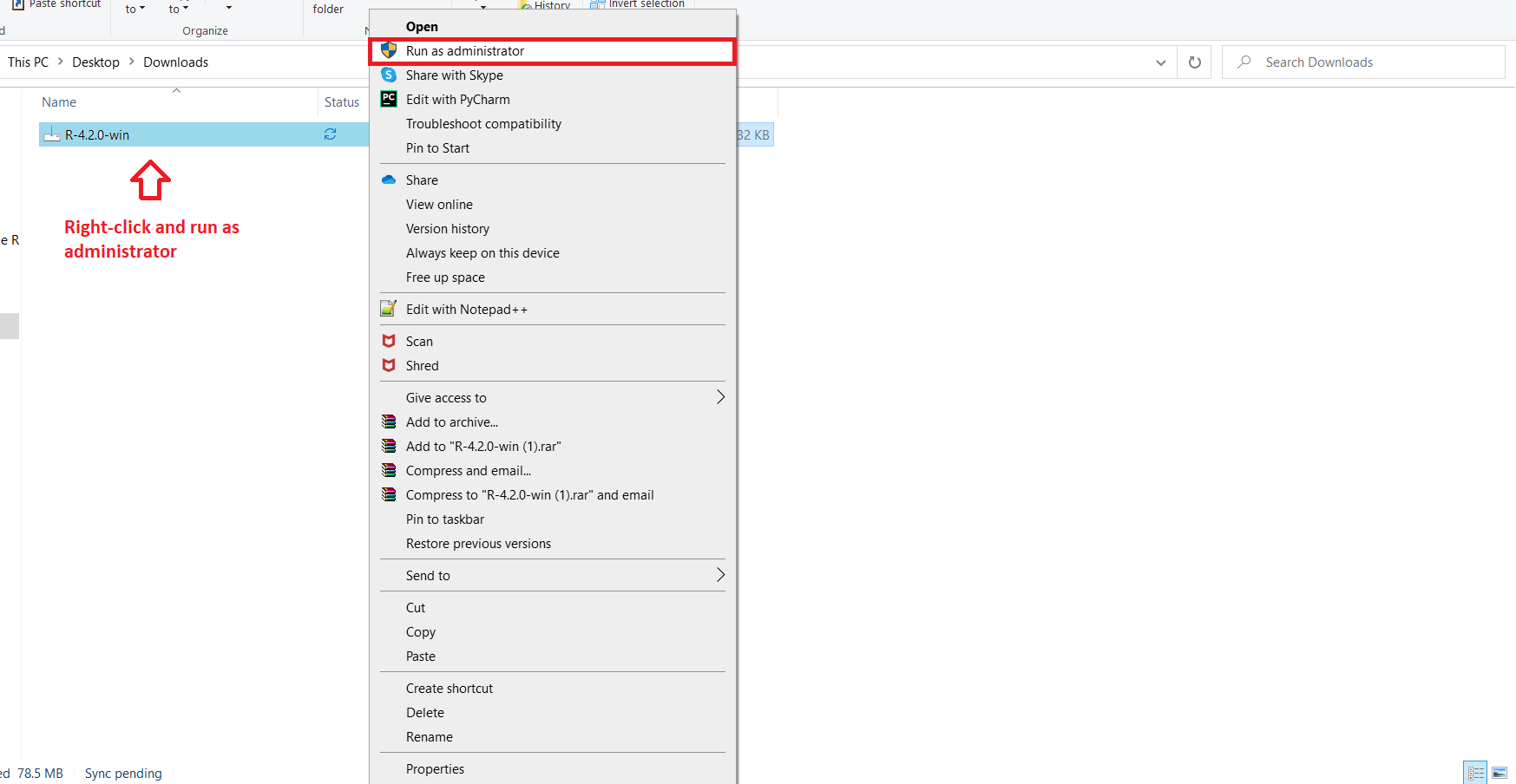
Step 2: Once the download completes, right-click the downloaded file, and click Run as administrator.
第二步:下载完成后,右键点击下载的文件,选择以管理员身份运行。
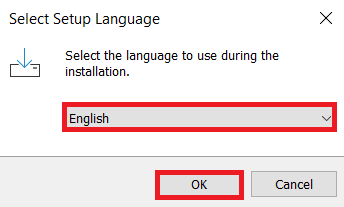
Step 3: Select your preferred installation language, and click OK.
第三步:选择您喜欢的安装语言,然后点击确定。
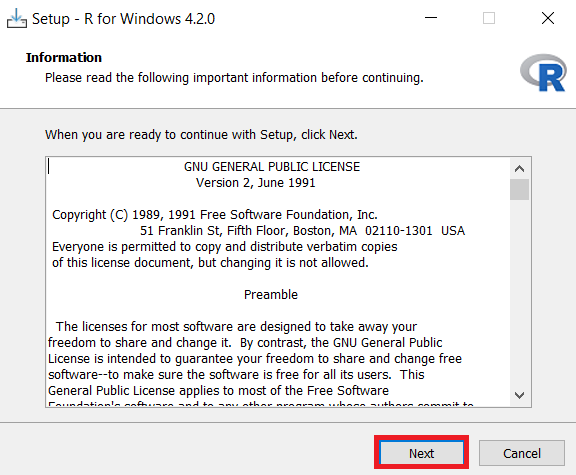
Step 4: Read and accept the license and click Next.
步骤 4:阅读并接受许可协议,然后点击“下一步”。
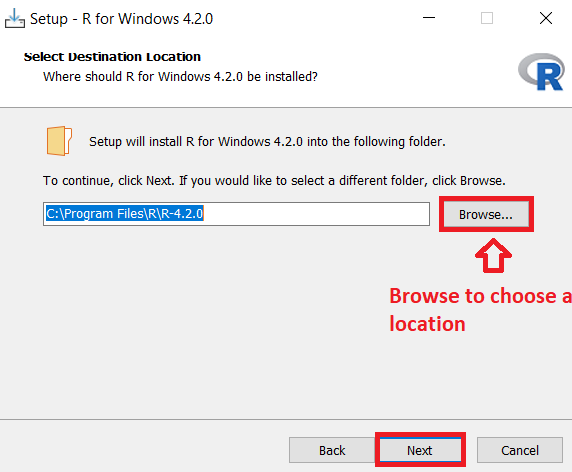
Step 5: Select the Folder where you would like to install R, or use the Default location, and click Next.
步骤 5:选择您希望安装 R 的文件夹,或使用默认位置,然后点击“下一步”。
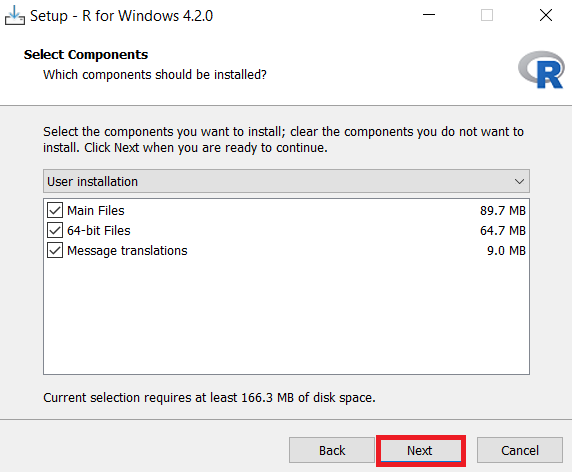
Step 6: Select the Components you want to install and click Next.
步骤 6:选择您想要安装的组件,然后点击“下一步”。
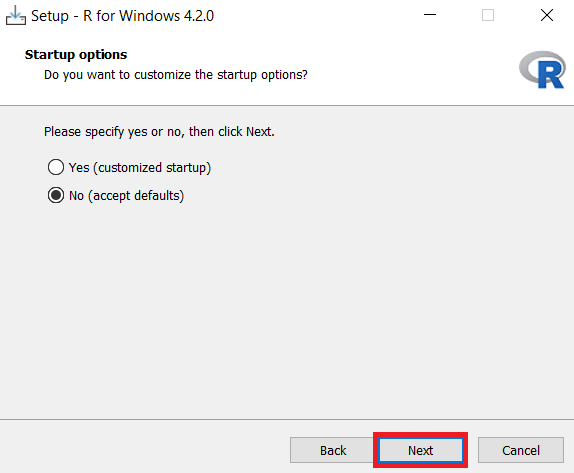
Step 7: In the Startup options, select the Default option and click Next.
步骤 7:在启动选项中,选择默认选项,然后点击“下一步”。
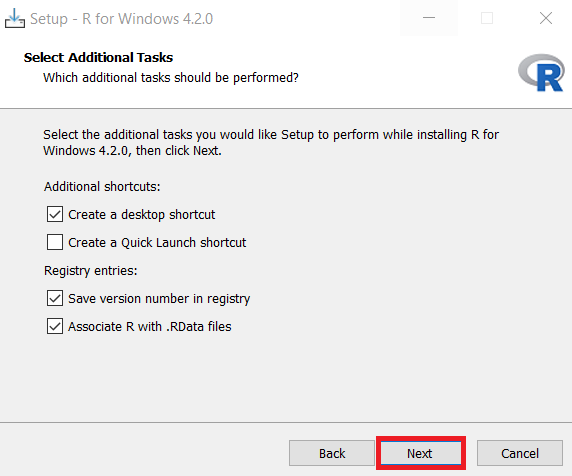
Step 8: In the Select Additional Tasks window, retain Default and click Next.
第 8 步:在“选择附加任务”窗口中,保持默认设置并点击“下一步”。
Step 9: Once installation is successful, click Finish to close the setup.
第 9 步:安装成功后,点击“完成”关闭安装程序。
Exercise 2: Download & Install RStudio 练习 2:下载并安装RStudio
Step 1: Use the link below to download RStudio Desktop on your local machine.
第 1 步:使用下方链接在您的本地计算机下载RStudio 桌面版。
Link for Download RStudio for windows and mac: https://posit.co/download/rstudio-desktop/
下载 RStudio for Windows 和 Mac 的链接:https://posit.co/download/rstudio-desktop/
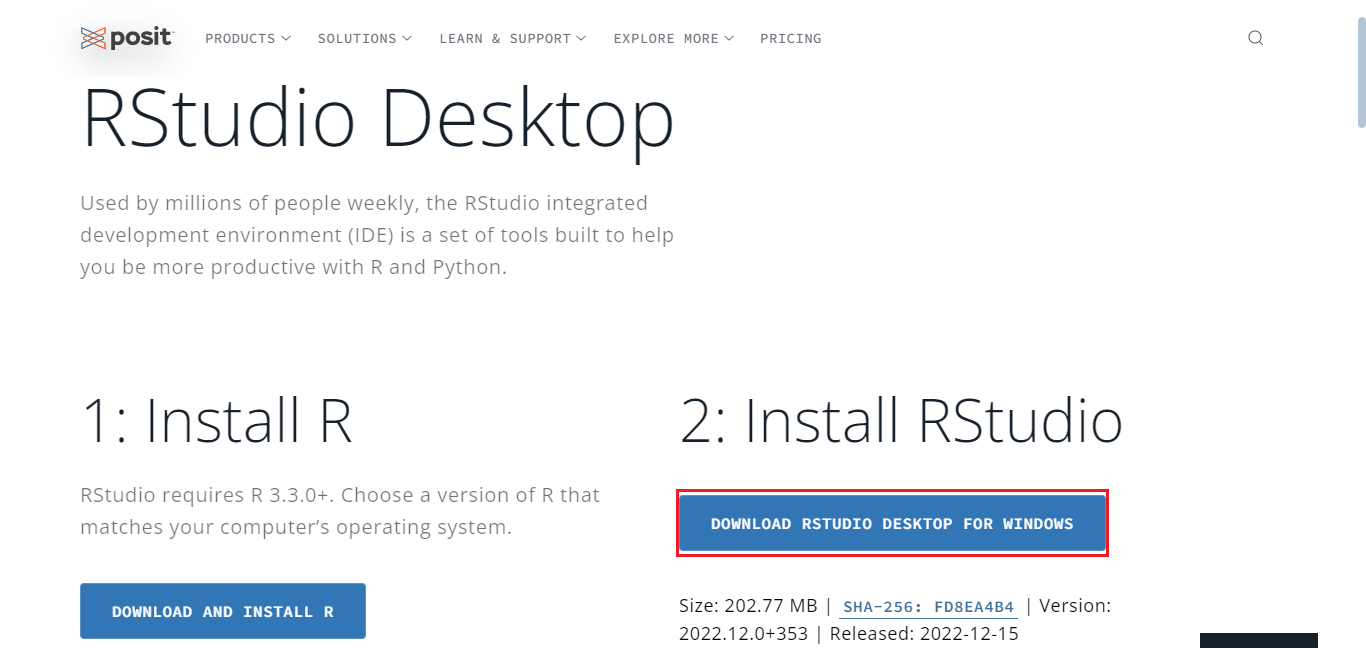
Step 2: Click Download RStudio desktop For Windows, and your download will start.
步骤 2:点击下载 RStudio 桌面版 for Windows,您的下载将开始。
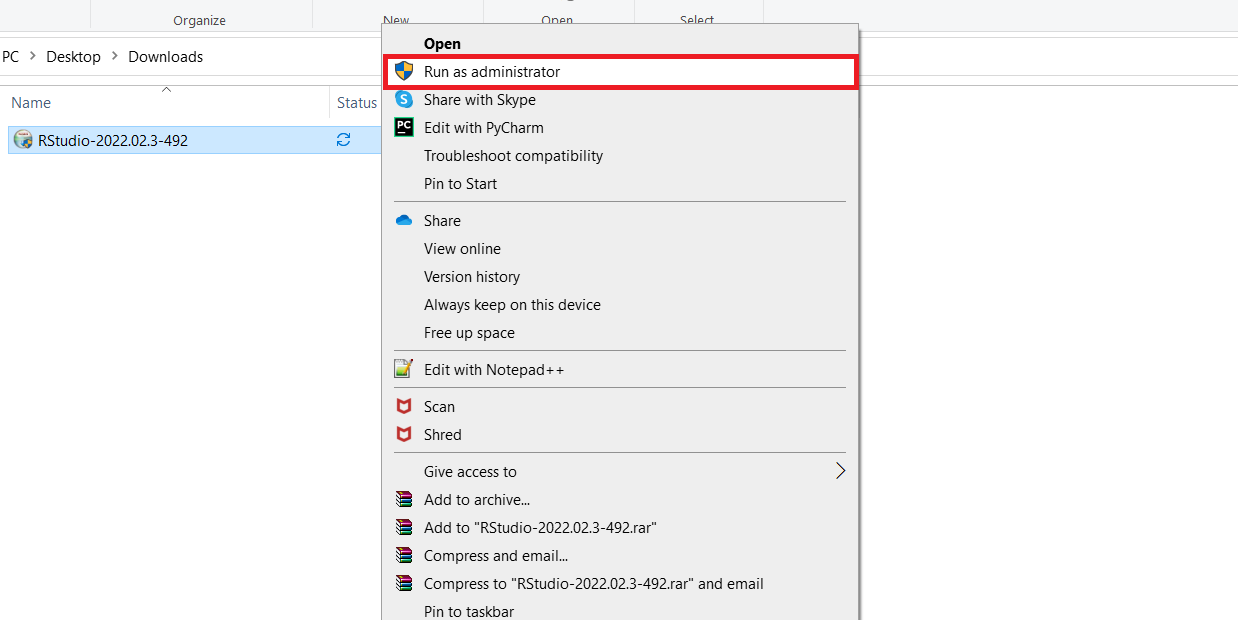
Step 3: Once the download completes, right-click the setup file, and click Run as administrator.
步骤 3:下载完成后,右键点击安装文件,然后选择以管理员身份运行。
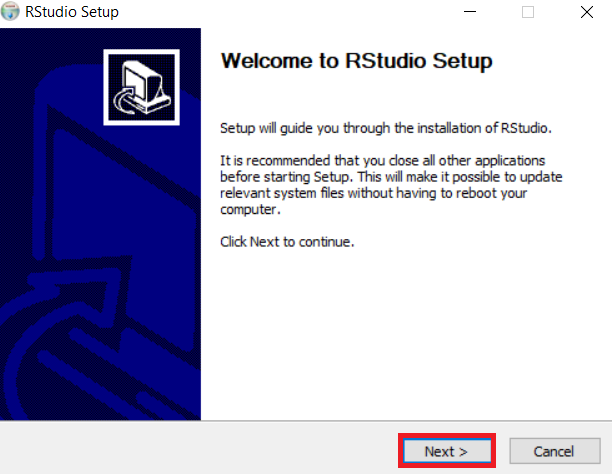
Step 4: In the RStudio setup window, click Next.
步骤 4:在 RStudio 安装窗口中,点击下一步。
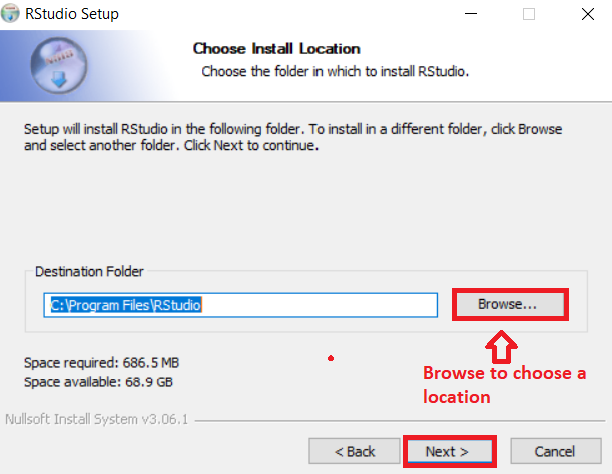
Step 5: Select the folder where you would like to install RStudio, or retain the Default installation location and click Next.
步骤 5:选择您希望安装 RStudio 的文件夹,或保留默认安装位置,然后点击“下一步”。
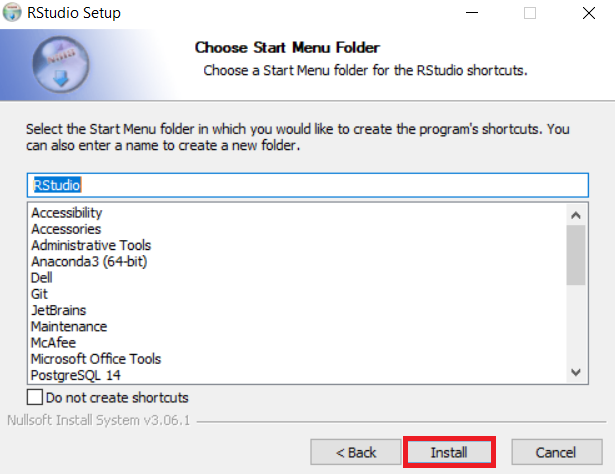
Step 6: In the Start menu window, click Install to install RStudio.
步骤 6:在开始菜单窗口中,点击“安装”以安装 RStudio。
Step 7: Once installation completes, click Finish to close the window.
步骤 7:安装完成后,点击“完成”以关闭窗口。
Exercise 3: Execute R code in RStudio 练习 3:在 RStudio 中执行 R 代码。
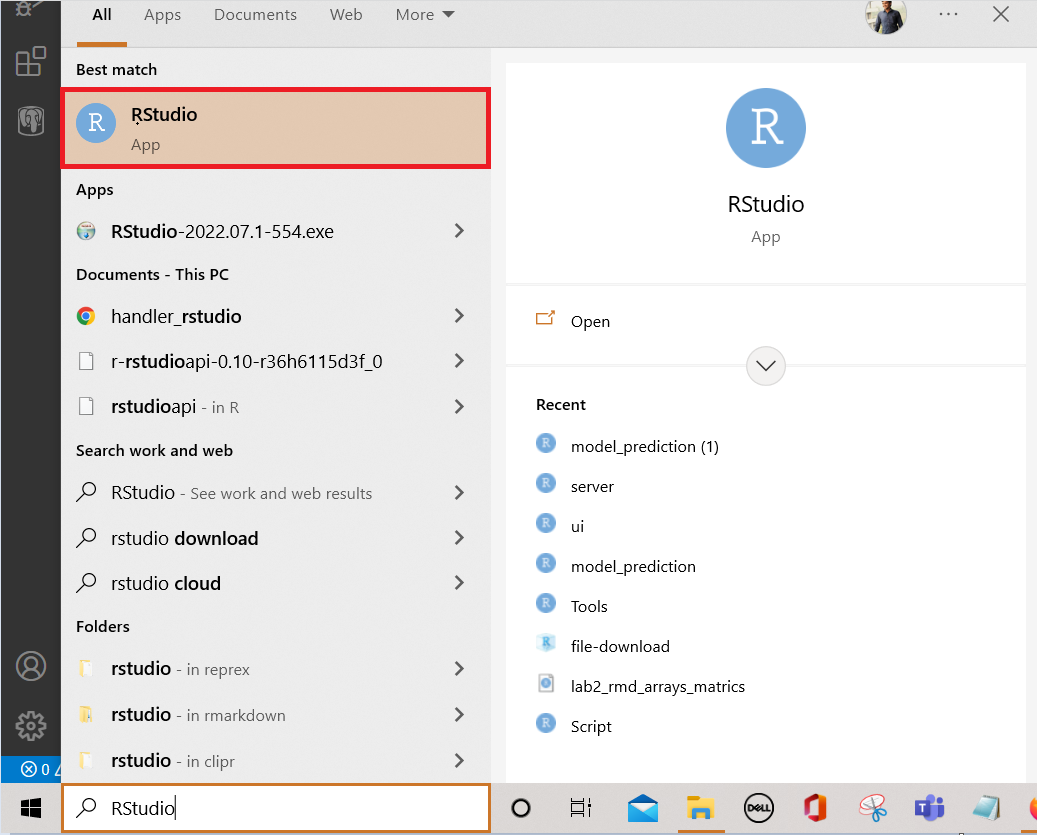
- Open RStudio from the Windows start menu.
从 Windows 开始菜单中打开 RStudio。
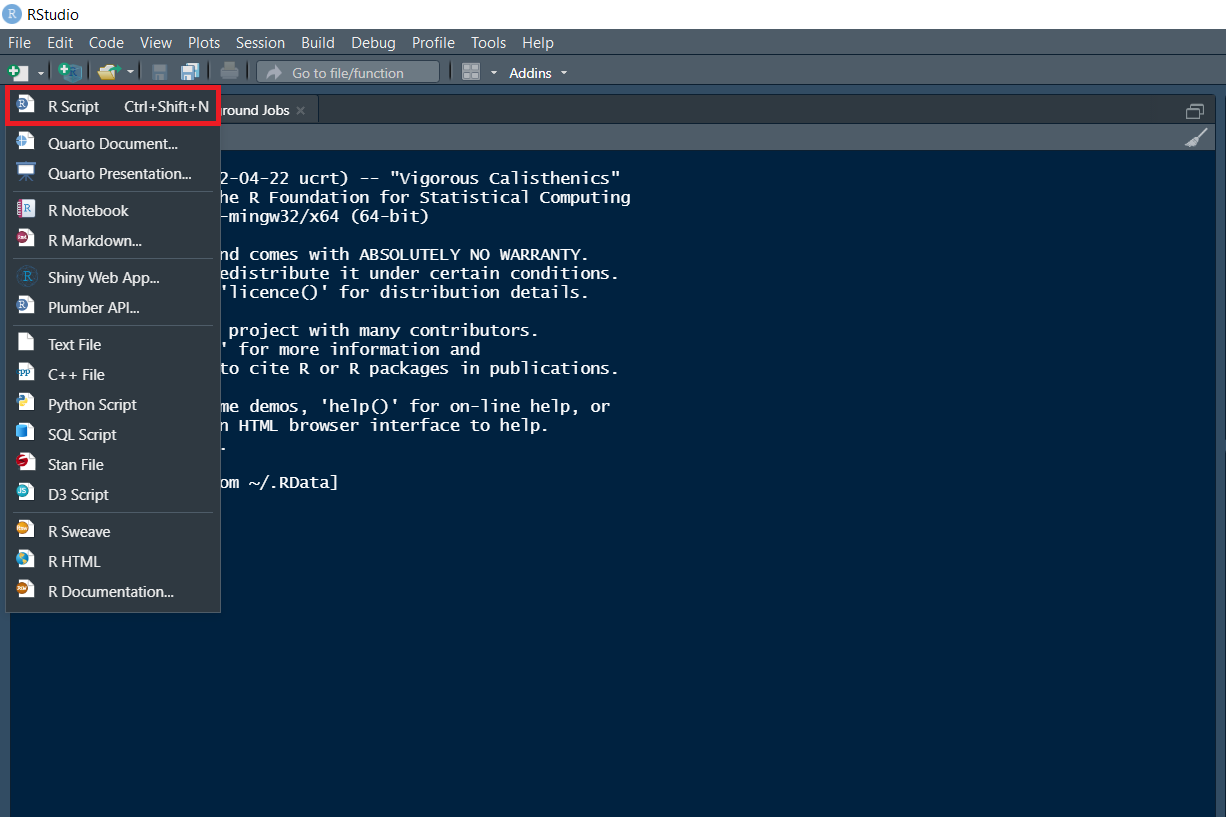
- Click the plus symbol on the top left and select R Script.
点击左上角的加号,选择 R 脚本。
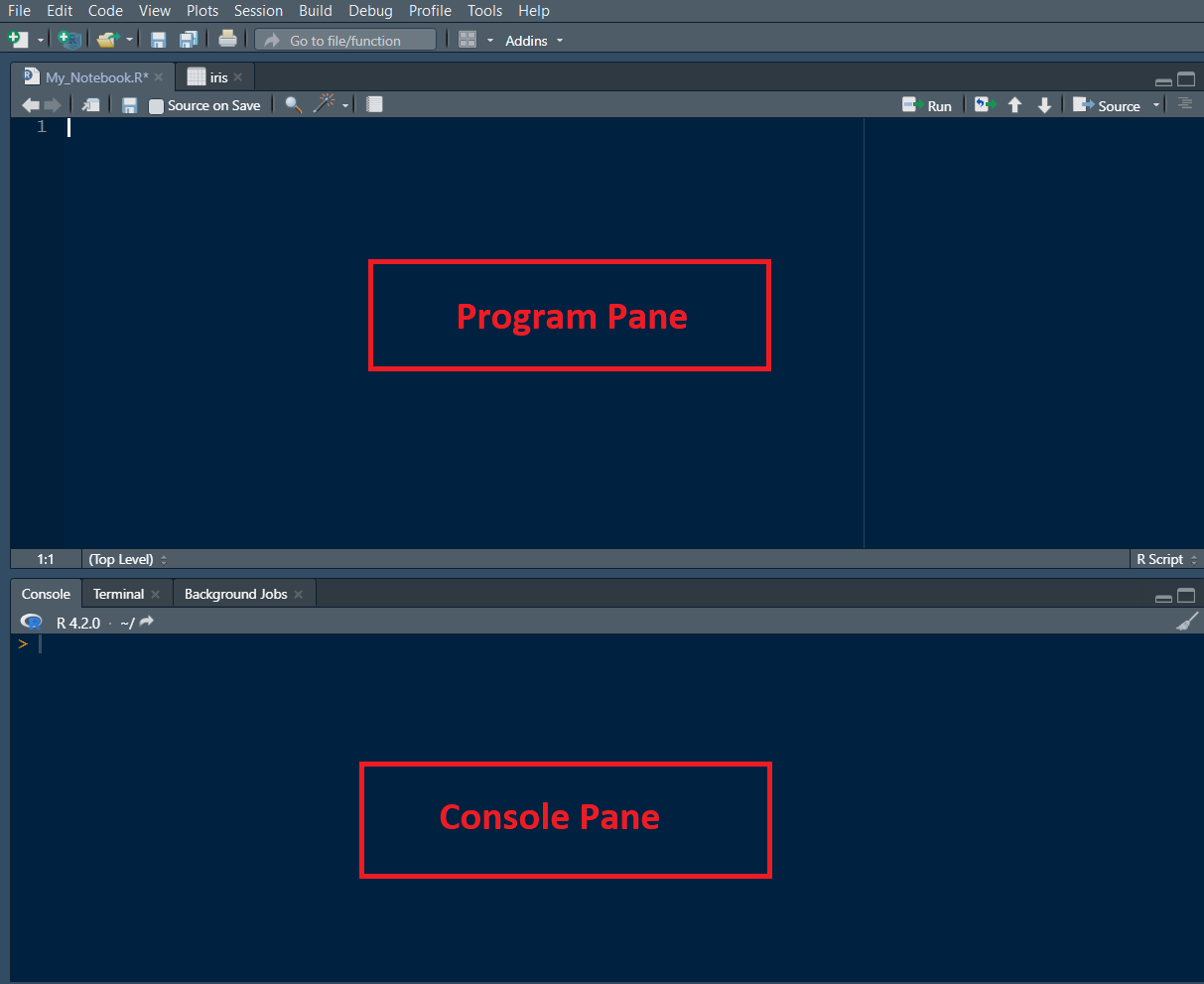
- An untitled R Script panel opens. It would look as follows.
将打开一个无标题的 R 脚本面板。它将如下所示。
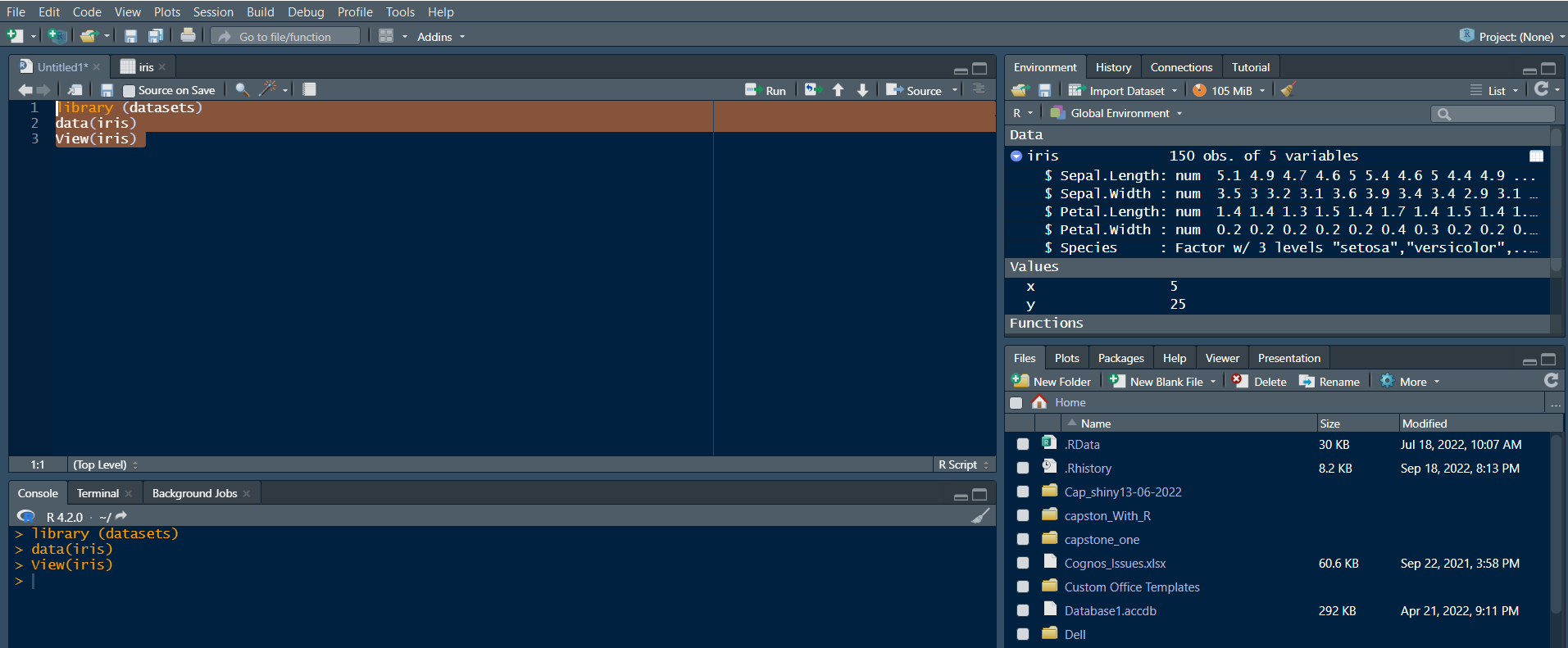
- Now, load the iris dataset. Enter the following lines into the Editor window which appears. Next, select all of them. Then click the Run icon just above the Editor window.
现在,加载 iris 数据集。将以下几行输入到出现的编辑器窗口中。接着,选中所有内容。然后点击编辑器窗口正上方的运行图标。
library (datasets)
data(iris)
View(iris)
Output 《技能网络编辑器》
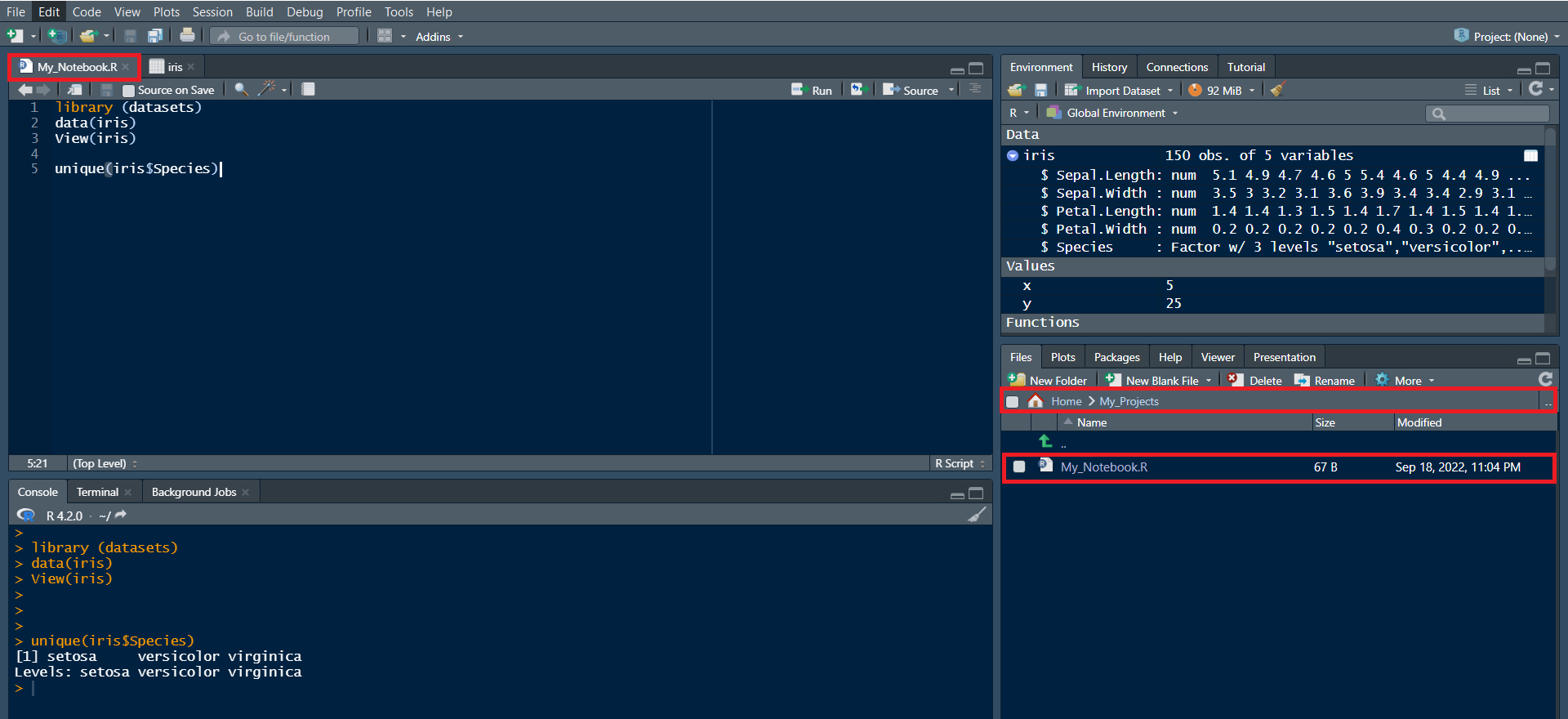
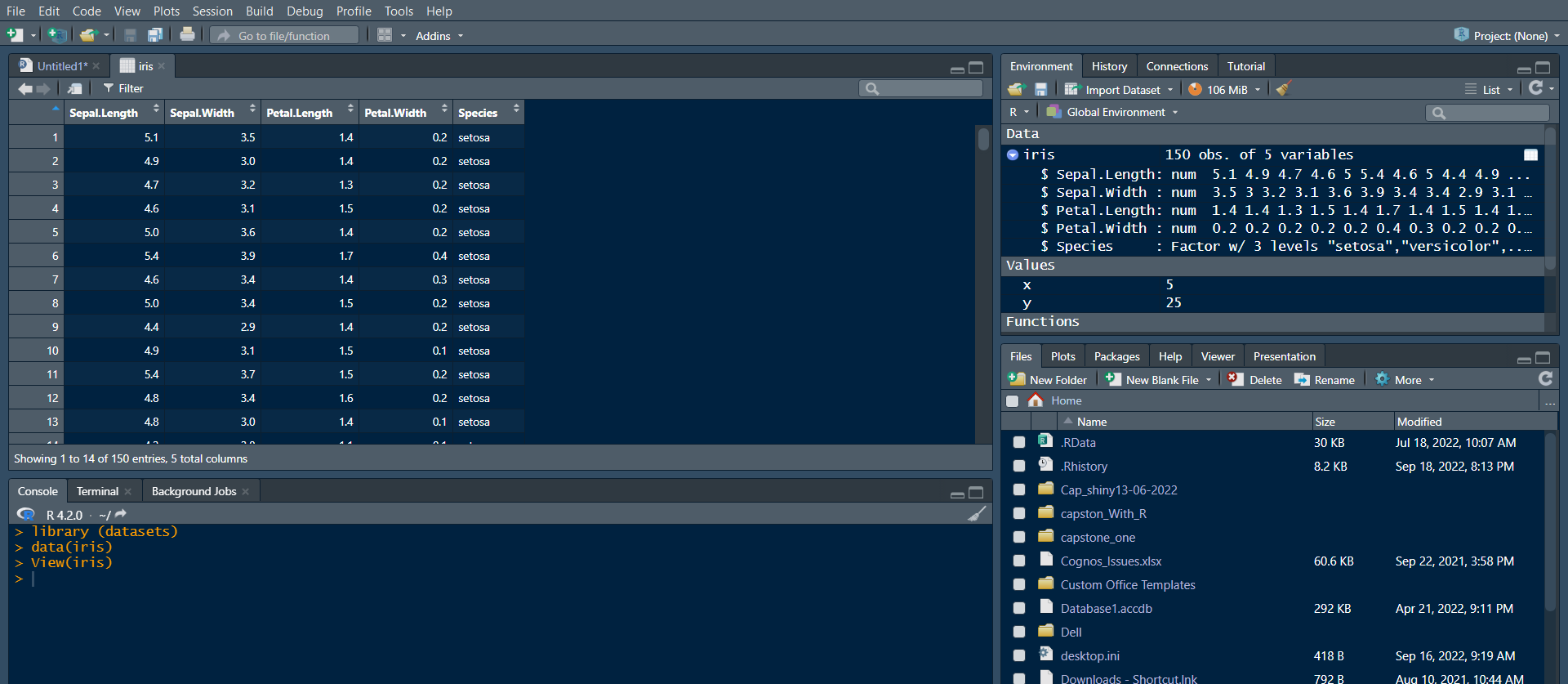
- You are taken directly to the data view tab to inspect your dataset. You can see five columns in this dataset, the first four are floating point, and the last one is the label of the data type string, which contains the category value of your data set. You can see that there are total of 150 entries.
您将被直接带到数据视图选项卡,以便检查您的数据集。您可以看到该数据集中有五列,前四列是浮点数,最后一列是数据类型的标签字符串,其中包含数据集的类别值。您可以看到总共有 150 条记录。
- Now let's find how many different species are present in the data set. Type the following command in the Editor window and click Run.
现在让我们找出数据集中有多少种不同的物种。在编辑器窗口中输入以下命令,然后点击运行。
unique(iris$Species)
Output 《技能网络编辑器》
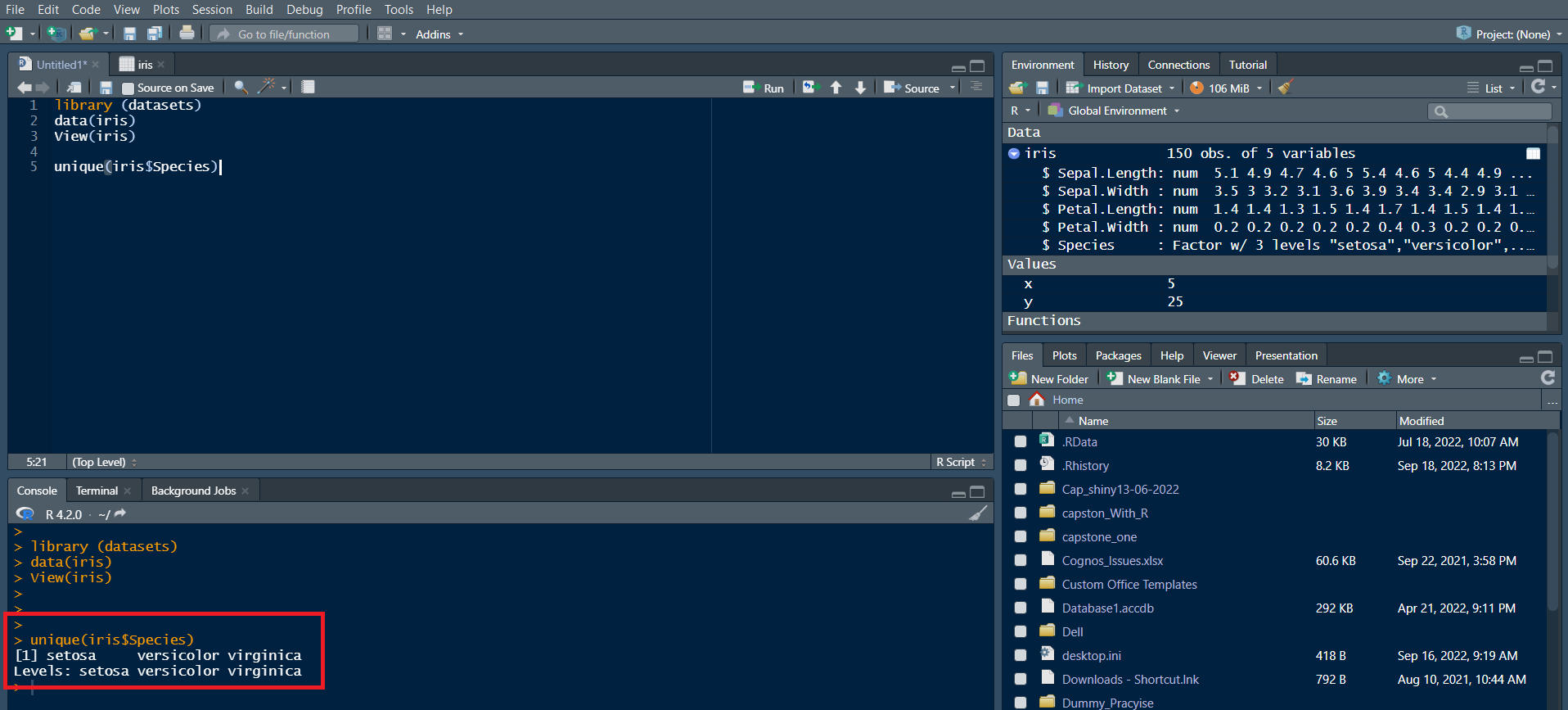
Note: In the Console window at the bottom, you will see the result of the executed command and know that only three different species are present in the dataset.
注意:在底部的控制台窗口中,您将看到执行命令的结果,并知道数据集中只有三种不同的物种。
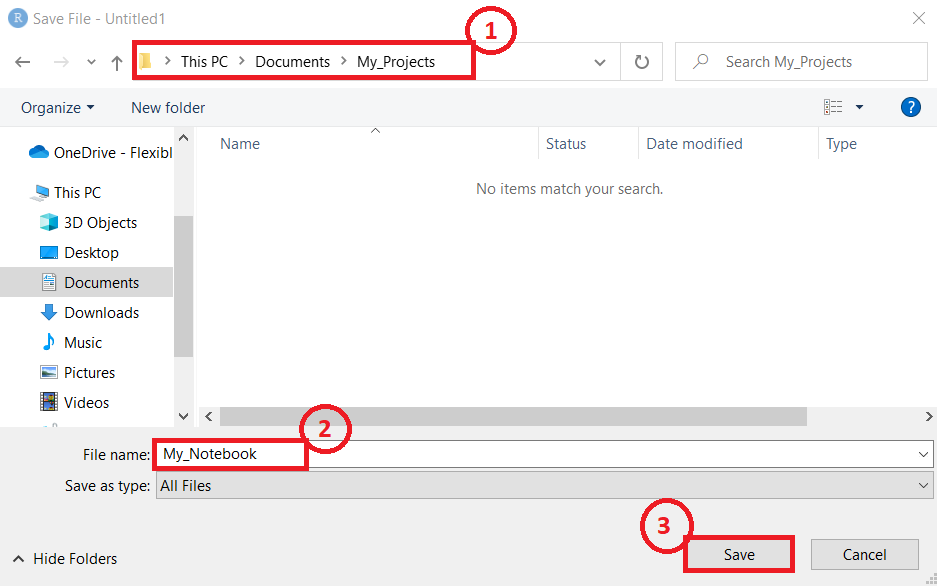
- Save & provide a name to your Notebook.
Save 为您的笔记本提供一个名称。- To save the notebook, click Save or Save as in the File menu.
要保存笔记本,请在文件菜单中点击保存或另存为。
- To save the notebook, click Save or Save as in the File menu.
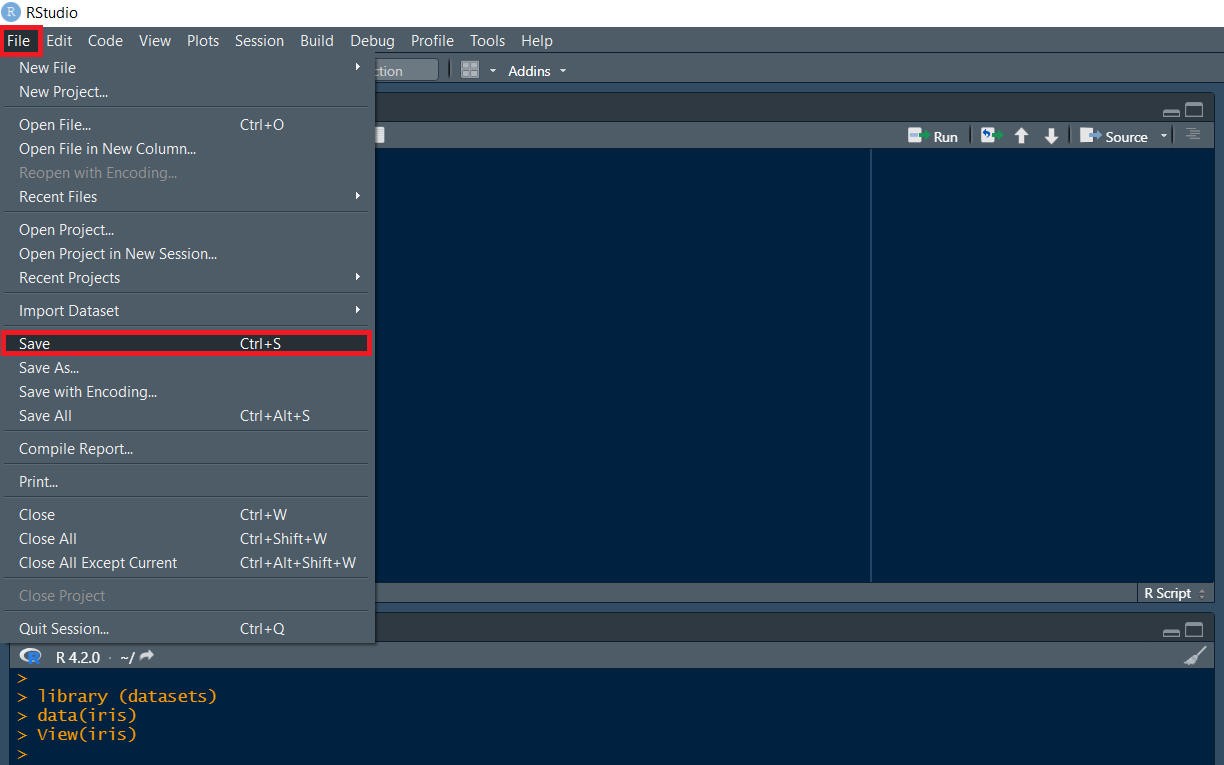
- Select the working folder to rename your notebook to My_Notebook.
选择工作文件夹,将您的笔记本重命名为 My_Notebook。