Module 05 · RStudio & GitHub
R Basics with RStudio使用 RStudio 的 R 基础
Estimated time needed: 15 minutes
预计所需时间:15 分钟
Learning Objectives 学习目标
- Get familiar with RStudio
熟悉 RStudio - Write your first R code snippet in RStudio
在RStudio 中编写你的第一个 R 代码片段
RStudio main UI RStudio 主界面
In this lab, you will be introduced to RStudio, the most popular and powerful IDE for developing R projects.
在本实验中,您将介绍RStudio,这是开发 R 项目最流行和强大的集成开发环境。
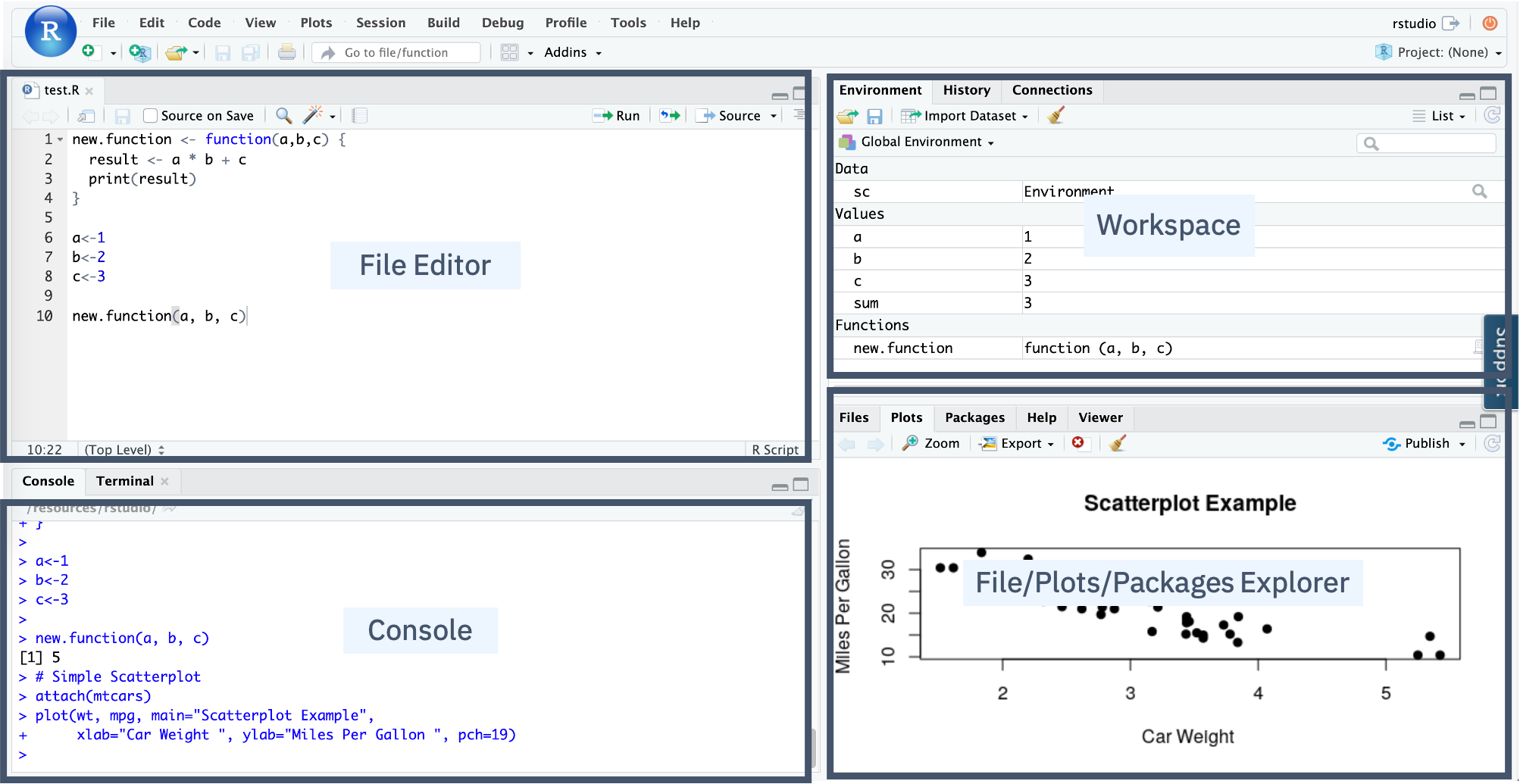
The main UI of RStudio is shown here:
RStudio 的主界面显示如下:
- In the
Consolepanel, you can quickly try some R commands and see the results immediately.
在Console面板中,您可以快速尝试一些 R 命令并立即查看结果。 - In the
File Editorpanel, you can write your R code or other text files with the help of syntax highlighting and auto completion.
在File Editor面板中,您可以在语法高亮和自动补全的帮助下编写您的 R 代码或其他文本文件。 - In the
Workspacepanel, you can review and manage the created objects.
在Workspace面板中,您可以查看和管理已创建的对象。 - In the
File/Plots/PackageExplorer panel, you can manage your files and other assets, such as plots or packages.
在File/Plots/Package资源管理器面板中,您可以管理您的文件和其他资产,例如图表或包。
Write the first Hello World code snippet in the Console 在控制台中编写第一个 Hello World 代码片段
Let us write your first Hello World in RStudio Console.
让我们在 RStudio 控制台中编写你的第一个 Hello World。
- Find the blinking cursor in the Console panel, type an incomplete
prinorprintand pause a little bit for RStudio to show a pop-up suggestion list:
在控制面板中找到闪烁的光标,输入不完整的prin或print,稍等片刻,RStudio 将显示一个弹出建议列表:
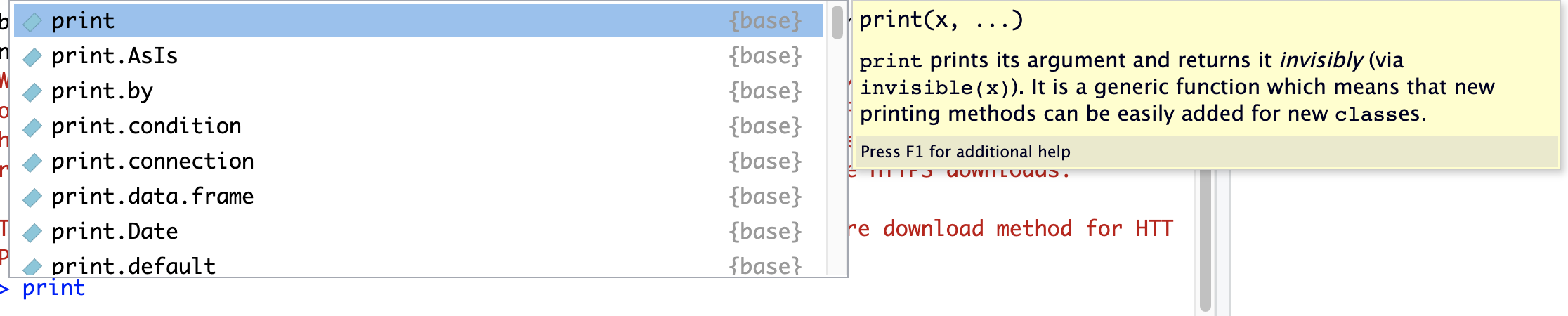
The auto-complete feature of RStudio can help avoid the need for memorizing the code details and reducing keystrokes by just selecting from a suggestion list.
RStudio 的自动补全功能可以帮助避免记忆代码细节的需要,并通过从建议列表中选择来减少按键次数。
- Select the
printfunction and add a character inputHello World!, then press the Enter key:
选择print函数,添加一个字符输入Hello World!,然后按 Enter 键:
print("Hello World!")
You should see Hello World! printed on the console.
你应该在控制台上看到 Hello World! 被打印出来。
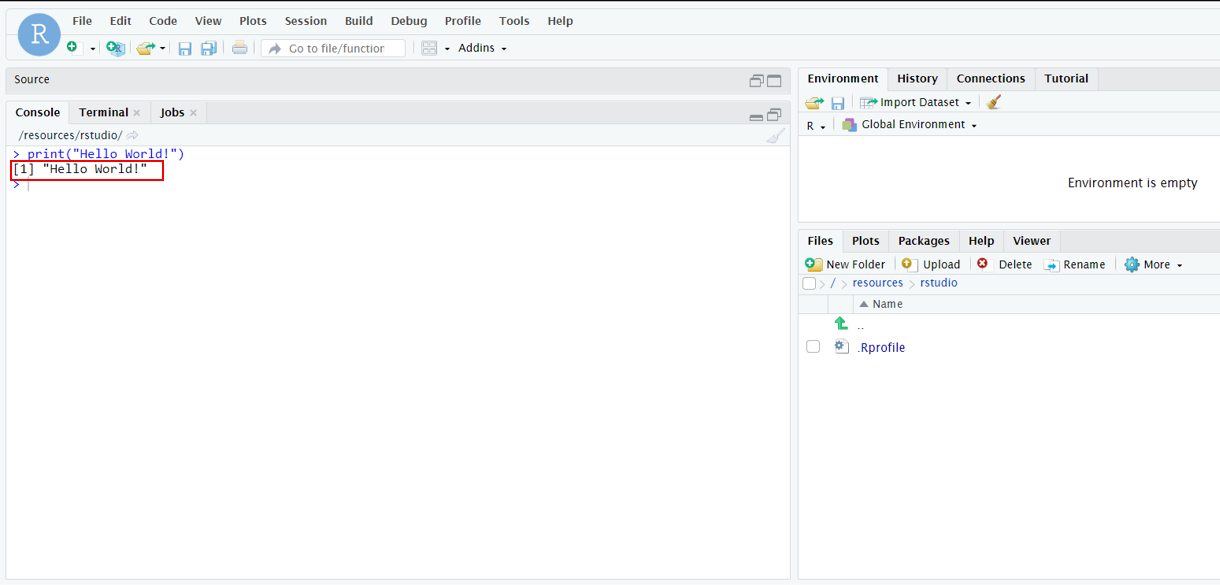
That’s it, you have written your first Hello World code snippet in RStudio.
好了,你已经在RStudio 中编写了你的第一个 Hello World 代码片段。
For practice, you can play with the console by typing anything you have learned so far, such as creating variables and doing basic math operations.
为了练习,你可以通过输入你已经学过的任何内容来操作控制台,例如创建变量和执行基本数学运算。
If you want to clear the console, you can press Ctrl or Control + L key combination.
如果你想清除控制台,你可以按 Ctrl 或 Control + L 的组合键。
Review R objects in the Environment panel 检查环境面板中的 R 对象
Now let’s try the Environment panel to review the R objects we created in the console.
现在让我们尝试环境面板,以查看我们在控制台中创建的 R 对象。
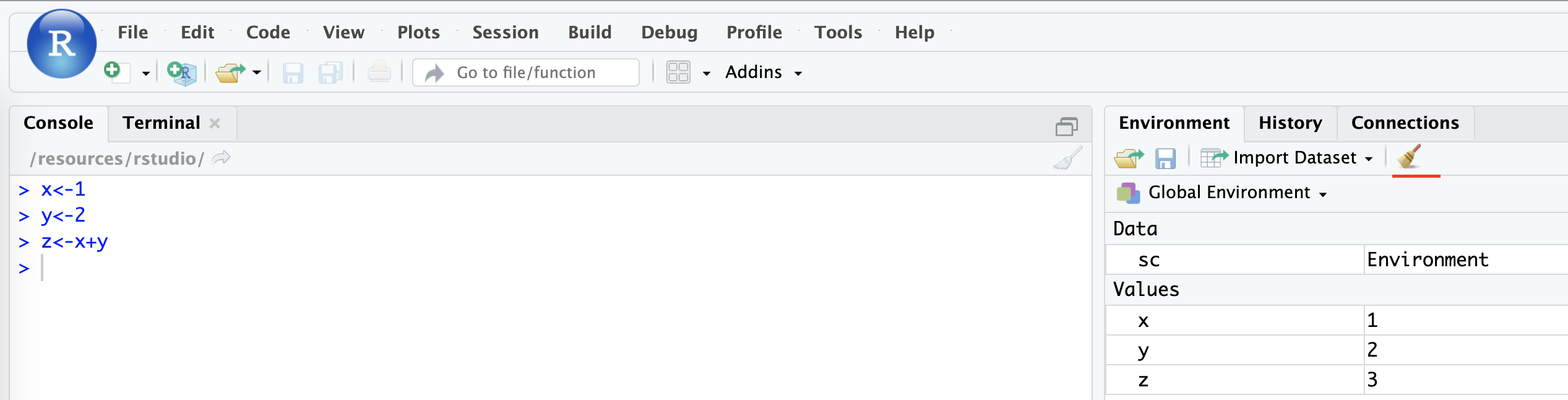
- Type and run the following three lines of code in the console:
在控制台中输入并运行以下三行代码:
x<-1
y<-2
z<-x+y
You should see three variables x, y, z with assigned values in the Environment panel.
您应该在环境面板中看到三个带有分配值的变量 x 、 y 、 z 。

- To clean the workspace, you can click the
Broomicon as shown below:
要清理工作区,您可以点击如下所示的Broom图标:
Create your first R script file 创建您的第一个 R 脚本文件
By now, you have written some simple R code in the console interactively. Next, create an R script file with multiple lines of code and run them in batch mode.
到目前为止,您已经在控制台中交互式地编写了一些简单的 R 代码。接下来,创建一个包含多行代码的 R 脚本文件,并以批处理模式运行它们。
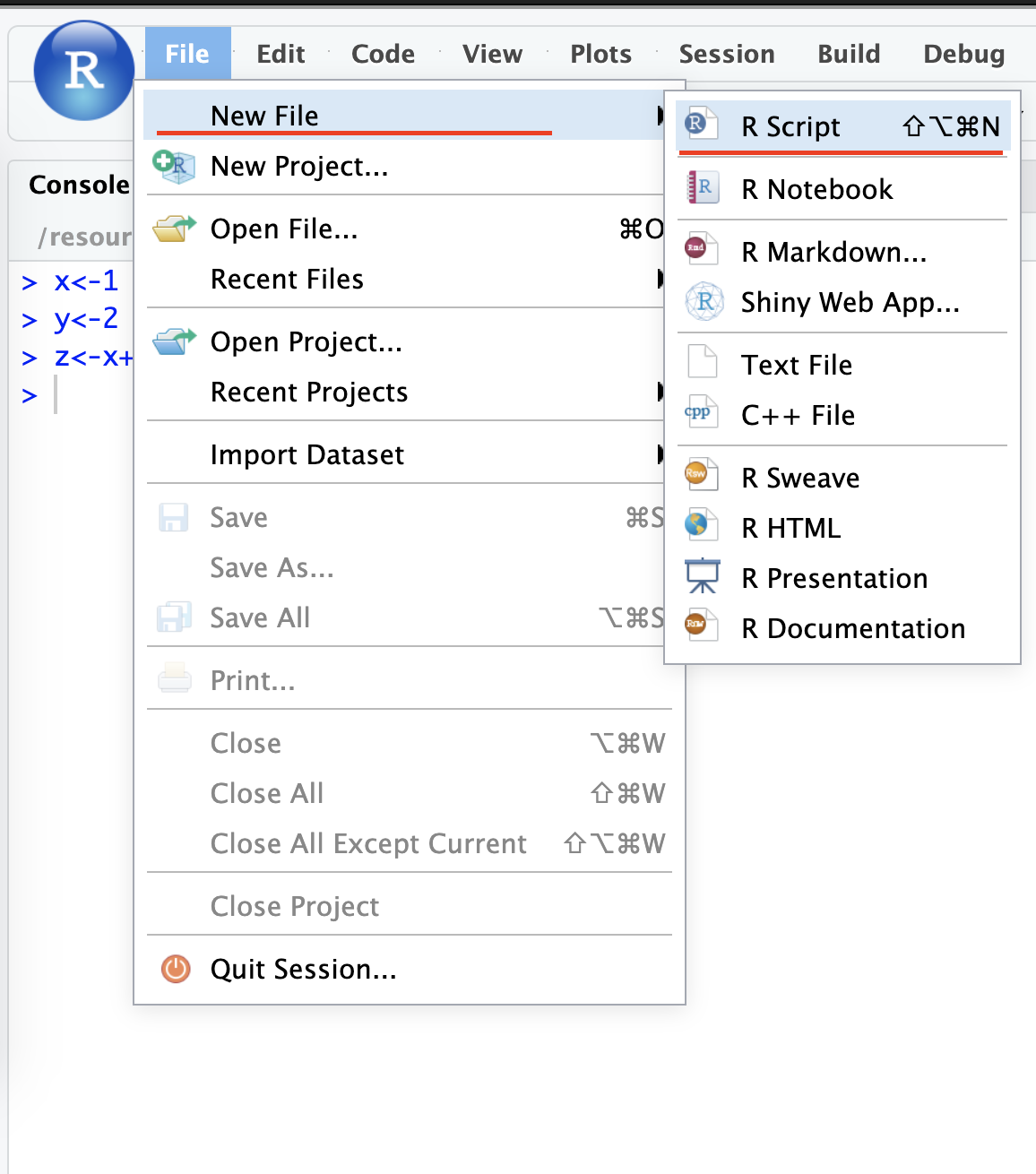
- First, from the menu click
File > New File > R Script.
首先,从菜单中点击File > New File > R Script。
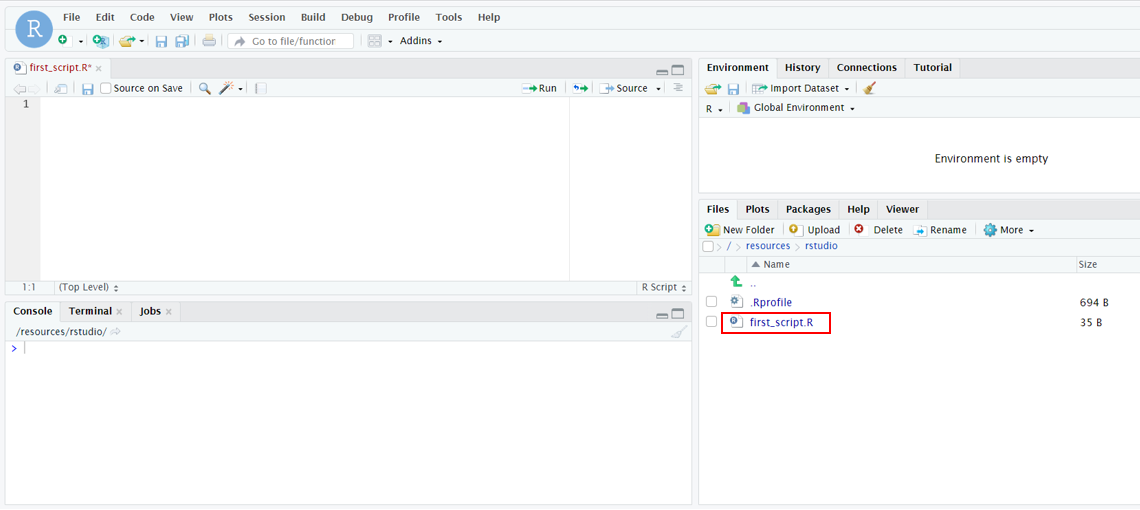
- Then click
File > Save, and name the file something likefirst_script. After the script file is saved, you can see an empty file calledfirst_script.Rfile created in your working directory.
然后点击File > Save,并将文件命名为first_script。脚本文件保存后,您可以在工作目录中看到一个名为first_script.R的空文件。
- Next, click
first_script.Rfile to add the following code snippet:
接下来,点击first_script.R文件以添加以下代码片段:
x <- 3
y <- 4
z <- x + y
print(z)
You need to make sure the last line of the file is a new empty line.
您需要确保文件的最后一行是一个新的空行。
So after copying the code snippet above, press the Enter key to start a new line in the script file.
因此,在复制上述代码片段后,请按 Enter 键在脚本文件中开始新的一行。
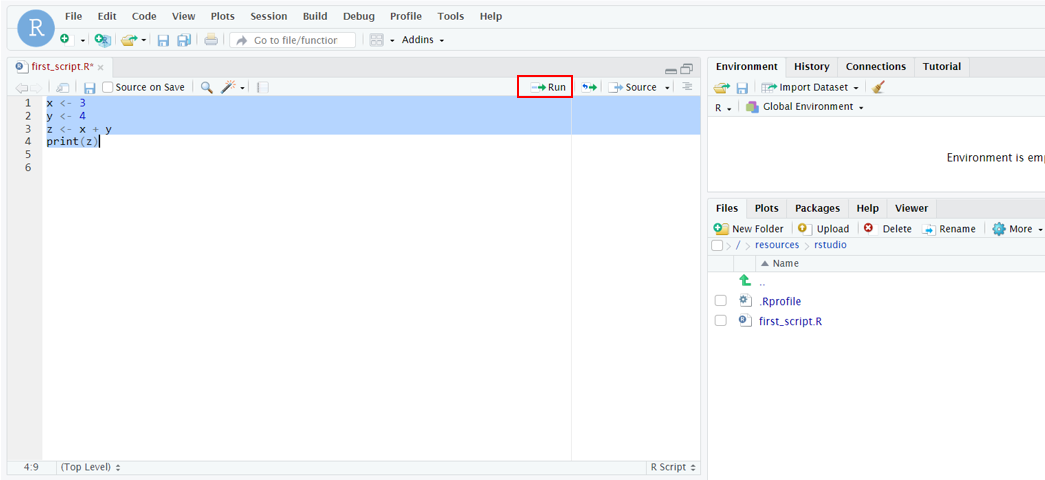
Now, you can run the code in the script file, there are two running modes:
现在,您可以在脚本文件中运行代码,有两种运行模式:
- The first mode is called
Run the current line or selection. You can click and drag your mouse or useShift + Up/Down keysto select all lines and then click the followingRunicon to run them:
第一种模式称为Run the current line or selection。您可以点击并拖动鼠标,或使用Shift + Up/Down keys选择所有行,然后点击以下Run图标来运行它们:
- The second mode is called
Sourcewhere it runs all lines of code in the file by clicking the followingSourceicon:
第二种模式称为Source,通过点击以下Source图标运行文件中的所有代码行:
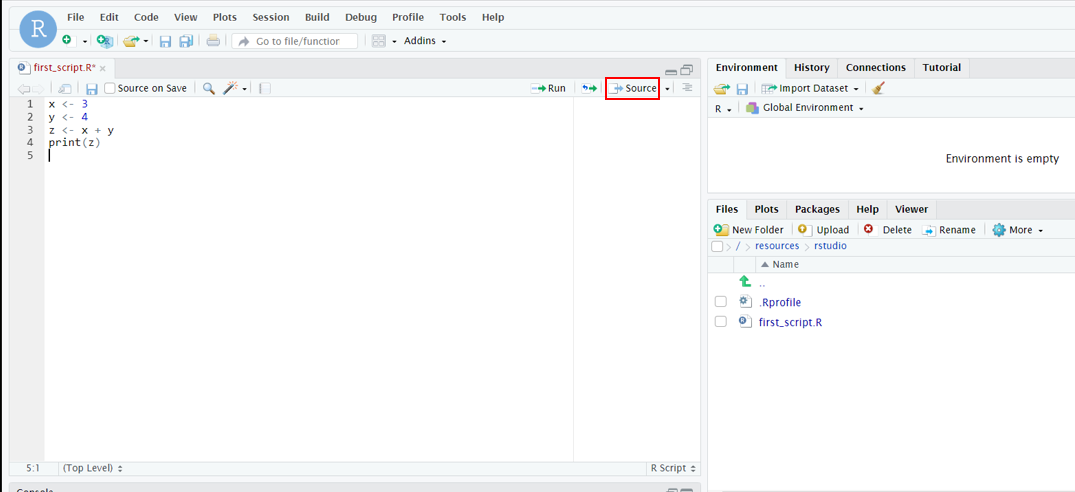
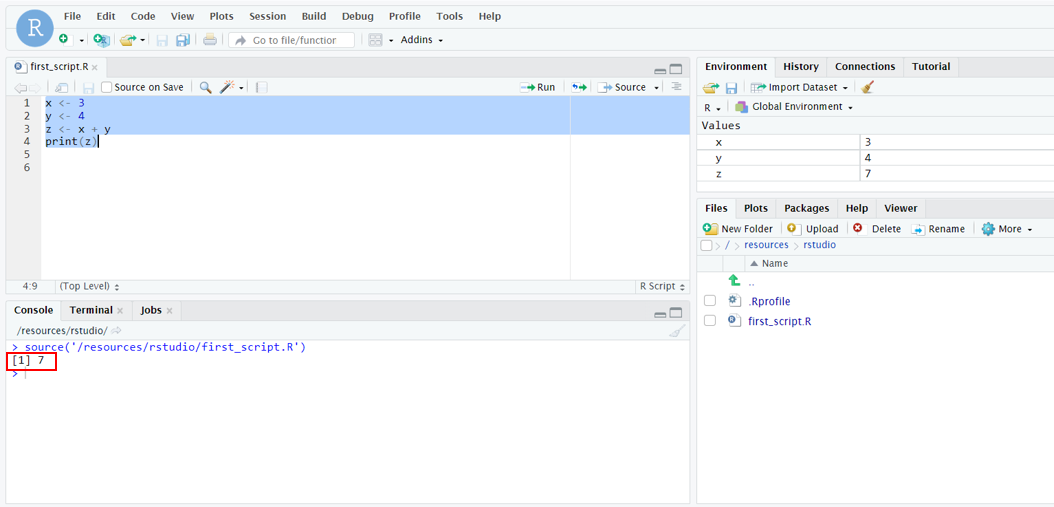
You should see the results in the console:
你应该在控制台中看到结果:
source('/resources/rstudio/first_script.R')
[1] 7
That’s it about creating and running the R script file!
关于创建和运行 R 脚本文件,就是这样!
Exercise: Practice Tasks 练习:实践任务
Task 1: Create a new R script
任务 1:创建一个新的 R 脚本
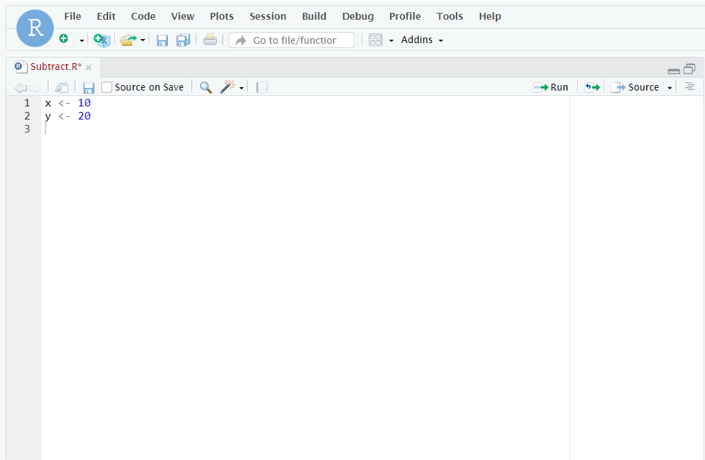
- Assign two variables where
x = 10andy = 20.
为两个变量分配x = 10和y = 20。 - Save the file as Subtract.R.
将文件保存为 Subtract.R。
Click here for solution
点击此处查看解决方案
x <- 10
y <- 20
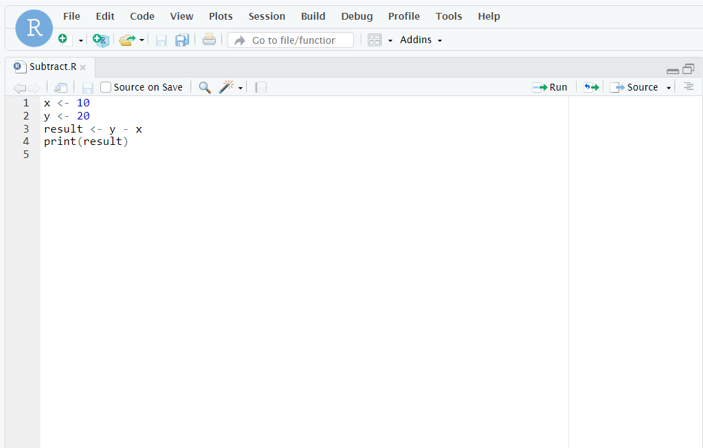
Task 2: Subtract x from y. Store in variable result and print the output.
任务 2:从 y 中减去 x,将结果存储在变量 result 中并打印输出。
Click here for solution
点击此处查看解决方案
x <- 10
y <- 20
result <- y - x
print(result)
Summary 摘要
In this lab, you have been introduced to RStudio. You have practiced how to write and run R code in both the console and in R script files. You used the Environment panel to review the R objects in your workspace.