Module 05 · RStudio & GitHub
Getting started with RStudio and Installing packagesRStudio 入门与软件包安装
In this lab, you will learn how to get started with RStudio and install packages.
Objectives of Exercise: 练习目标
After completing this lab, you will be able to:
完成此实验后,您将能够:
- Load the datasets 加载数据集
- Install libraries 安装库
Step 1 - Click the plus symbol on the top left and click R Script.
第一步 - 点击左上角的 plus 符号,然后点击 R Script 。
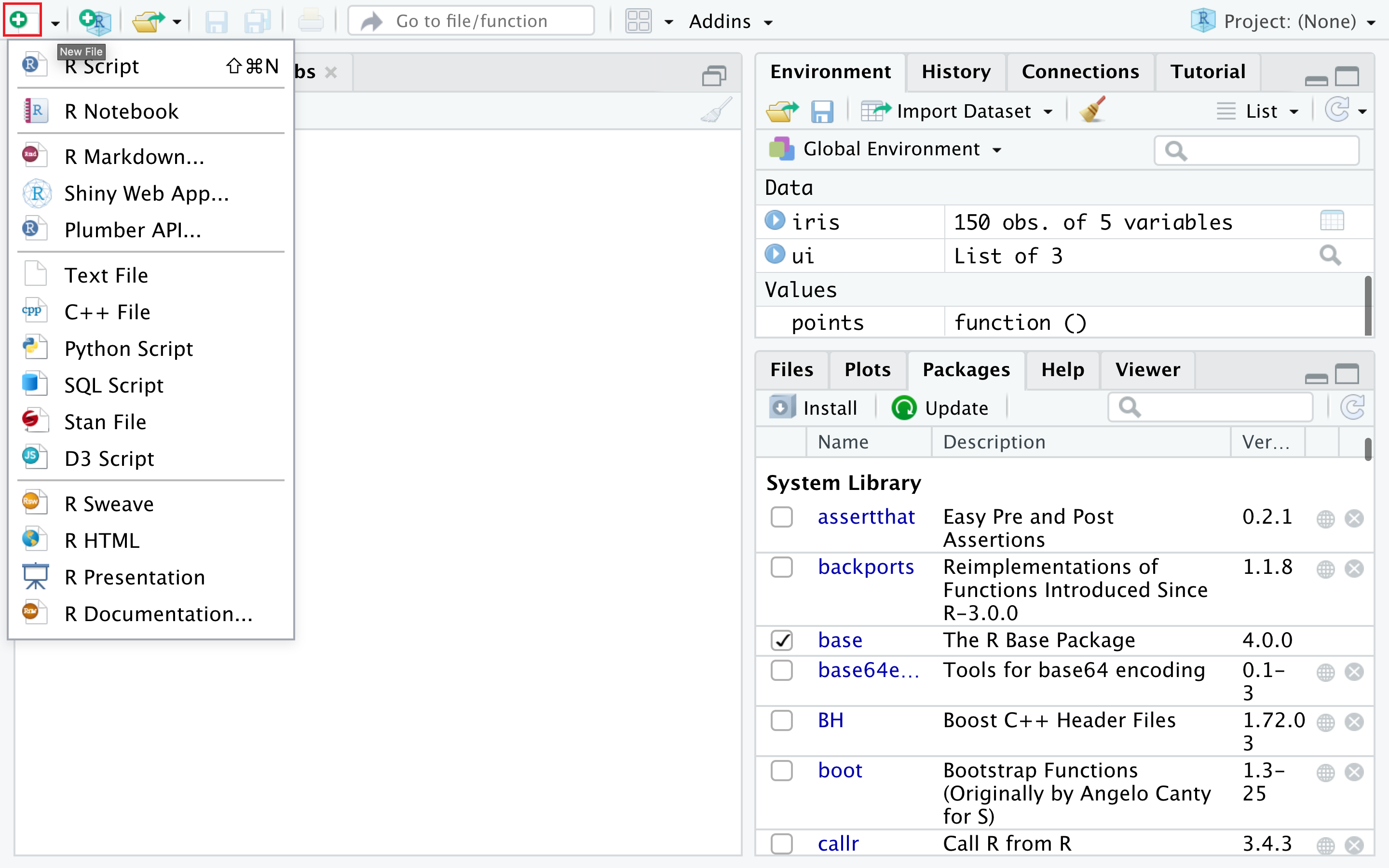
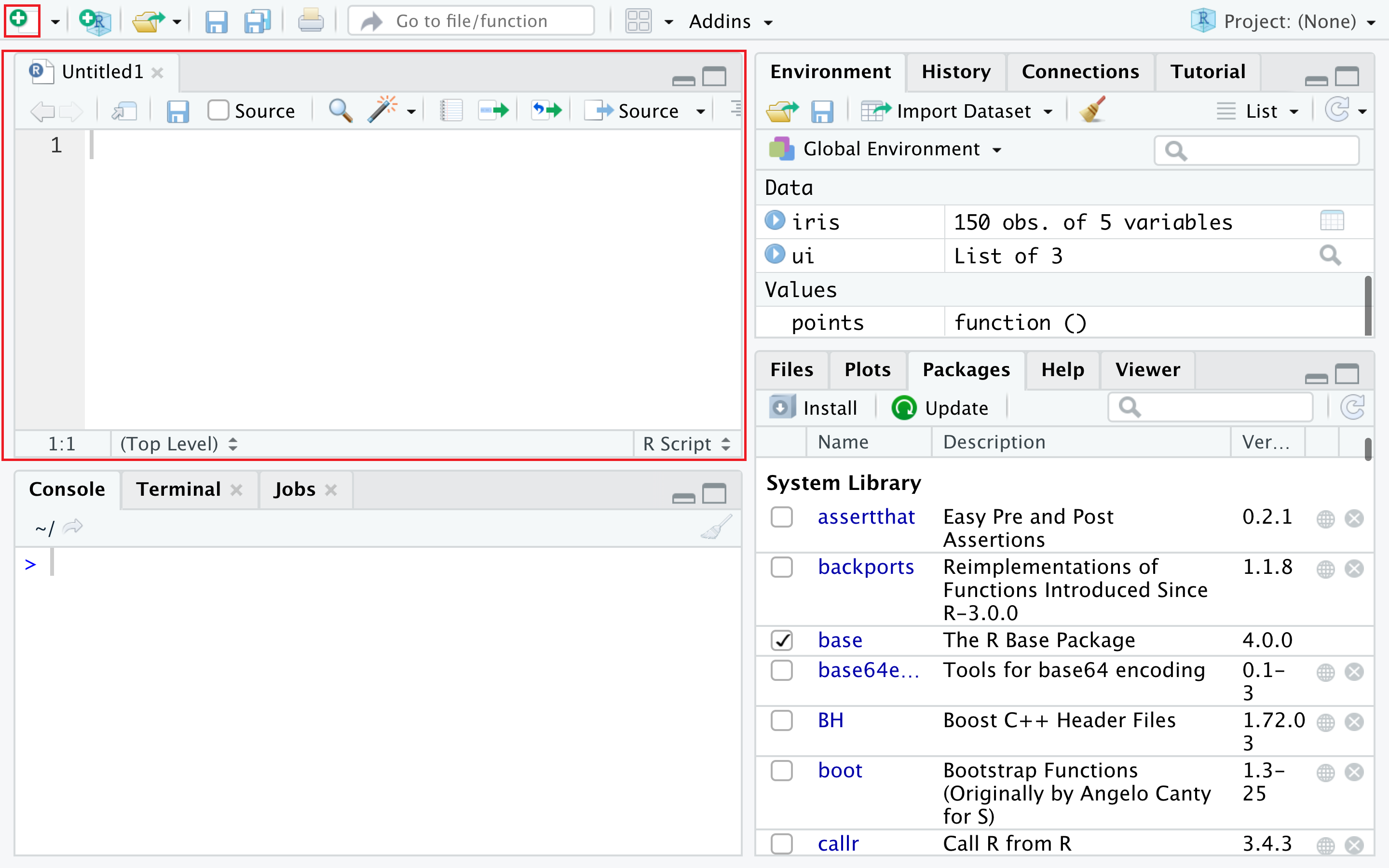
An untitled R Script panel opens. It would look like this.
一个无标题的 R 脚本面板打开。它看起来像这样。
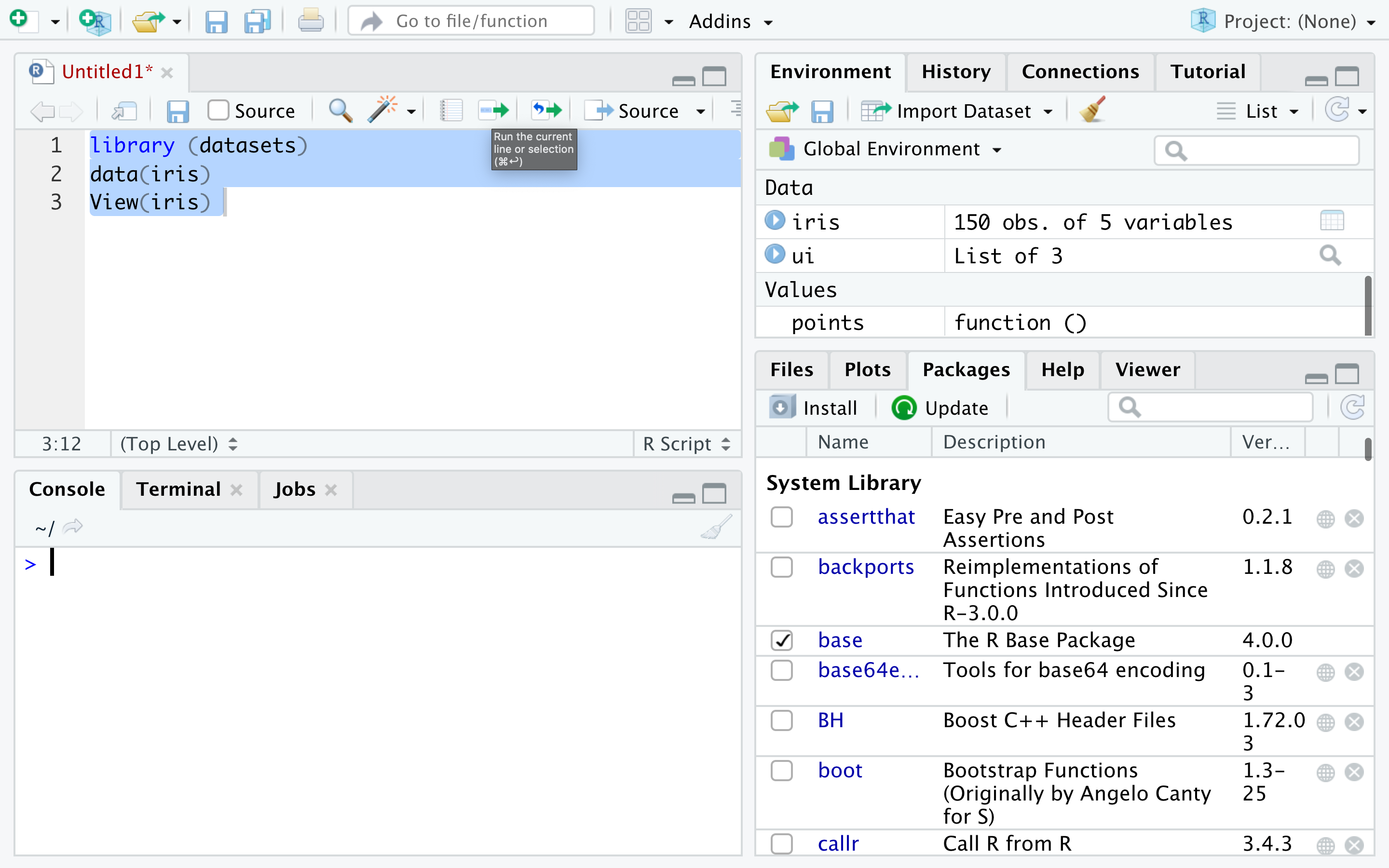
Step 2 - Now you load the iris dataset. Enter the following lines into the editor window that appears. Then select all the text, and click Run just above the editor window.
步骤 2 - 现在您加载iris数据集。将以下几行输入到出现的编辑器窗口中。然后选中所有文本,并点击编辑器窗口上方的 Run 。
library (datasets)
data(iris)
View(iris)
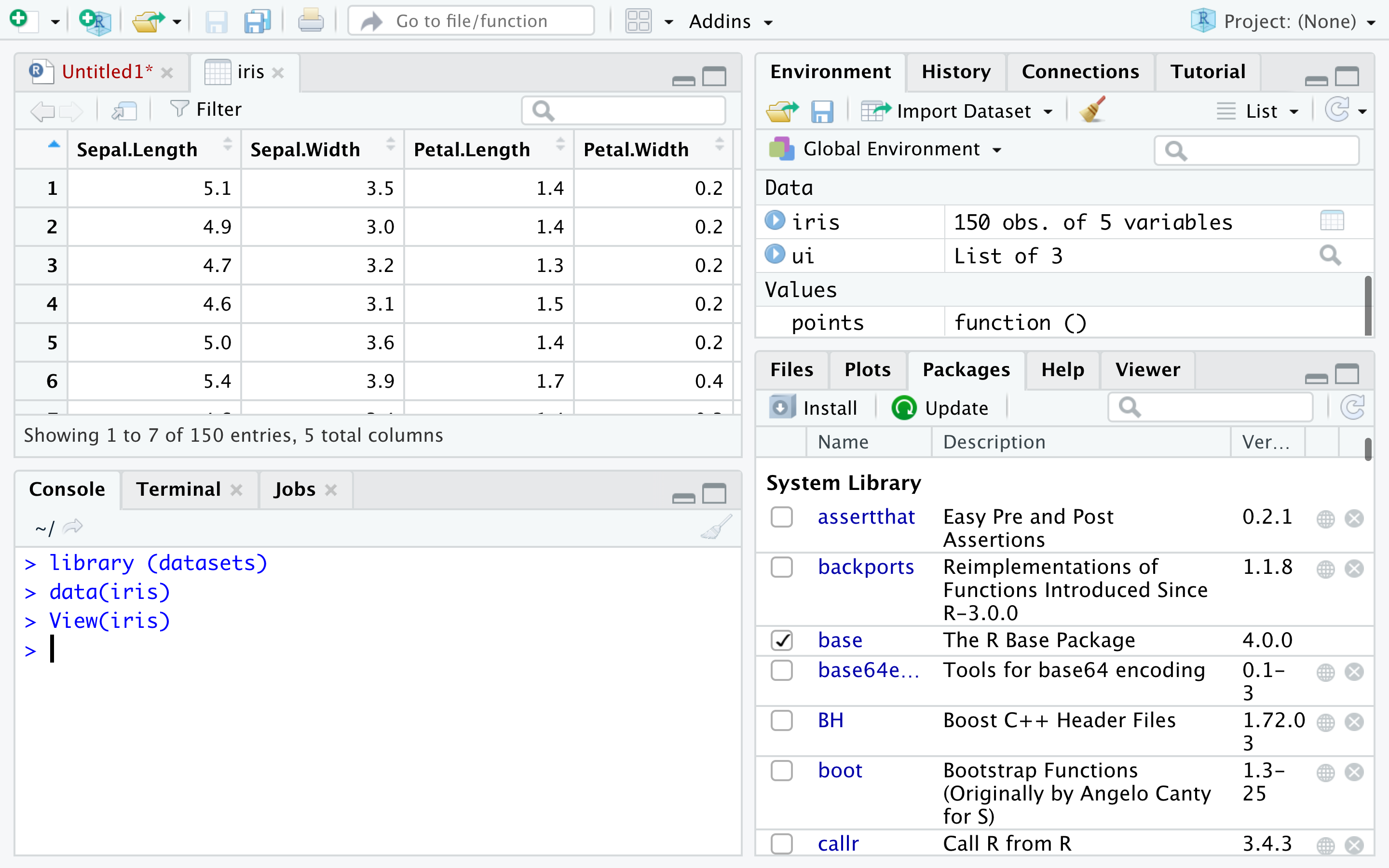
Step 3 - You are taken to the data view tab to inspect your dataset. The dataset contains five columns and the first four are floating point type while the last column is a label of data type string which contains the category value. You can see there are total 150 entries of which you can see the first 7.
步骤 3 - 您将被带到数据视图标签页以检查您的数据集。该数据集包含五列,前四列是浮点类型,而最后一列是字符串类型的数据标签,其中包含类别值。您可以看到总共有 150 条记录,其中可以看到前 7 条。
Step 4 - Now you can find the different species present in the data set. Enter the following command in the editor window and click Run.
步骤 4 - 现在您可以在数据集中找到不同的物种。在编辑器窗口中输入以下命令并点击 Run 。
unique(iris$Species)
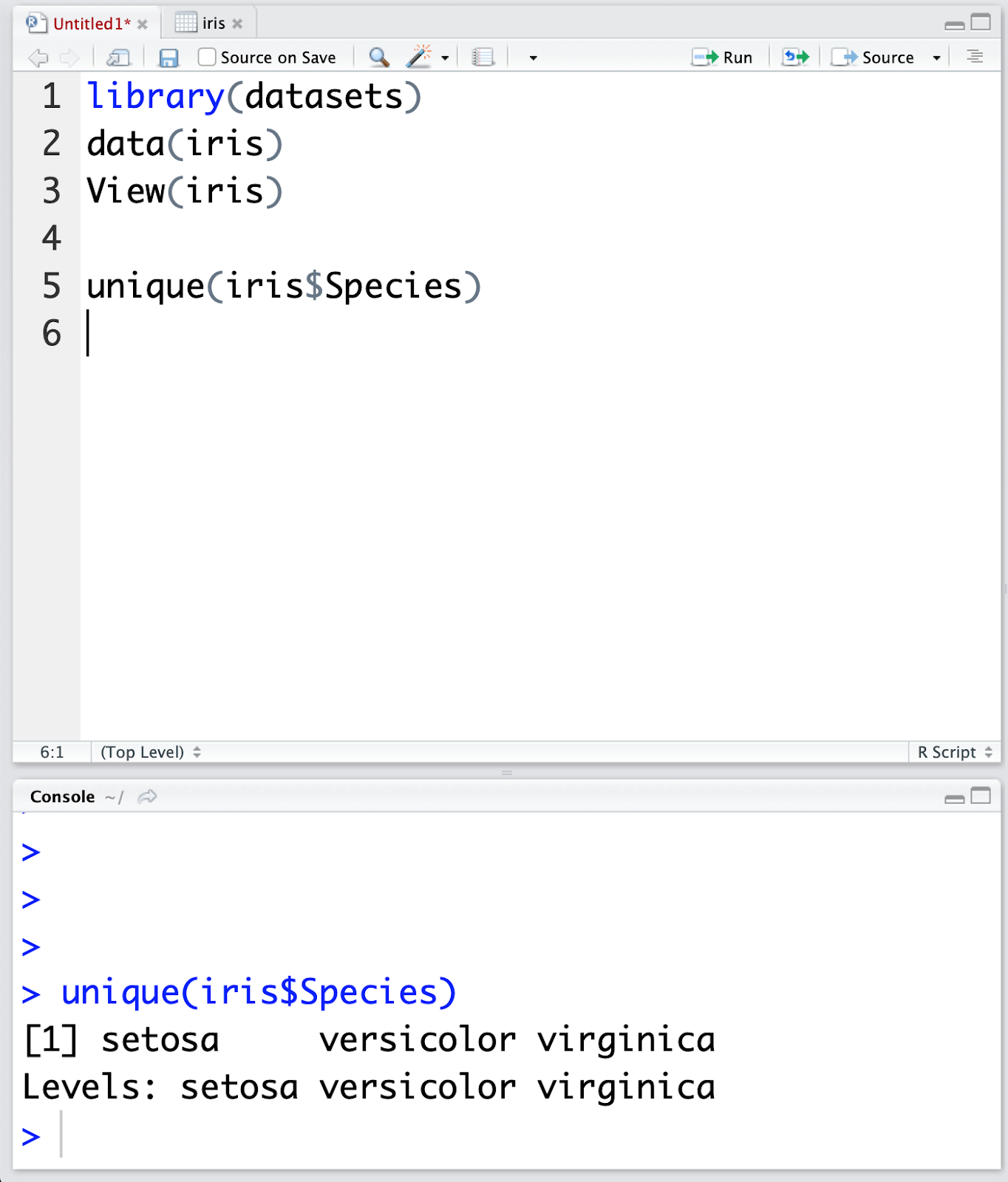
In the Console window at the bottom you can see the result of the executed command and know that there are only three different species present in the dataset.
在底部控制台窗口中,您可以看到执行命令的结果,并知道数据集中只有三种不同的物种。
This concludes the lab; I hope you enjoyed it!
本次实验到此结束;希望您喜欢!