Module 06 · Final Project and Submission
Final Assignment Instructions: Create and Share Your Jupyter Notebook期末作业说明:创建与分享 Jupyter Notebook
Estimated Time: 30 mins 预计时间:30 分钟
Objective 目标
In this final assignment, you will:
在这个最终作业中,你将:
- Create a Jupyter Notebook
创建一个 Jupyter Notebook - Insert code and markdown cells
插入代码和 Markdown 单元格 - Share your notebook through GitHub
通过 GitHub 分享你的笔记本
Instructions 说明
Note - Screenshots 注意 - 截图
Throughout this lab, you will be prompted to take screenshots and save them on your device. You will need these screenshots to upload them as your submission for peer review at the end of this course. You can use various free screengrabbing tools or your operating system's shortcut keys to do this (for example, Alt+PrintScreen in Windows and Shift+Command+3 for Mac).
在本实验中,你将被提示进行截图并保存在你的设备上。你需要在课程结束时将这些截图作为你的提交内容进行同行评审。你可以使用各种免费的屏幕截图工具或你的操作系统的快捷键来完成这项操作(例如,Windows 中的 Alt+PrintScreen 和 Mac 中的 Shift+Command+3)。
Note 1 : Images can be saved with either the .jpg or .png extension.
注意 1:图像可以保存为 .jpg 或 .png 扩展名。
Note 2: It's recommended to take a screenshot covering the entire content, from the question header to the final output. For markdown cells, capturing only the output is sufficient, there's no need to include the code itself.
注释 2:建议截取一个包含全部内容的屏幕截图,从问题标题到最终输出。对于 markdown 单元,只需捕获输出即可,无需包含代码本身。
Exercise 1: Create a Jupyter Notebook
练习 1:创建一个 Jupyter Notebook
Create a new Jupyter notebook called DataScienceEcosystem.ipynb
创建一个名为DataScienceEcosystem.ipynb的新 Jupyter 笔记本
Note: The next item in the course will launch JupyterLite with an empty notebook with this name that you can use to complete rest of the Exercises. You can also use any other Jupyter notebook environment (e.g. Anaconda) that you prefer to complete the assignment.
注释:课程中的下一项将启动 JupyterLite,并使用此名称创建一个空笔记本,供您完成剩余的练习。您也可以使用任何其他您喜欢的 Jupyter 笔记本环境(e.g. Anaconda)来完成作业。
Exercise 2: Create markdown cell with title of the notebook
练习 2:创建一个带有笔记本标题的 Markdown 单元格
Create a markdown cell with the title Data Science Tools and Ecosystem using H1 style heading.
创建一个使用 H1 样式标题的 Data Science Tools and Ecosystem Markdown 单元格。
Take a screenshot of the markdown cell and name it as 2-title.png
对 Markdown 单元格进行截图,并将其命名为 2-title.png


Exercise 3 - Create a markdown cell for an introduction
练习 3 - 创建一个用于介绍的 Markdown 单元格
Write an introductory sentence about the notebook such as the follows:
为笔记本撰写一个引言句子,例如:
In this notebook, Data Science Tools and Ecosystem are summarized.
Take a screenshot of the markdown cell and name it as 3-intro.png
对 markdown 单元进行截图并命名为 3-intro.png

Exercise 4 - Create a markdown cell to list data science languages
练习 4 - 创建一个 markdown 单元来列出数据科学语言
Start the cell with an overview line such as:
以一个概述行为开头,例如:
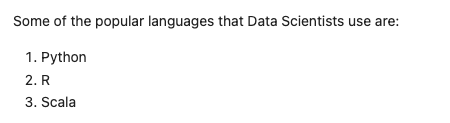
Some of the popular languages that Data Scientists use are:
Then create an ordered list (i.e. numbered) listing 3 (or more) commonly used languages for data science.
然后创建一个 ordered list (即编号的)列表,列出 3 种(或更多)常用的数据科学语言。
Take a screenshot of the markdown cell and name it as 4-dslanguages.png
对 markdown 单元格进行截图,并将其命名为 4-dslanguages.png。

Exercise 5 - Create a markdown cell to list data science libraries
练习 5 - 创建一个 markdown 单元格来列出数据科学库
Add an overview line to the cell like:
在单元格中添加一个概述行,例如:
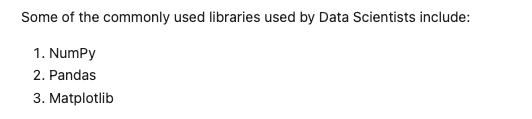
Some of the commonly used libraries used by Data Scientists include:
Below this line add an ordered list listing 3 (or more) commonly used libraries in data science.
在此线下添加一个 ordered list 列表,列出 3 个(或更多)常用数据科学库。
Take a screenshot of the markdown cell and name it as 5-dslibraries.png
对 markdown 单元格进行截图,并将其命名为 5-dslibraries.png

Exercise 6 - Create a markdown cell with a table of Data Science tools
练习 6 - 创建一个包含数据科学工具表的 markdown 单元格
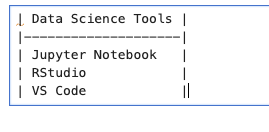
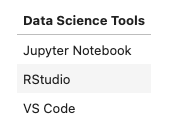
Create a single column table in this cell with the first row containing the header Data Science Tools. The subsequent three rows in the table should indicate three development environment open source tools used in data science.
在此单元格中创建一个单列表格,第一行包含标题 Data Science Tools 。表格中的后三行应指示在数据科学中使用的三个开发环境开源工具。
Take a screenshot of the markdown cell and name it as 6-dstools.png
截取 markdown 单元的屏幕截图,并将其命名为 6-dstools.png
Hint: Refer to Lab: Using Markdowns in Jupyter Notebooks to create a table.
提示:参考实验:在 Jupyter Notebook 中使用 Markdown 创建表格。
Exercise 7 - Create a markdown cell introducing arithmetic expression examples
练习 7 - 创建一个 markdown 单元,介绍算术表达式示例
Add a line in this cell with H3 style heading with text like:
在此单元中添加一行,使用 H3 样式标题,文本内容如:
Below are a few examples of evaluating arithmetic expressions in Python.
Take a screenshot of the markdown cell and name it as 7-introarithmetic.png
对 markdown 单元进行截图并命名为 7-introarithmetic.png


Exercise 8 - Create a code cell to multiply and add numbers
练习 8 - 创建一个代码单元用于乘法和加法运算
In this code cell evaluate the expression (3*4)+5.
在这个代码单元中计算表达式 (3*4)+5 。
Insert a comment line before the expression to explain the operation e.g. This a simple arithmetic expression to mutiply then add integers.
在表达式前插入一条注释行以解释操作 e.g。 This a simple arithmetic expression to mutiply then add integers。
Then execute the cell to ensure the expression returns the expected output of 17.
然后执行该单元格以确保表达式返回预期的 17 输出。
Take a screenshot of the code cell with output and name it as 8-multiplyandaddintegers.png
对包含输出的代码单元格进行截图,并将其命名为 8-multiplyandaddintegers.png。

Exercise 9 - Create a code cell to convert minutes to hours
练习 9 - 创建一个将分钟转换为小时的代码单元格
In this code cell write an expression that converts 200 minutes into hours.
在此代码单元格中编写一个表达式,将 200 minutes 转换为 hours 。
Insert a comment line before the expression to explain the operation e.g. This will convert 200 minutes to hours by diving by 60.
在表达式前插入注释行以解释操作 e.g。 This will convert 200 minutes to hours by diving by 60。
Run the cell to evaluate the expression.
运行单元格以计算表达式。
Take a screenshot of the code cell with output and name it as 9-hourstominutes.png
对包含输出的代码单元格进行截图,并将其命名为 9-hourstominutes.png

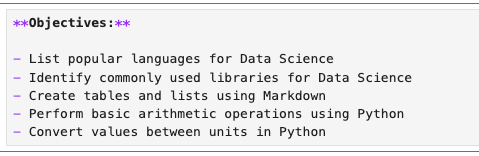
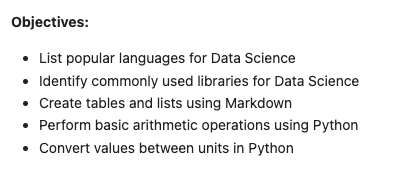
Exercise 10 - Insert a markdown cell to list Objectives
练习 10 - 插入一个 markdown 单元格来列出目标。
Below the introduction cell created in Exercise 3, insert a new markdown cell to list the objectives that this notebook covered (i.e. some of the key takeaways from the course). In this new cell start with an introductory line titled: Objectives: in bold font. Then using an unordered list (bullets) indicate 3 to 5 items covered in this notebook, such as List popular languages for Data Science.
在练习 3 中创建的介绍单元格下方,插入一个新的 Markdown 单元格,列出本笔记本涵盖的目标(i.e,课程中的一些关键收获)。在这个新单元格中,以粗体字开始标题: Objectives: 。然后使用 unordered list (项目符号)列出本笔记本涵盖的 3 到 5 个项目,例如 List popular languages for Data Science 。
Take a screenshot of the markdown cell and name it as 10-objectives.png
对 Markdown 单元格进行截图,并将其命名为 10-objectives.png
Exercise 11 - Create a markdown cell to indicate the Author's name
练习 11 - 创建一个 Markdown 单元格来标明作者姓名
In this markdown cell include the following text Author in H2 style heading. Include your name as regular text below the word Author.
在这个 Markdown 单元格中包含以下文本 Author ,使用 H2 style heading 。在单词 Author 下方以普通文本形式包含你的 name 。
Take a screenshot of the markdown cell and name it as 11-authordetails.png
对 Markdown 单元格进行截图,并将其命名为 11-authordetails.png
Note: Save and download the notebook.
注意:保存并下载笔记本。


Exercise 12 - Share your notebook through GitHub
练习 12 - 通过 GitHub 分享你的笔记本
Upload your notebook to a public respository on GitHub.
将你的笔记本上传到 GitHub 上的公共存储库。
Note : Please keep the GitHub repo link of the notebook handy.
注意:请准备好笔记本的 GitHub 仓库链接。
You will need to submit this link as a part of the assignment evaluation.
您需要将此链接作为作业评估的一部分提交。
Hint: Refer to Lab: Working with files in Jupyter Notebooks to download the notebook from SN Labs.
提示:参考实验:在 Jupyter Notebook 中处理文件,从SN实验室下载笔记本。
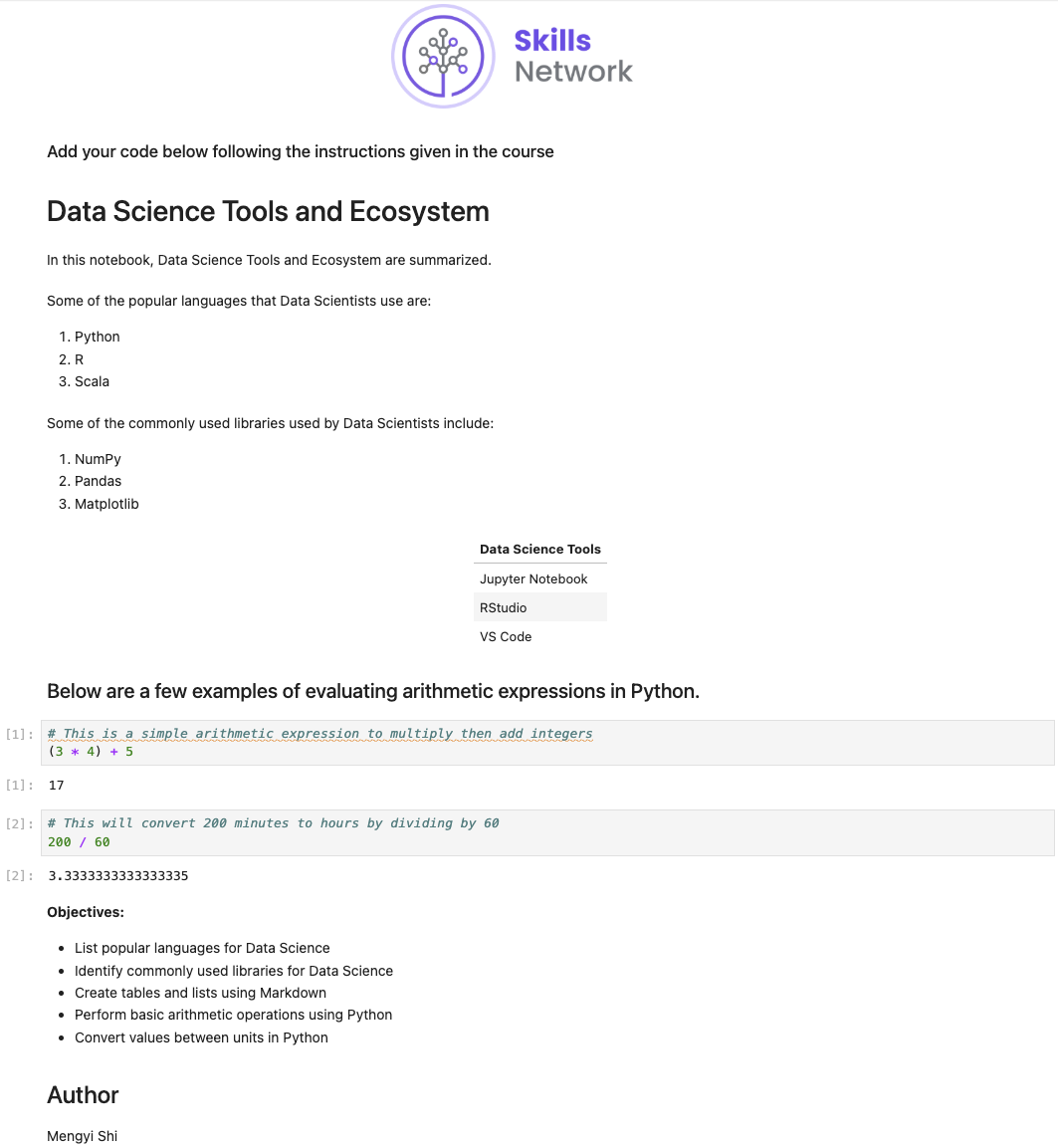
Exercise 13 - Take a screenshot of the first page of the notebook and save it as 1-notebook.png
练习 13 - 对笔记本的第一页进行截图并保存为 1-notebook.png
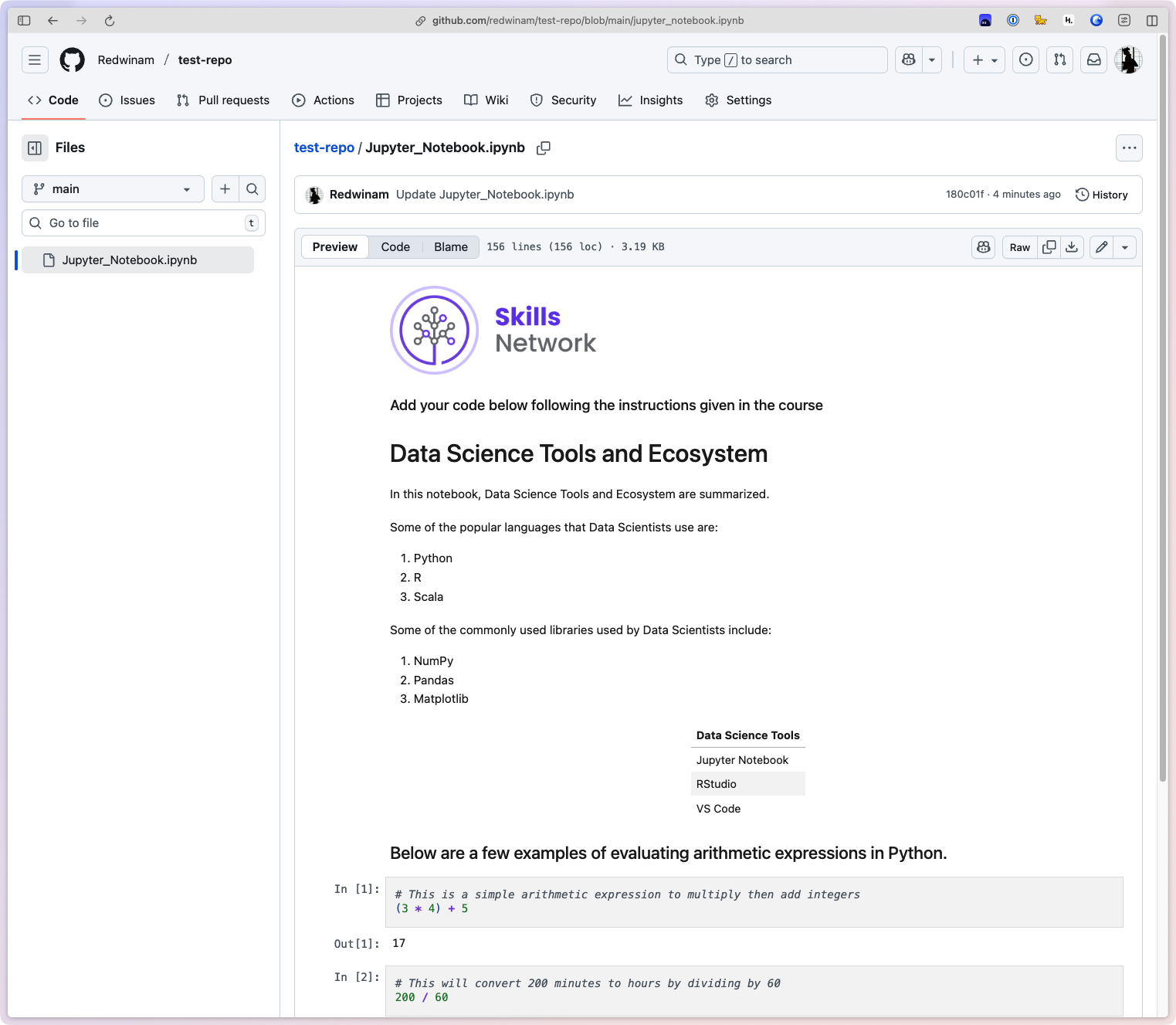
https://github.com/Redwinam/test-repo/blob/main/Jupyter_Notebook.ipynb
Refer to Hands-on Lab: Getting Started with GitHub to upload the downloaded notebook to GitHub.
参考实践实验室:入门 GitHub 将下载的笔记本上传到 GitHub。
Congratulations on completing this project. In a subsequent item in the course you will submit a link to your notebook on GitHub and evaluate your peers.
恭喜您完成此项目。在课程的后续项目中,您将提交 GitHub 上笔记本的链接并评估您的同行。
📎 Jupyter_Notebook-47c2a5eb-20fe-4c85-ba9d-e3c5ad930b71.ipynb